Custom Provider
In addition to the rich built-in mainstream AI models, 302 AI Studio also supports flexible model extension capabilities. Through the Custom AI Provider feature, you can easily integrate any AI model you need.
Configuring a Custom Provider
With just a few simple steps, you can add your custom AI provider to 302 AI Studio:
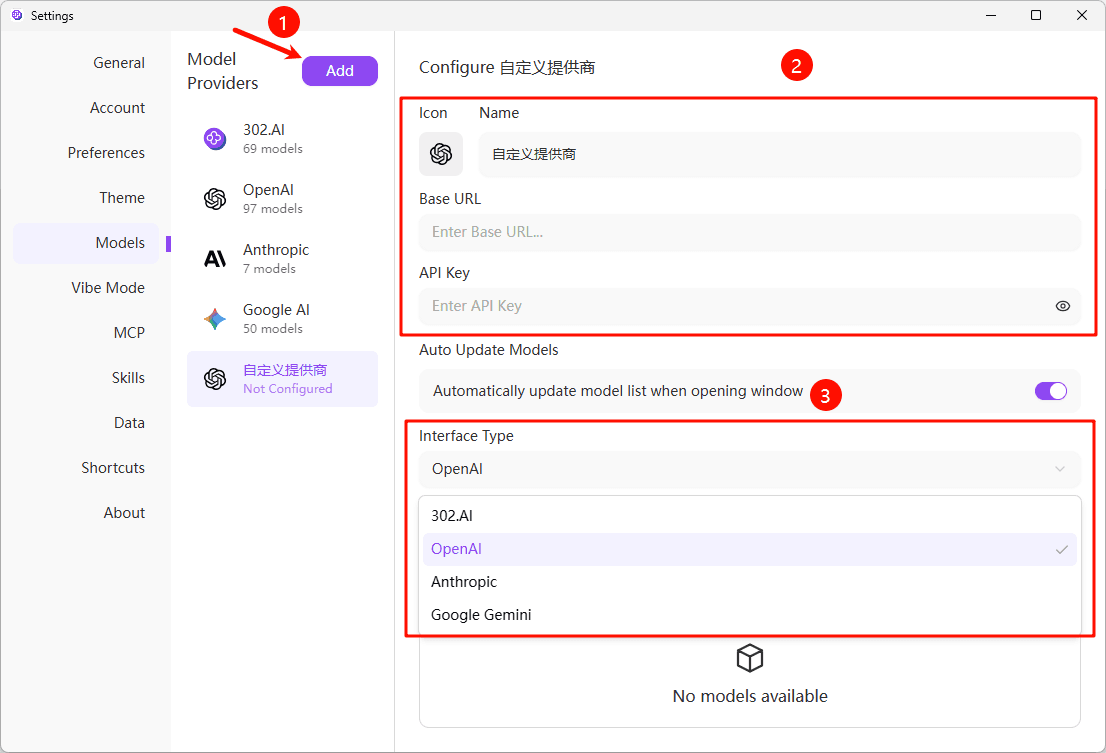
- Open Settings: In the upper right corner of the 302 AI Studio interface, click "Settings" (gear icon).
- Navigate to Model Services: In the settings page, select the "Models" tab.
- Add Provider: On the "Models" page, you will see a list of existing providers. Click the "Add" button at the top of the list.
- Fill in Information: On the custom provider page, fill in the following information to configure:
- Provider Name: Give your custom provider an easily identifiable name (e.g., MyCustomOpenAI)
- Provider Type: Select your provider type from the dropdown list. Currently supported:
- 302.AI
- OpenAI
- Anthropic
- Google Gemini
- API Key:
- Enter the API key (API Key) provided by your AI service provider.
- API Address:
- Enter the API address (Base URL) provided by your AI service provider.
- Make sure to refer to the official documentation provided by your AI service provider to get the correct API address.
- Model Management:
- Click the "Fetch Models" button, and 302 AI Studio will automatically retrieve the list of available models from this provider. If fetching fails, you can click the "Add Model" button to manually add models.
- If you are unsure about the specific model names, please refer to the official documentation provided by your AI service provider.
- Save Configuration: After filling in the information, 302 AI Studio will automatically save your configuration.
Configuration complete! Now you can use models from the custom provider in conversations.