macOS Installation
302 AI Studio runs natively on macOS, supporting both Intel and Apple Silicon (M-series chips).
System Requirements
| Requirement | Details |
|---|---|
| Operating System | macOS 10.14 or later |
| Architecture | Intel (x64) / Apple Silicon (ARM64) |
| Memory | Minimum 4GB RAM (8GB or more recommended) |
| Storage | At least 500MB of free disk space |
Check Your Mac's Architecture
Before downloading, confirm which chip your Mac uses:
- Click the icon in the top-left corner of your screen
- Select "About This Mac"
- Look at the "Chip" or "Processor" field:
- If it shows Apple M1/M2/M3/M4 → Download the Apple Silicon version
- If it shows Intel → Download the Intel version
Architecture Mismatch
Make sure to download the version that matches your Mac's architecture. Using the wrong version may result in poor performance or the app failing to run.
Installation Steps
Download the Installer
Visit studio.302.ai and select the appropriate version for your Mac:
- Apple Silicon (M-series chips): Download the
arm64version - Intel chips: Download the
x64version
Open the DMG File
Double-click the downloaded .dmg file. An installation window will appear.
Drag to Applications
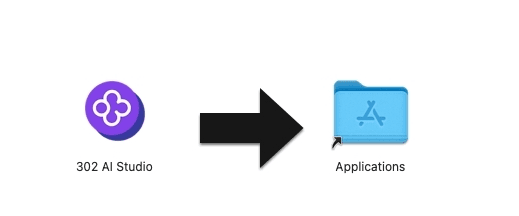
Drag the "302 AI Studio" icon onto the "Applications" folder icon and wait for the copy to complete.
First Launch
Open your Applications folder and double-click "302 AI Studio" to launch the app.
Security Prompt
On first launch, macOS may display a warning that the developer cannot be verified. Go to "System Settings" → "Privacy & Security" and click "Open Anyway."
Automatic Updates
302 AI Studio supports automatic updates. When a new version is available, you'll be prompted to download and install it.
Uninstallation
To uninstall:
- Open the Applications folder
- Drag "302 AI Studio" to the Trash
- Empty the Trash