Model Configuration
API Address Configuration
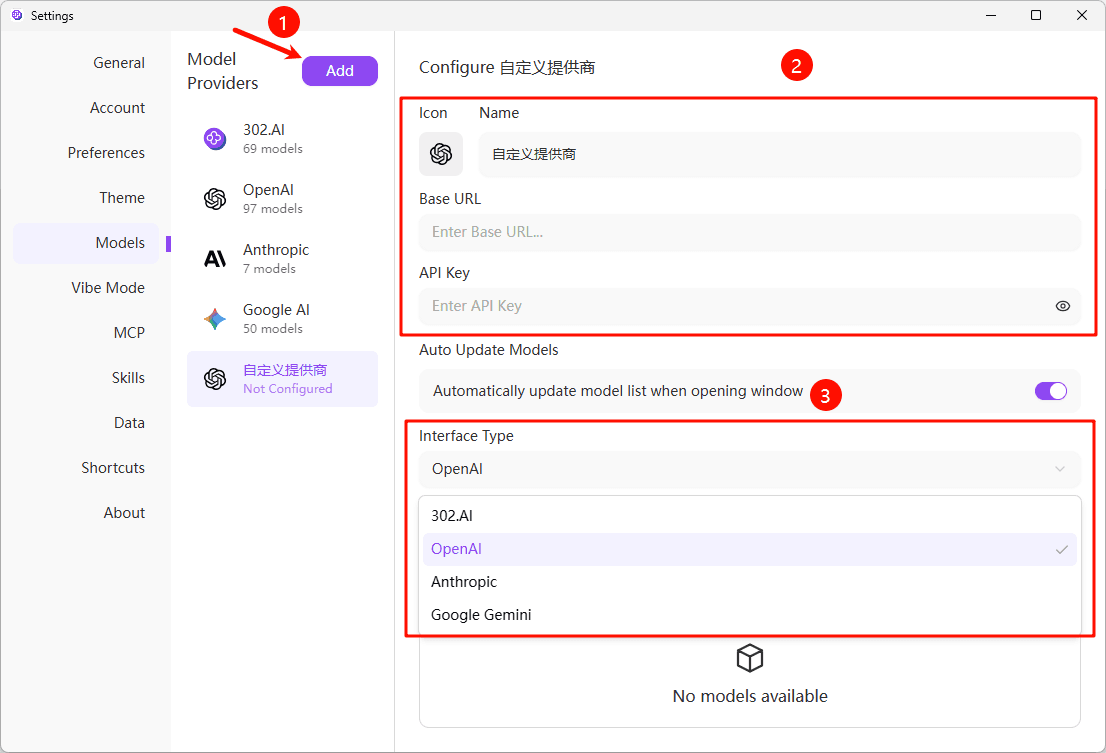
When configuring a model provider, you need to correctly fill in the API address (Base URL).
Base URL Format Guidelines
Different providers have different API address formats:
Standard Format
Most providers follow this format:
https://api.example.com/v1Common Provider Base URLs
- 302.AI:
https://api.302ai.com/v1 - OpenAI:
https://api.openai.com/v1 - Anthropic:
https://api.anthropic.com/v1 - Google Gemini:
https://generativelanguage.googleapis.com/v1
When filling in the Base URL, make sure to:
- Include the complete protocol (https://)
- Don't add extra slashes at the end
- Use the correct version number provided by the provider (e.g., /v1)
Custom API Address
If you're using a self-hosted service or proxy service, you can fill in a custom API address:
- Find the "Base URL" field in the provider configuration page
- Enter your custom API address
- Ensure the address is compatible with the provider's API format
Fetching Model List
After configuring the provider, you need to fetch the available model list.
Auto-Fetch Models
This is the recommended method, where the system automatically fetches the latest model list from the provider's API:
- In the provider configuration page, ensure Base URL and API Key are correctly filled in
- Click the "Fetch Models" button
- Wait for the system to fetch the model list from the provider
- After successful fetching, you'll see all available models
It's recommended to regularly click the "Fetch Models" button to ensure you're using the latest model list.
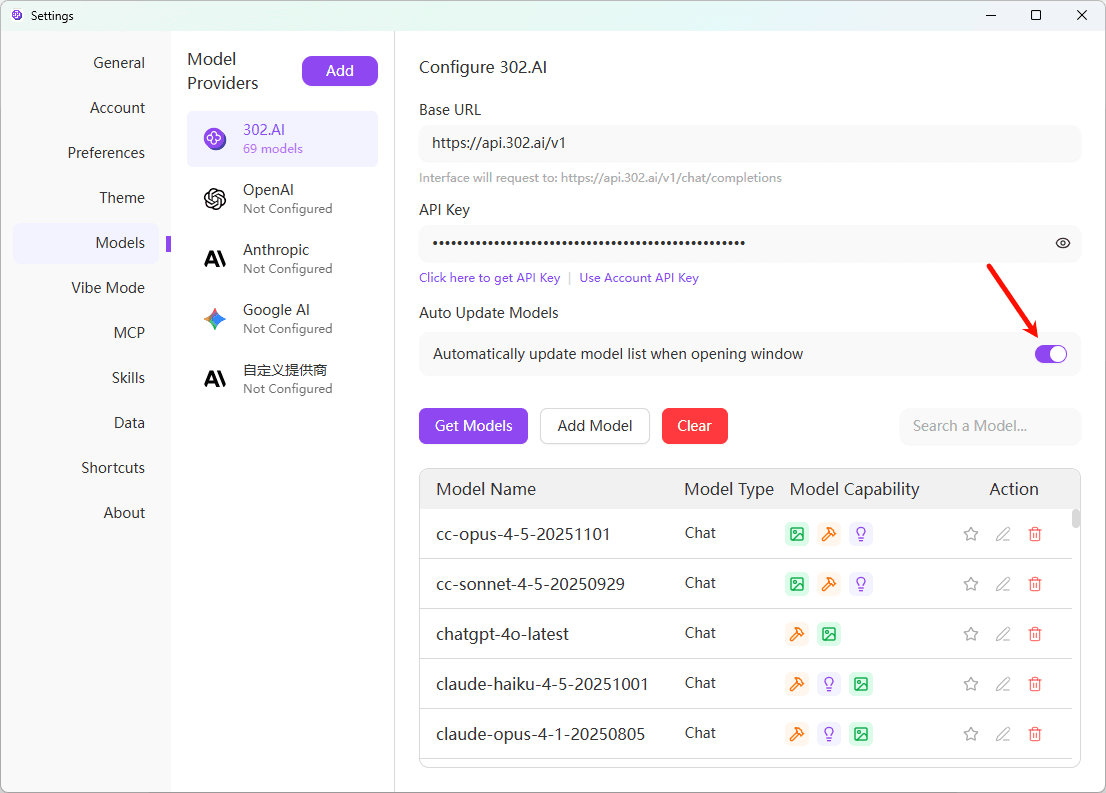
Auto-Update Model List
You can enable auto-update to have the system periodically fetch the latest models:
- In the provider configuration page, find the "Auto-update model list on window open" option
- Turn on this switch
- The system will automatically update the provider's model list each time the application window is opened
Adding Models
Manually Add Models
If the provider doesn't list certain models, or if auto-fetch fails, you can manually add them:
- In the provider configuration page, click the "Add Model" button
- Fill in the following information:
- Model ID: The unique identifier of the model (e.g.,
gpt-4-turbo) - Model Name: The name displayed in the interface (e.g.,
GPT-4 Turbo) - Model Description: Optional description
- Model Type: Select the model type (chat/embedding/image, etc.)
- Model ID: The unique identifier of the model (e.g.,
- Configure model capabilities (see below)
- Click the "Save" button
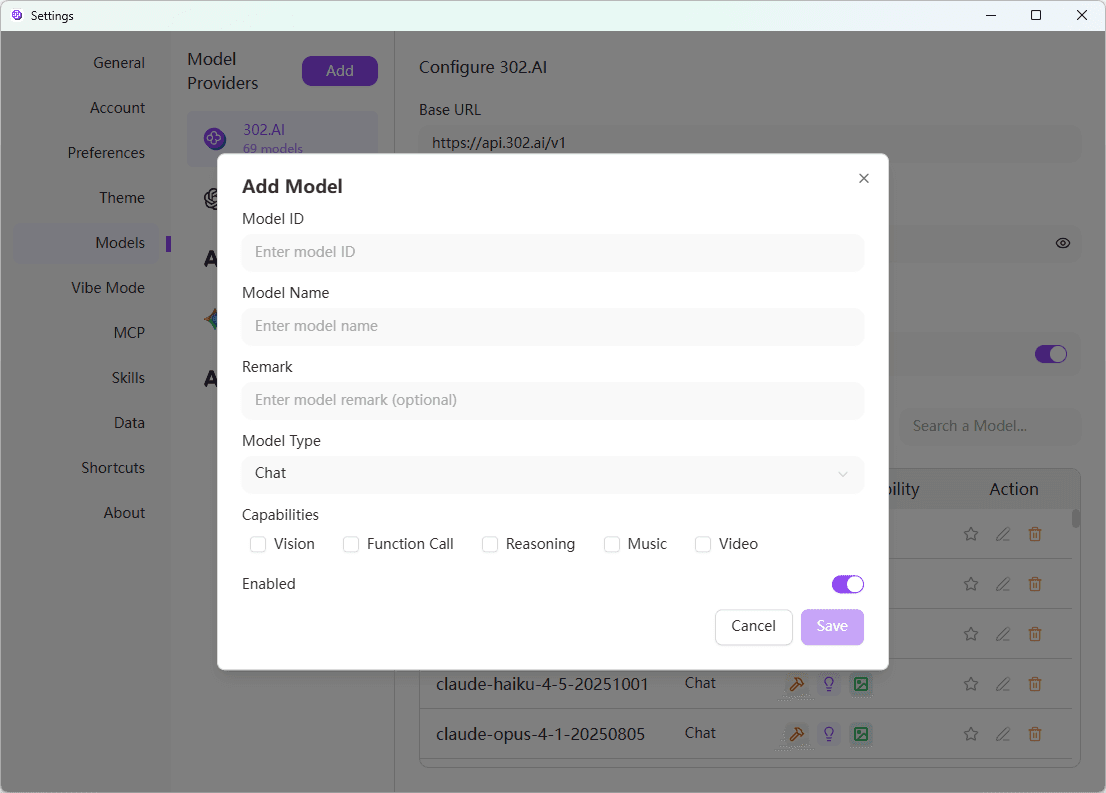
The Model ID must exactly match the model identifier in the provider's API, otherwise calls will fail.
Editing Models
For already added models, you can edit their configuration at any time.
Edit Model Information
- Find the model you want to edit in the model list
- Click the "Edit" icon on the right side of the model
- You can modify the following:
- Model ID: The unique identifier of the model
- Model Name: Display name
- Model Description: Description information
- Model Type: Model type (chat/embedding, etc.)
- Model Capabilities: Supported features
- Enable Status: Whether available in conversations
- Click "Save" after modifications
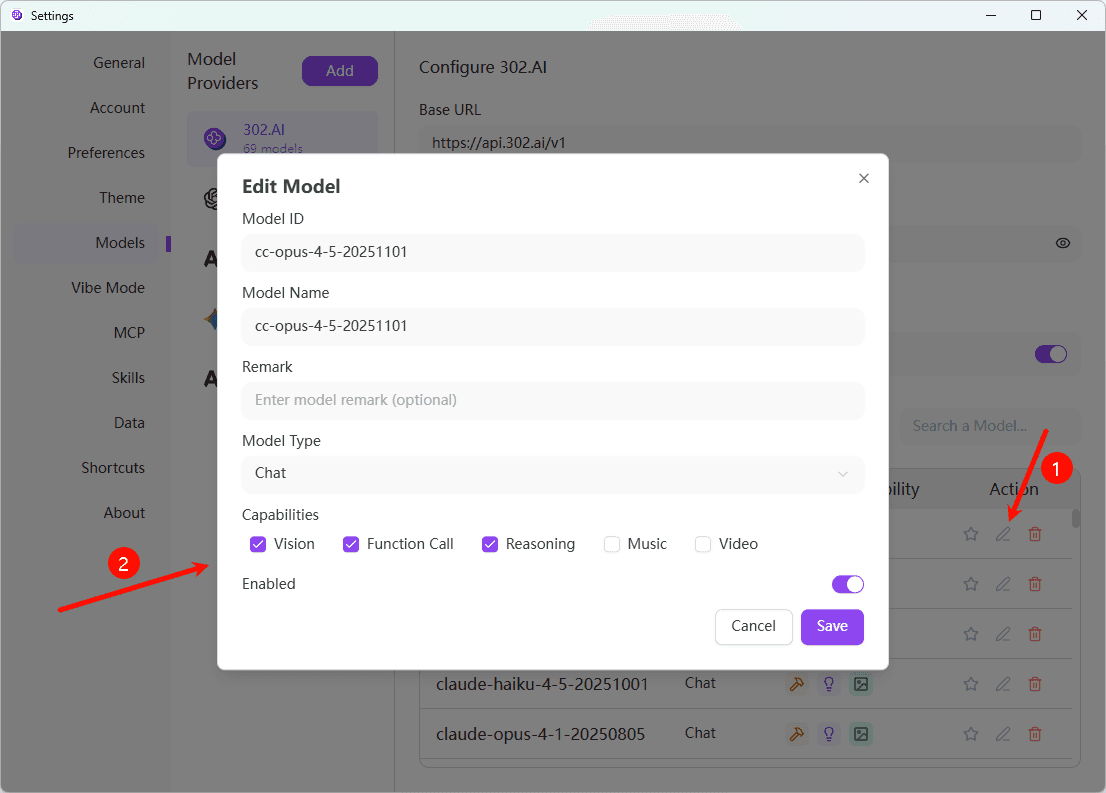
Model Capability Configuration
Each model has different capabilities. Correct configuration ensures proper functionality:
Vision Capability
If the model supports image input and understanding:
- Enable "Vision" capability
- Users can upload images in conversations
- The model can analyze and understand image content
Function Calling
If the model supports calling external functions and tools:
- Enable "Function Calling" capability
- The model can use predefined functions
- Supports more complex interaction scenarios
Reasoning Capability
If the model has enhanced reasoning capabilities:
- Enable "Reasoning" capability
- The model performs better on complex problems
- Suitable for tasks requiring logical analysis
Other Capabilities
- Music: Model supports music generation
- Video: Model supports video processing
Please configure according to the model's actual capabilities. Incorrect configuration may cause functionality issues.
Managing Models
Delete Models
If you no longer need a model:
- Find the model you want to delete in the model list
- Click the "Delete" icon on the right side of the model
- Confirm the deletion
Deleting a model doesn't affect the provider configuration. You can re-fetch or add models at any time.
Common Issues
If clicking "Fetch Models" fails, please check:
- Is the API Key correct - Confirm there are no input errors in the API Key
- Is the Base URL correct - Check if the API address format is correct
- Network connection - Ensure you can access the provider's API
- Account status - Confirm the account has sufficient balance and is not restricted
- API Key permissions - Confirm the API Key has permission to fetch the model list
Please check:
- Is the Model ID correct - Must exactly match the identifier in the provider's API
- Model capability configuration - Ensure correct capabilities are configured
- Provider support - Confirm the provider actually supports this model
- API Key permissions - Confirm the API Key has permission to use this model
You can find out through:
- Check the provider's official documentation
- View the provider's model list page
- Use the auto-fetch models feature, the system will automatically identify capabilities
- Reference capability configurations of other models in the same series
If the model list is too long, you can:
- Disable infrequently used models
- Delete unneeded models
- Use the search function to quickly find models