Data Settings
Overview
Data Settings provide comprehensive data management features, allowing you to backup, restore, and manage your application data to ensure data security and portability.
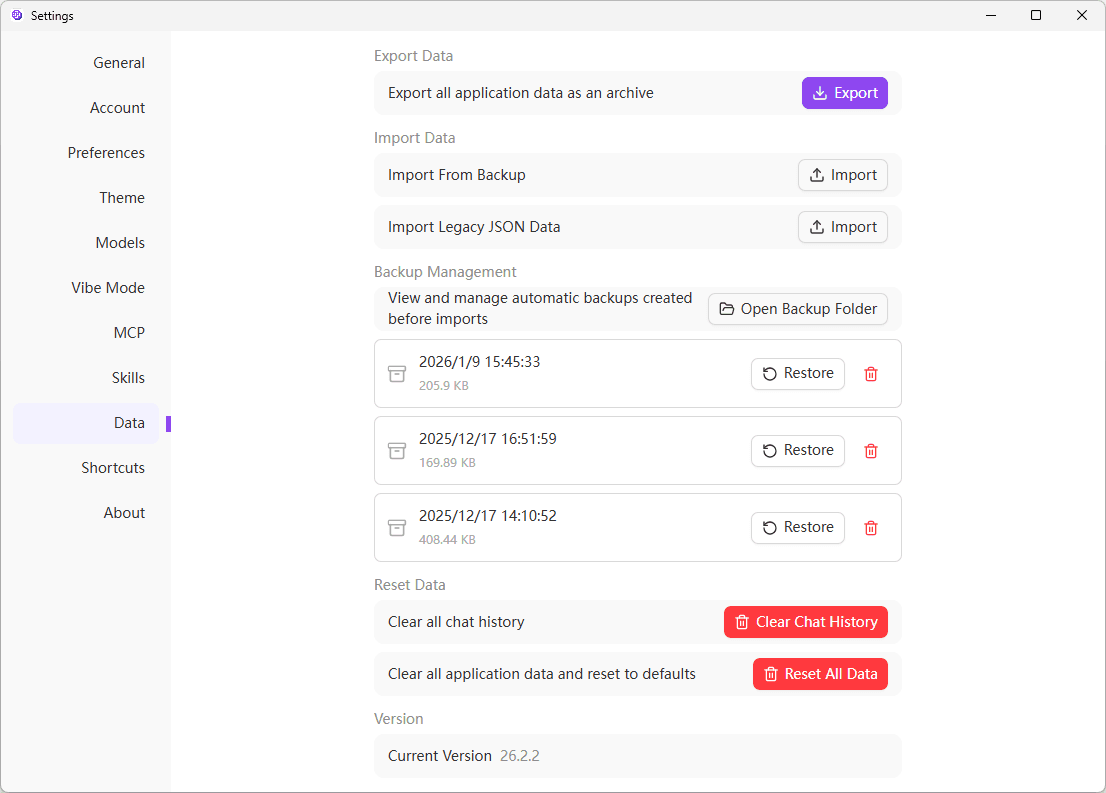
Export Data
You can export all application data (including conversations, settings, and configurations) as a compressed package.
Open Data Settings
Navigate to Settings → Data to access the data settings page.
Export Data
Click the "Export" button, and the system will generate a compressed package containing all application data.
Save File
Choose a save location. The exported data package will be named in the format 302ai-studio-backup-DATE (e.g., 302ai-studio-backup-2026-01-13.zip).
The exported data package contains all your conversations, settings, and configuration information. Please keep it safe.
Import Data
You can restore application data from a previously exported backup file.
Open Import Dialog
In the "Import Data" section, click the "Import" button.
Select Backup File
Choose a previously exported data package file from your local storage.
Confirm Import
The application will restore all data from the selected backup file. This operation will overwrite your current data.
Importing data will overwrite your current application data. Please make sure to backup your current data before importing.
Backup Management
The application automatically creates backups when starting. You can view and manage these automatically created backups.
View Backups
In the "Backup Management" section, you can see all automatically created backups, including:
- Backup creation time
- Backup file size
- Action buttons (Restore/Delete)
Restore from Backup
Select Backup
Find the backup you want to restore from the backup list.
Click Restore
Click the "Restore" button next to the backup.
Confirm Restore
The application will restore data from the selected backup.
Delete Backup
If you no longer need a backup, you can delete it by clicking the delete button next to it.
The application keeps the most recent backups. Older backups may be automatically cleaned up to save storage space.
Reset Data
Clear Conversation History
Clear all conversation records without affecting other settings and configurations.
Click Clear Conversation History
In the "Reset Data" section, click the "Clear Conversation History" button.
Confirm Action
Confirm that you want to clear all conversation history.
Reset All Data
Reset the application to its initial state, clearing all data including conversations, settings, and configurations.
Click Reset Button
In the "Reset Data" section, click the "Reset All Application Data to System Initial State" button.
Confirm Reset
This operation will clear all data and cannot be undone. Please make sure to backup important data before proceeding.
Application Restart
After resetting, the application will restart and return to its initial state.
Resetting all application data is an irreversible operation. Please backup your data before performing this action.
Version Information
At the bottom of the settings page, you can view the current application version number.
Best Practices
Regular Backups
- Export data regularly to prevent data loss
- Keep multiple backup versions in different locations
- Verify backup file integrity after export
Data Migration
- Use JSON format when migrating between different versions
- Test in a safe environment before large-scale migration
- Keep a backup of the original data before migration
Storage Management
- Regularly clean up unnecessary backups to save storage space
- Keep at least one recent backup
- Pay attention to backup file size to avoid taking up too much disk space
Troubleshooting
- Check if the target location has write permissions
- Ensure sufficient disk space
- Try closing other applications and export again
- Verify the backup file is not corrupted
- Check if the file format is correct
- Ensure the backup file is compatible with the current version
- Check application permission settings
- Confirm sufficient disk space
- Check if the automatic backup feature is enabled
If you encounter any issues, please contact technical support and provide detailed error information.