Getting Started
Get 302 AI Studio up and running in just 3 minutes — download, install, configure, and start your AI journey.
Step 1: Download & Install
Choose the version that matches your operating system:
| Operating System | Architecture | Requirements | Guide |
|---|---|---|---|
| Windows | x64 | Windows 10 or later | View |
| macOS | Apple Silicon / Intel | macOS 10.14 or later | View |
| Linux | x64 | Ubuntu 18.04+ | View |
Download
Visit studio.302.ai to download the latest version. If you encounter any installation issues, refer to the detailed guides above for your platform.
System Requirements
- Memory: Minimum 4GB RAM (8GB or more recommended)
- Storage: At least 500MB of free disk space
- Network: Stable internet connection for AI services
Step 2: Sign In & Configure
One-Click Authorization
When you launch the app for the first time, click the "One-Click Sign In" button to log into your 302.AI account.
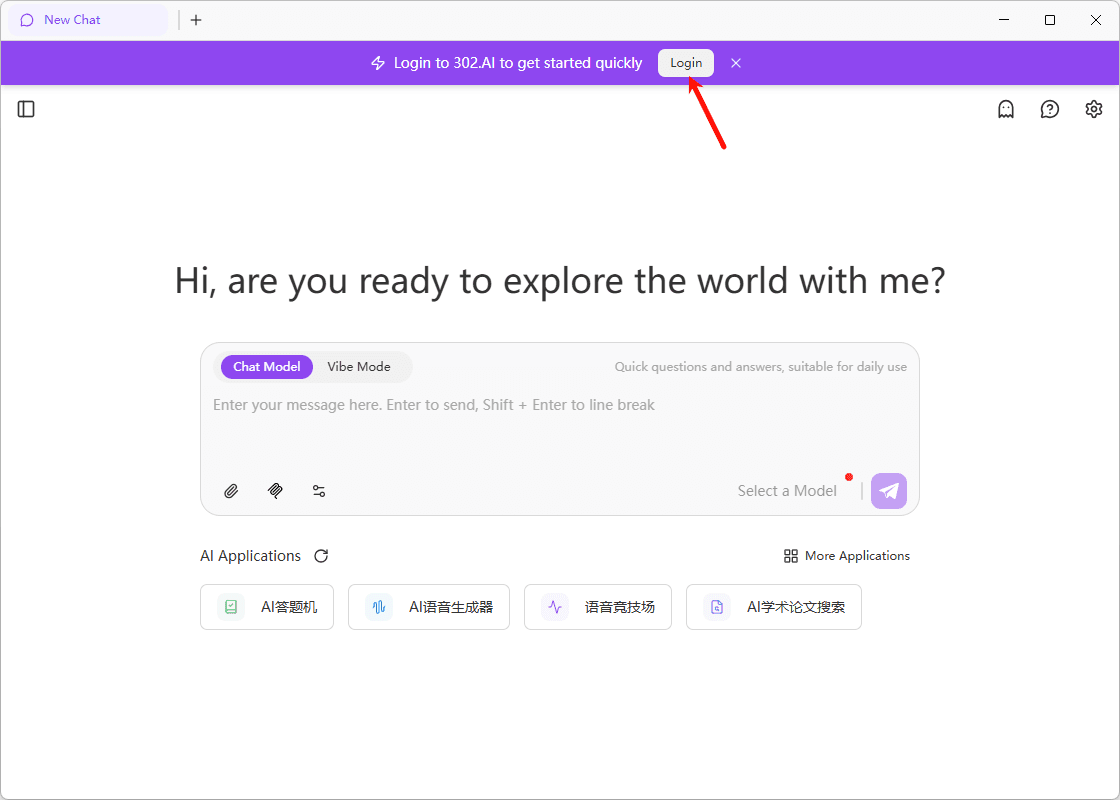
Don't have an account? Sign up for free at 302.ai.
Automatic API Key Binding
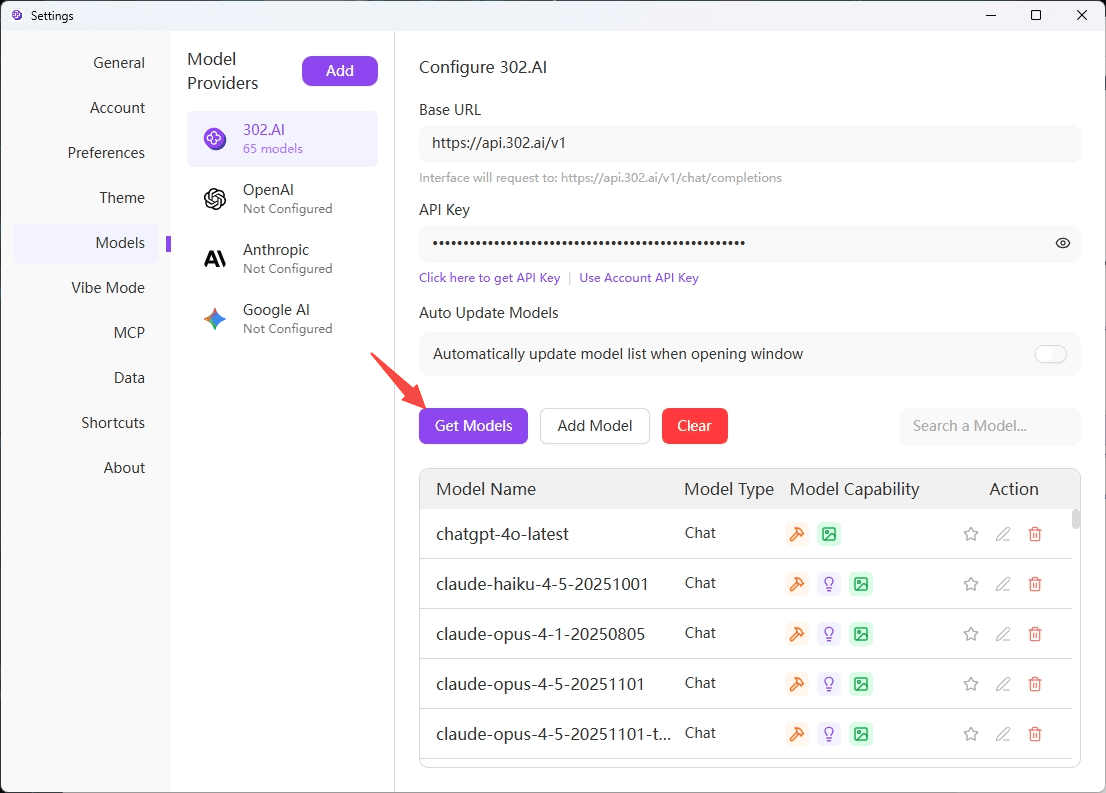
Once signed in, your API Key is automatically bound, and the system will automatically fetch the list of available models. To refresh manually, click the "Fetch Models" button.
Select a Model (Optional)
Click the model name button to the right of the input box to switch to a different model (e.g., GPT-5.2, Claude 4.5 Sonnet, Gemini 3 Pro, etc.).
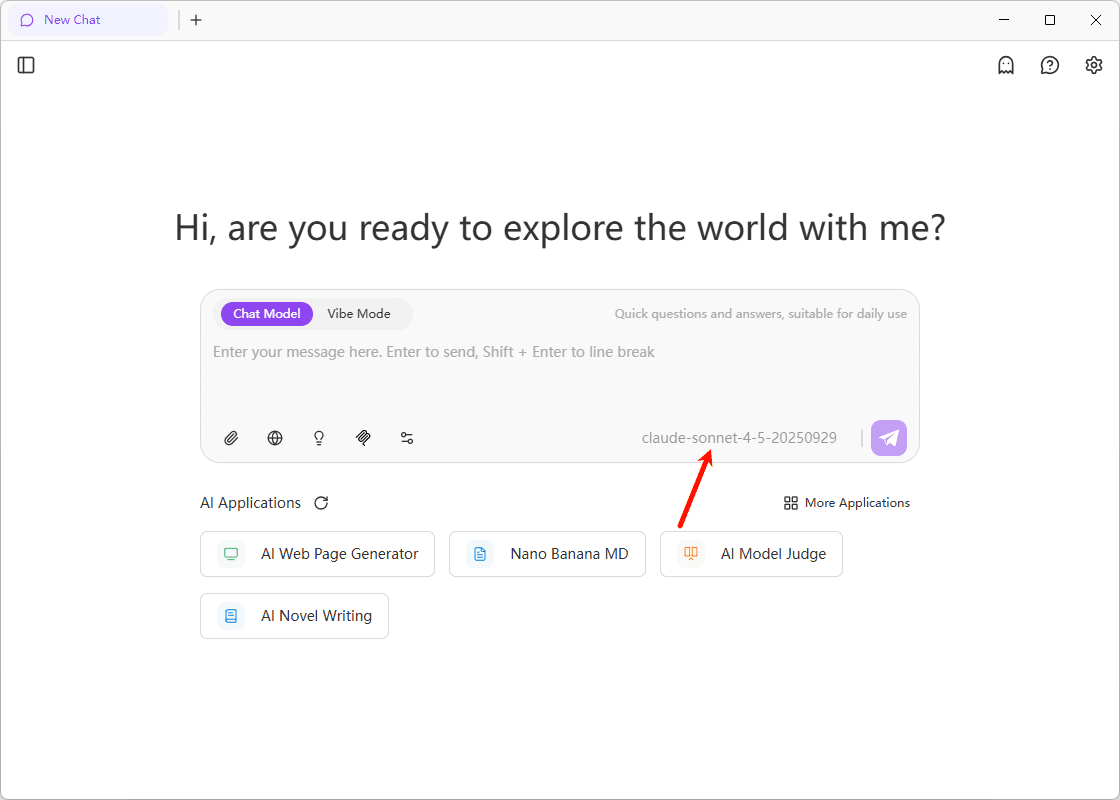
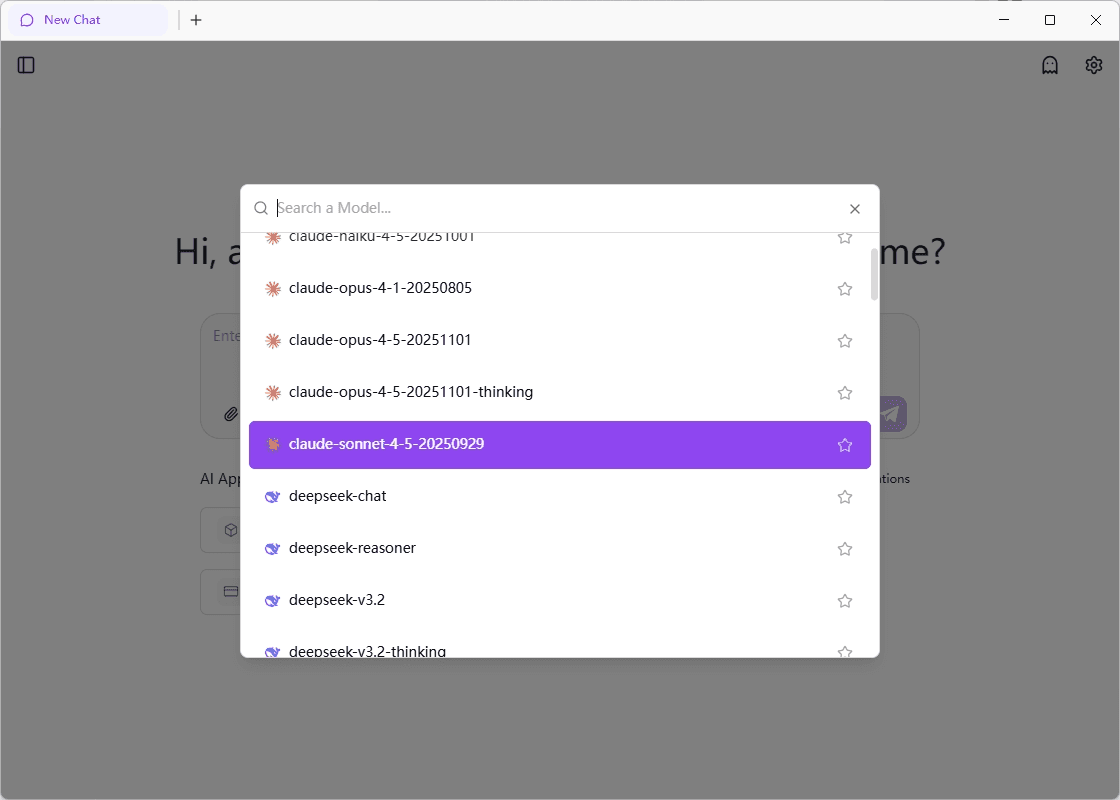
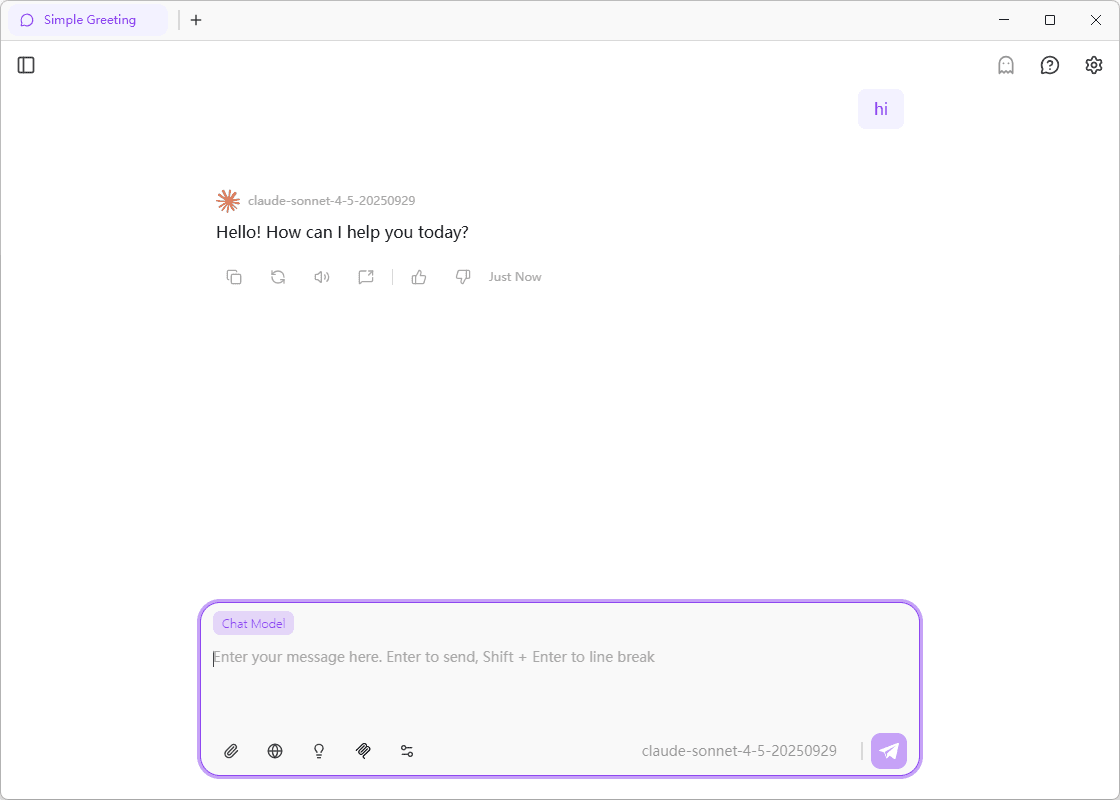
That's it! You've completed the basic setup and can now start using 302 AI Studio for AI-powered conversations.
FAQ
Make sure you have a stable internet connection and are using the latest version of the app. If the issue persists, try entering your API Key manually (found in Settings - Models page).
Log in to your 302.AI Dashboard and navigate to the "API Keys" section to view and manage your keys.
Click the "Fetch Models" button in Settings - Models page to manually refresh the model list. If it's still empty, verify that your API Key is correctly bound.
302 AI Studio uses a pay-as-you-go pricing model. Visit the 302.AI Charge Page to add credits directly, or check the Pricing page for detailed pricing and billing information.