Customization
Overview
Customization settings allow you to personalize the application's appearance through custom CSS styles, making your experience more aligned with your personal preferences.
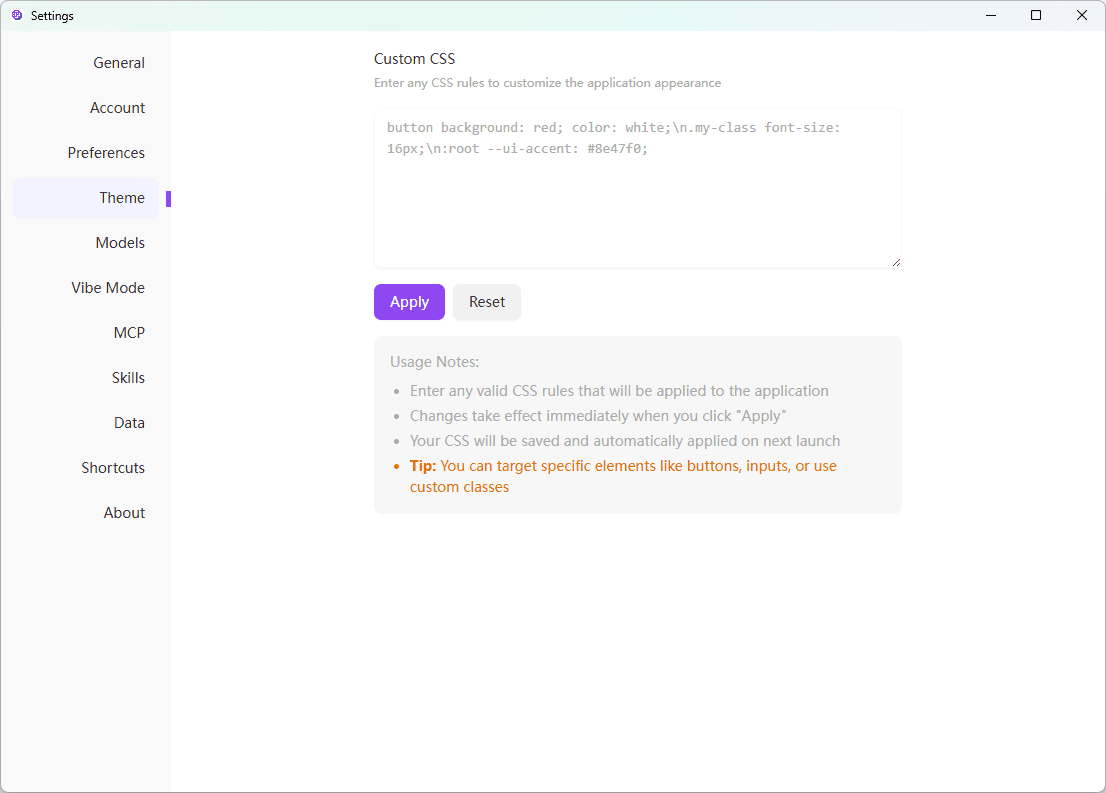
Custom CSS
You can modify the interface appearance by writing custom CSS rules, including colors, fonts, button styles, and more.
How to Use
Open Customization Settings
Navigate to Settings → Theme → Custom CSS section.
Write CSS Rules
Enter your desired CSS rules in the text box. For example:
button {
  background: red;
  color: white;
}

.my-class {
  font-size: 16px;
}

:root {
  --ui-accent: #8e47f0;
}
Apply Styles
Click the "Apply" button to immediately apply your custom CSS to the interface.
Save Changes
Your CSS rules will be saved and automatically applied on next startup.
You can target specific element classes like buttons, input fields, or use custom classes for styling.
CSS Customization Examples
Modify Button Styles
button {
  background: linear-gradient(135deg, #667eea 0%, #764ba2 100%);
  color: white;
  border-radius: 8px;
  padding: 10px 20px;
  border: none;
}
Modify Theme Colors
:root {
  --ui-accent: #8e47f0;
  --ui-primary: #667eea;
  --ui-background: #f5f5f5;
}
Custom Fonts
body {
  font-family: "Segoe UI", "Roboto", sans-serif;
  font-size: 14px;
}

.chat-message {
  font-size: 16px;
  line-height: 1.6;
}
Modify Interface Elements
.sidebar {
  background: linear-gradient(180deg, #2d3748 0%, #1a202c 100%);
}

.card {
  border-radius: 12px;
  box-shadow: 0 4px 6px rgba(0, 0, 0, 0.1);
}
Tips and Tricks
CSS Variables
The application supports CSS variables for unified style management:
:root {
  --primary-color: #8e47f0;
  --secondary-color: #667eea;
  --text-color: #333333;
  --border-radius: 8px;
}

button {
  background: var(--primary-color);
  border-radius: var(--border-radius);
  color: white;
}
Targeting Specific Elements
Use class names or IDs to target specific elements for styling:
.chat-input {
  border: 2px solid #8e47f0;
  border-radius: 10px;
}

#message-box {
  background: #f8f9fa;
}
Responsive Design
You can also add media queries for responsive design:
@media (max-width: 768px) {
  .sidebar {
    width: 100%;
  }

  button {
    font-size: 14px;
  }
}
Reset Styles
To restore default styles:
- Clear all content in the CSS text box
- Click the "Reset" button
- Styles will revert to system defaults
After clearing or resetting CSS, you need to click the "Apply" button for changes to take effect.
Important Notes
CSS Priority
- Custom CSS has higher priority and will override default styles
- Using
!importantcan further increase priority but should be used sparingly - It's recommended to use specific selectors rather than overusing
!important
Performance Considerations
- Avoid overly complex selectors
- Minimize use of universal selector (
*) - Be mindful of animation effects on performance
Compatibility
- Ensure CSS properties used are supported in modern browsers
- Test your custom styles in different theme modes (light/dark)
- Be careful not to break interface usability and accessibility
Common Issues
- Check if CSS syntax is correct
- Confirm you've clicked the "Apply" button
- Try using more specific selectors
- Check if it's being overridden by other styles
- Check if overly aggressive style rules were used
- Try removing recently added CSS rules
- Use browser developer tools to inspect element styles
- Reset all custom styles if necessary
- Confirm you've clicked "Apply" button to save
- Check if the application has write permissions
- Try re-entering and saving CSS rules
If you encounter any issues, you can always reset CSS settings to restore default appearance.