Model Services
302 AI Studio supports multiple mainstream AI model service providers. You can configure different providers according to your needs and use various AI models they offer.
Core Features
Fetching Models
The system provides two ways to obtain the model list:
Auto-Fetch Models
After configuring the provider, click the "Fetch Models" button, and the system will automatically retrieve the latest model list from the provider's API.
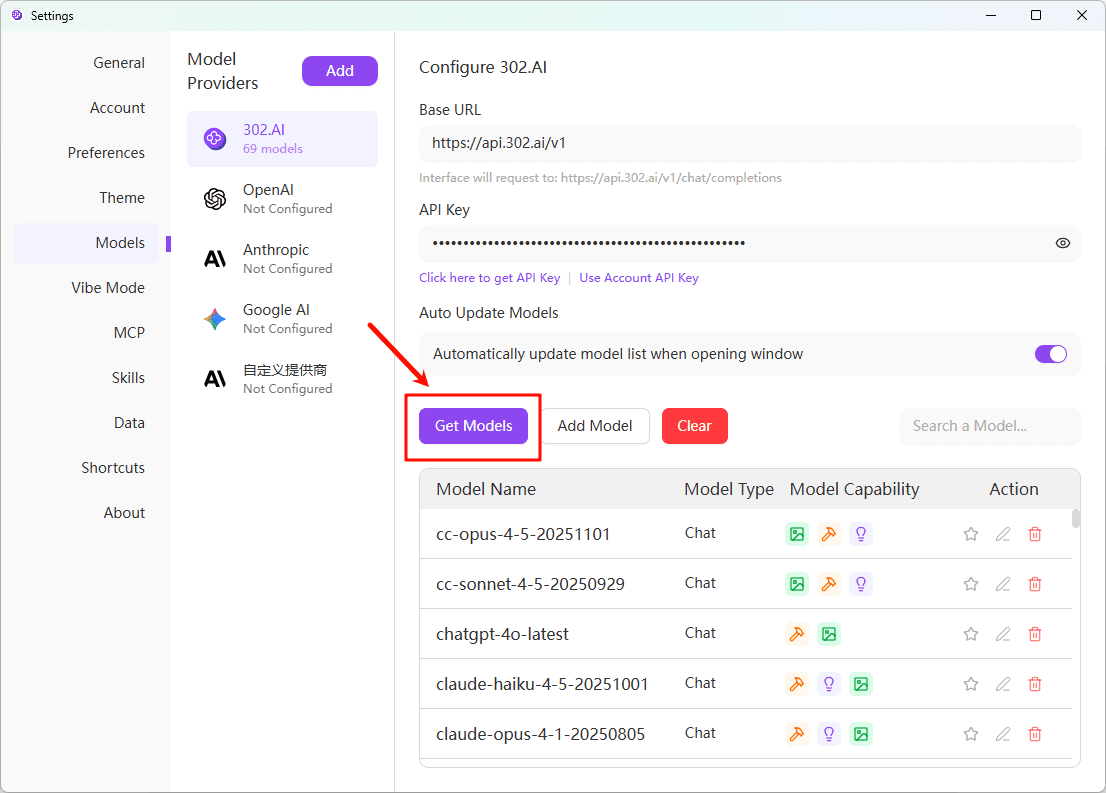
Auto-Update Model List
You can enable the auto-update feature to let the system periodically fetch the latest models from the provider:
- On the provider configuration page, find the "Auto-update model list on window open" option
- Turn on the switch
- The system will automatically fetch and update the model list for this provider every time the window is opened
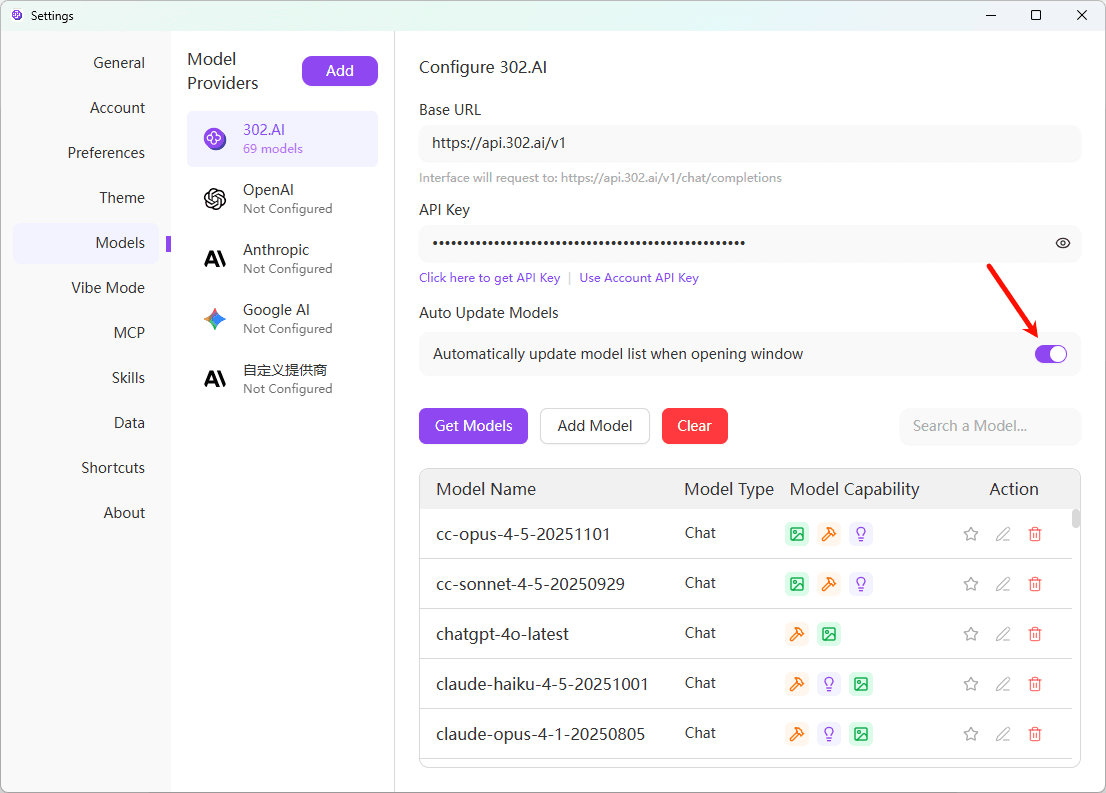
It is recommended to use the "Fetch Models" feature regularly to ensure you are using the latest model list.
Manually Add Models
If you need to use specific models not listed by the provider, or if auto-fetch fails, you can add them manually:
- On the model provider configuration page, click the "Add Model" button
- Fill in the Model ID (e.g.,
gpt-4-turbo) - Fill in the Model Name (for display)
- Select the model type (chat/embedding, etc.)
- Configure model capabilities (vision, function calling, reasoning, etc.)
- Click save
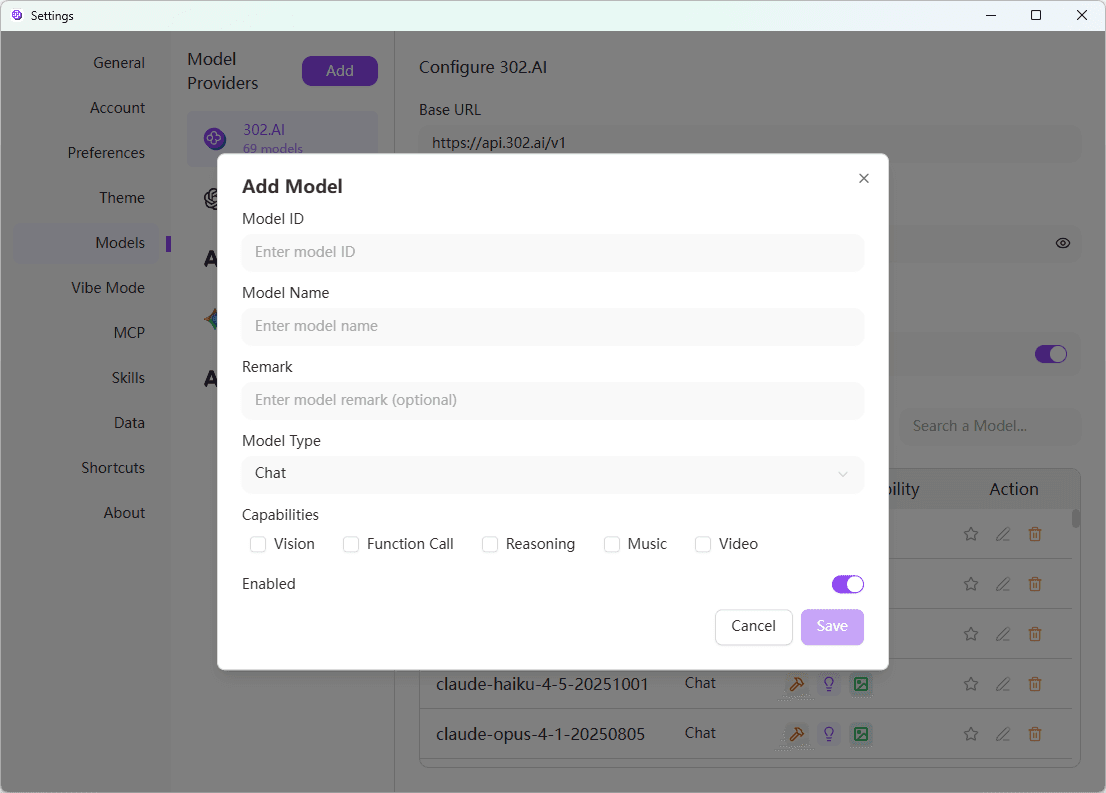
Edit Models
For models that have already been added, you can edit their configuration:
- Find the model you want to edit in the model list
- Click the "Edit" icon on the right side of the model
- Modify the model's related configuration:
- Model ID: Modify the model ID
- Model Name: Modify the display name
- Model Notes: Add description information
- Model Type: Adjust the model type (chat/embedding, etc.)
- Model Capabilities: Adjust supported features (vision, function calling, reasoning, etc.)
- Enable Status: Enable or disable the model
- Click save
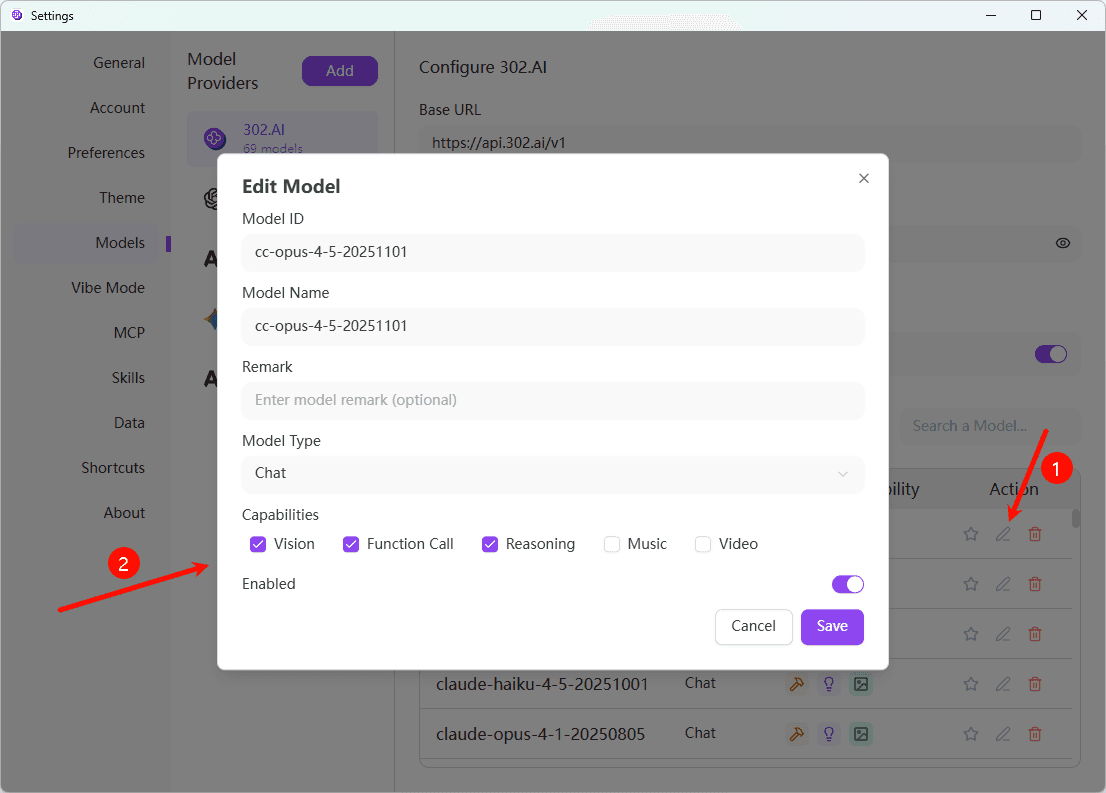
Delete Models
If you no longer need a model, you can delete it:
- Find the model you want to delete in the model list
- Click the "Delete" icon on the right side of the model
- Confirm the deletion
Deleting a model will not affect the provider's configuration. You can re-fetch or add models at any time.
Model Capabilities Configuration
Each model has different capabilities. You can configure the following capabilities when editing a model:
- Vision: Whether the model supports image input
- Function Calling: Whether the model supports calling external functions
- Reasoning: Whether the model supports reasoning capabilities
- Music: Whether the model supports music generation
- Video: Whether the model supports video processing
Correctly configuring model capabilities ensures that corresponding features are properly enabled in conversations.
Supported Providers
302 AI Studio currently supports the following model service providers:
- 302.AI - One-stop service aggregating multiple AI models
- OpenAI - GPT series models
- Anthropic - Claude series models
- Google Gemini - Gemini series models
- Custom Provider - Any provider compatible with OpenAI, Anthropic, or Google Gemini format
Frequently Asked Questions
If you encounter problems during the login process, please try the following solutions:
- Check if your network connection is working properly
- Verify that the entered account and password are correct
- Clear browser cache and try again
- If the problem persists, please contact technical support
Steps to obtain an API Key:
- Visit the official website of the corresponding provider
- Register or log in to your account
- Find API Keys in account settings or developer options
- Create a new API Key and copy it for safekeeping
- Configure the API Key in 302 AI Studio
Please keep your API Key secure and do not share it with others.
If the model list is empty, it may be due to the following reasons:
- API Key is incorrectly configured or expired: Please check and reconfigure the correct API Key
- Network connection issues: Ensure the network connection is normal and can access the provider's API
- Provider API is temporarily unavailable: Wait for a while and try again
Please click the "Fetch Models" button to re-fetch, or try adding models manually.