302.AI
Introduction
302.AI is a one-stop service platform that aggregates multiple AI models, providing users with simple and convenient AI service access. Through 302.AI, you can use various mainstream AI models, including GPT, Claude, Gemini, and more.
Key Advantages
- 🚀 One-Stop Access: Use multiple AI models with just one API Key
- 💰 Flexible Billing: Pay as you go, no need for multiple provider accounts
- 🌐 Network Optimization: More stable and faster access for domestic users
- 🔧 Simple Configuration: Quick integration, ready to use out of the box
Getting an API Key
Step 1: Register an Account
- Visit the 302.AI Official Website
- Click the "Register" button in the upper right corner
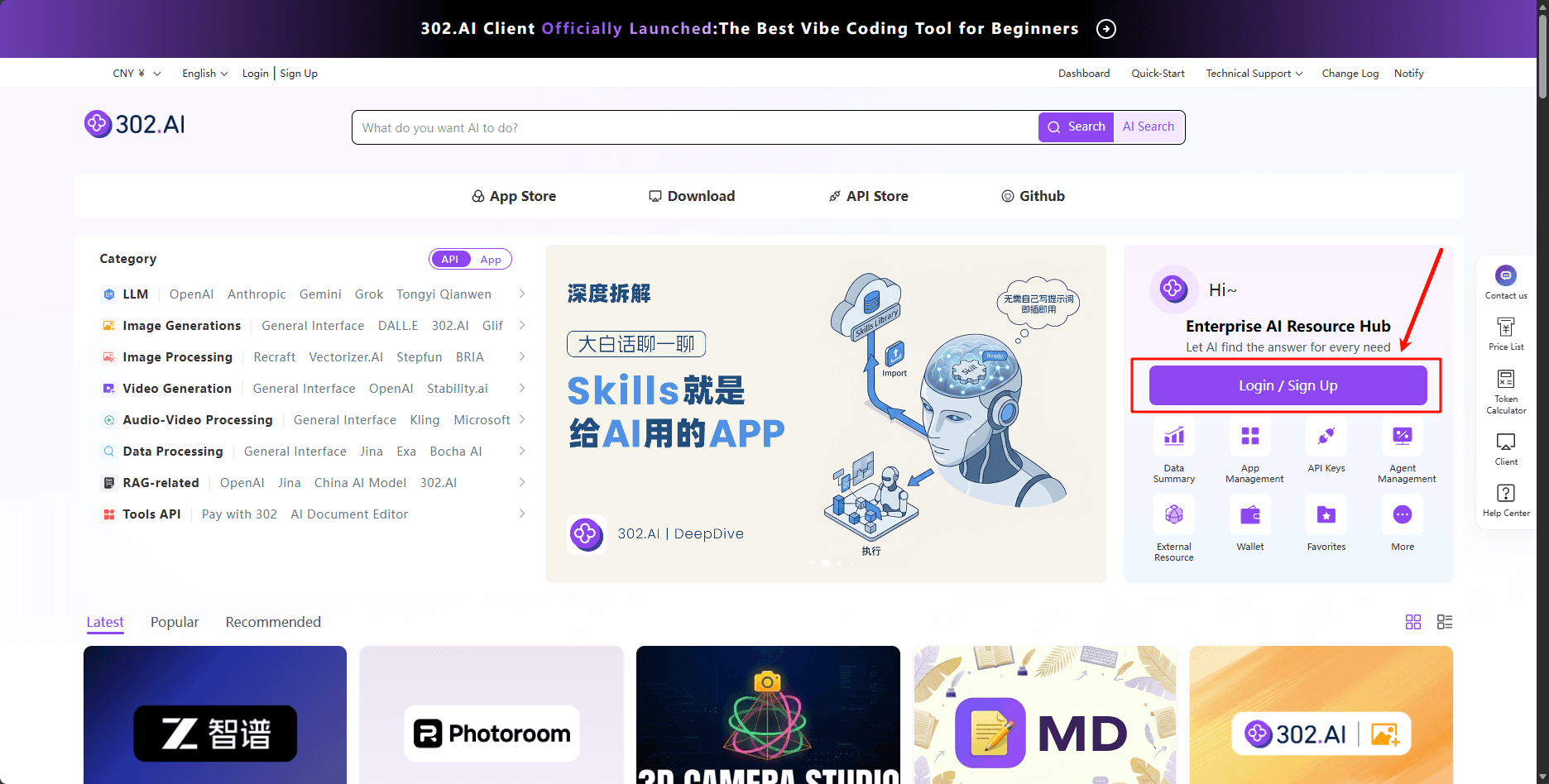
- Complete registration using email or phone number
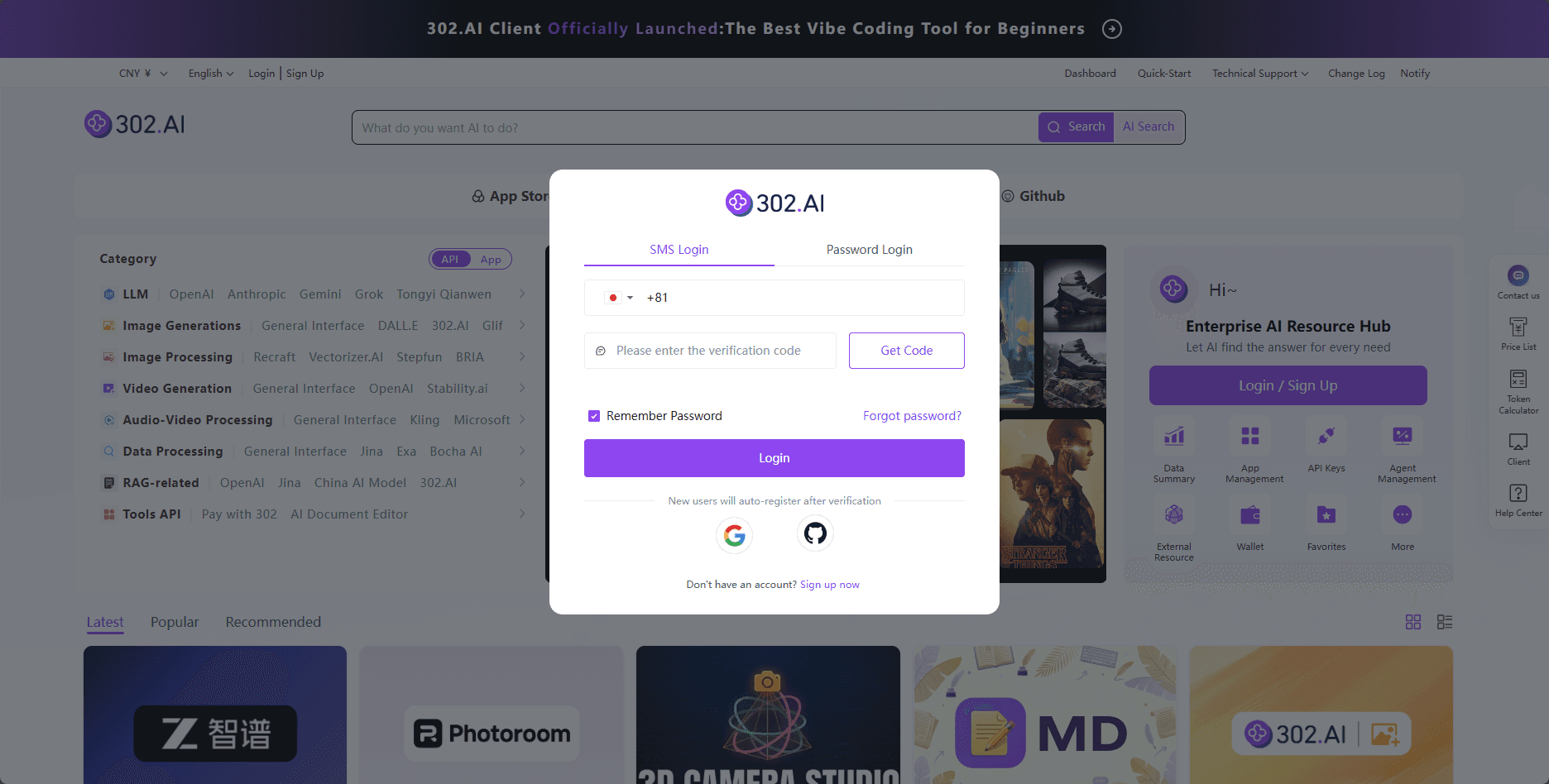
Step 2: Get API Key
- Log in to your 302.AI account
- Go to the "Admin Console" or "API Keys" page
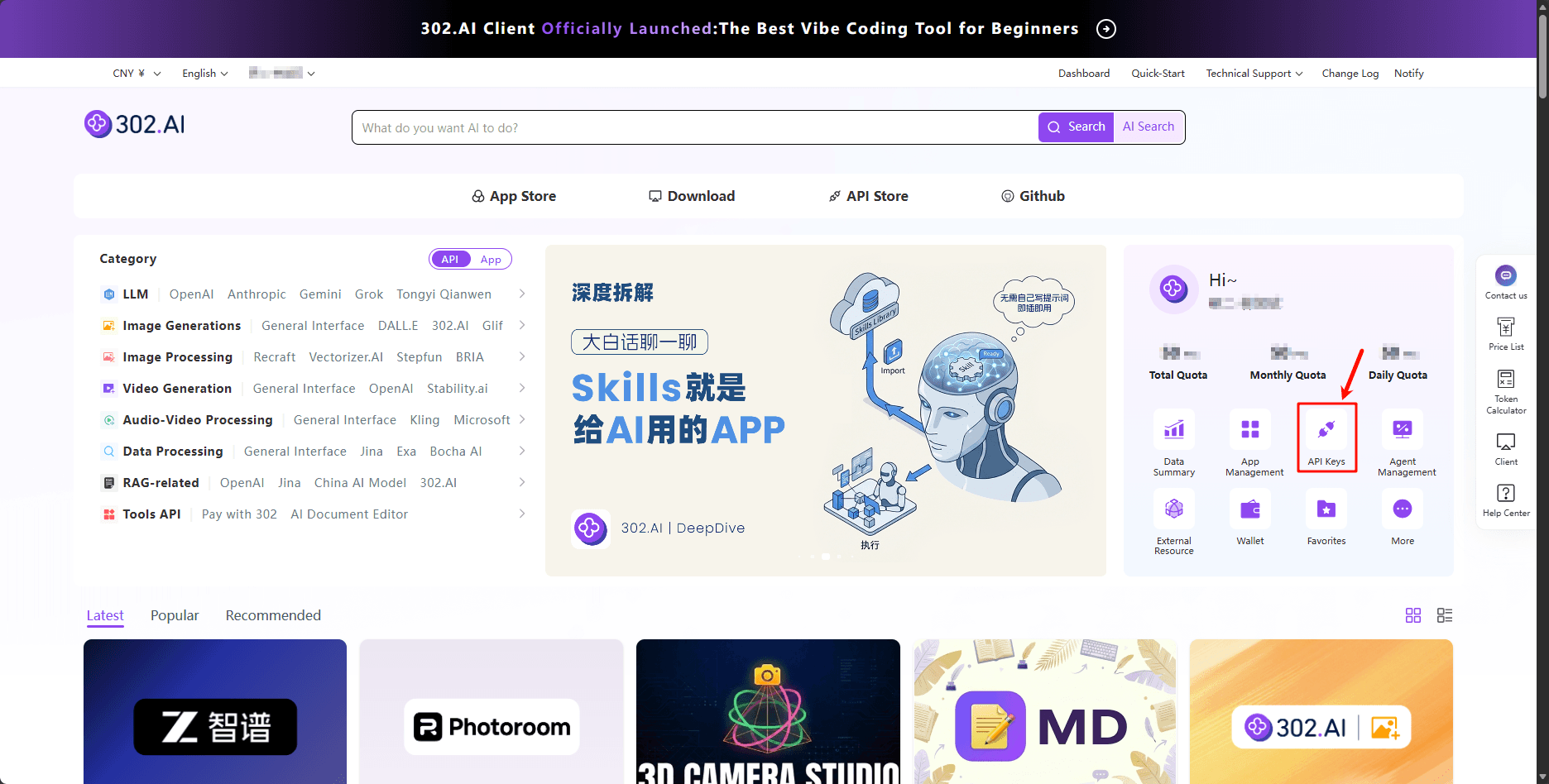
- Click the "Create API Key" button
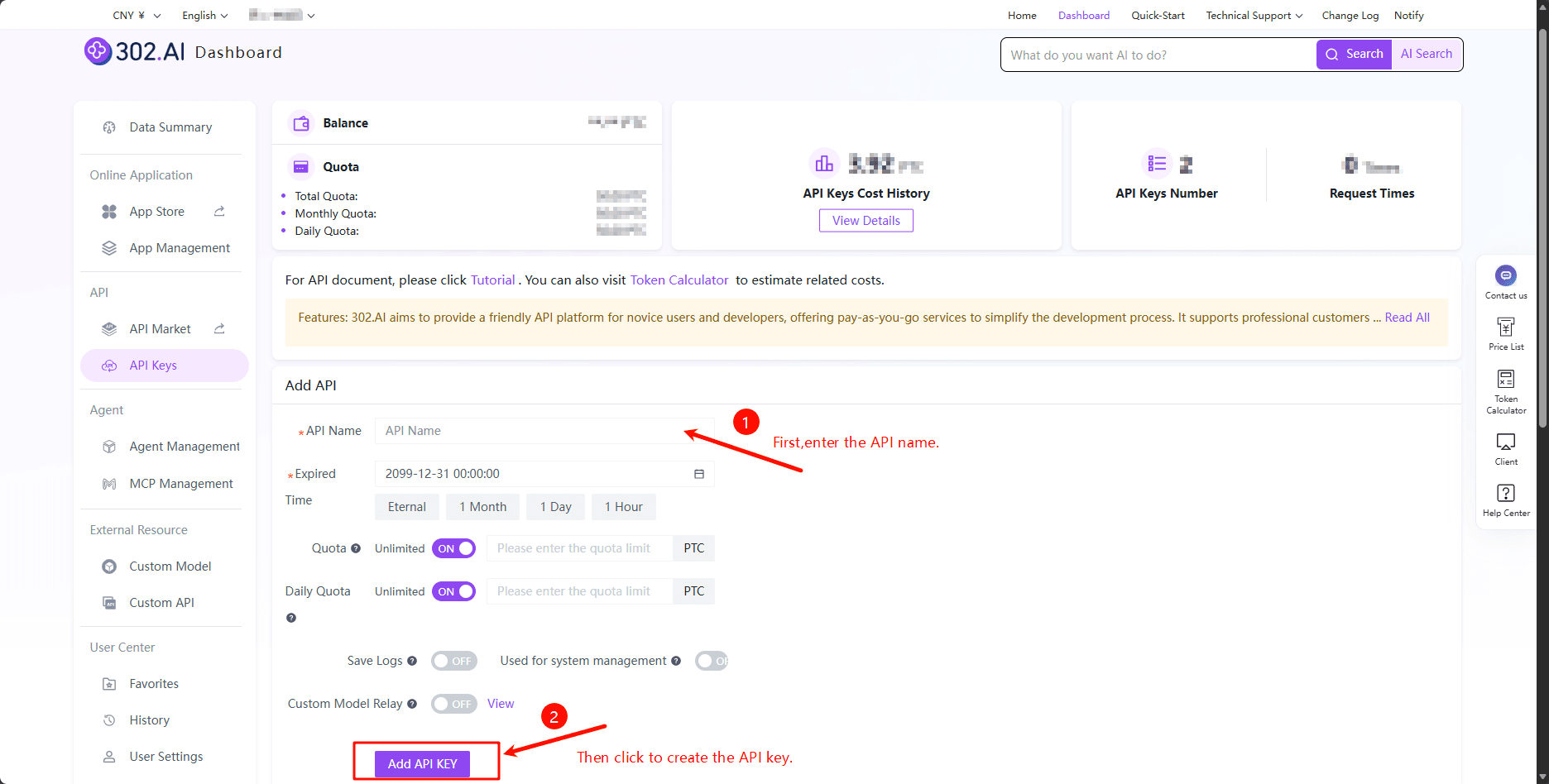
- Copy the generated API Key
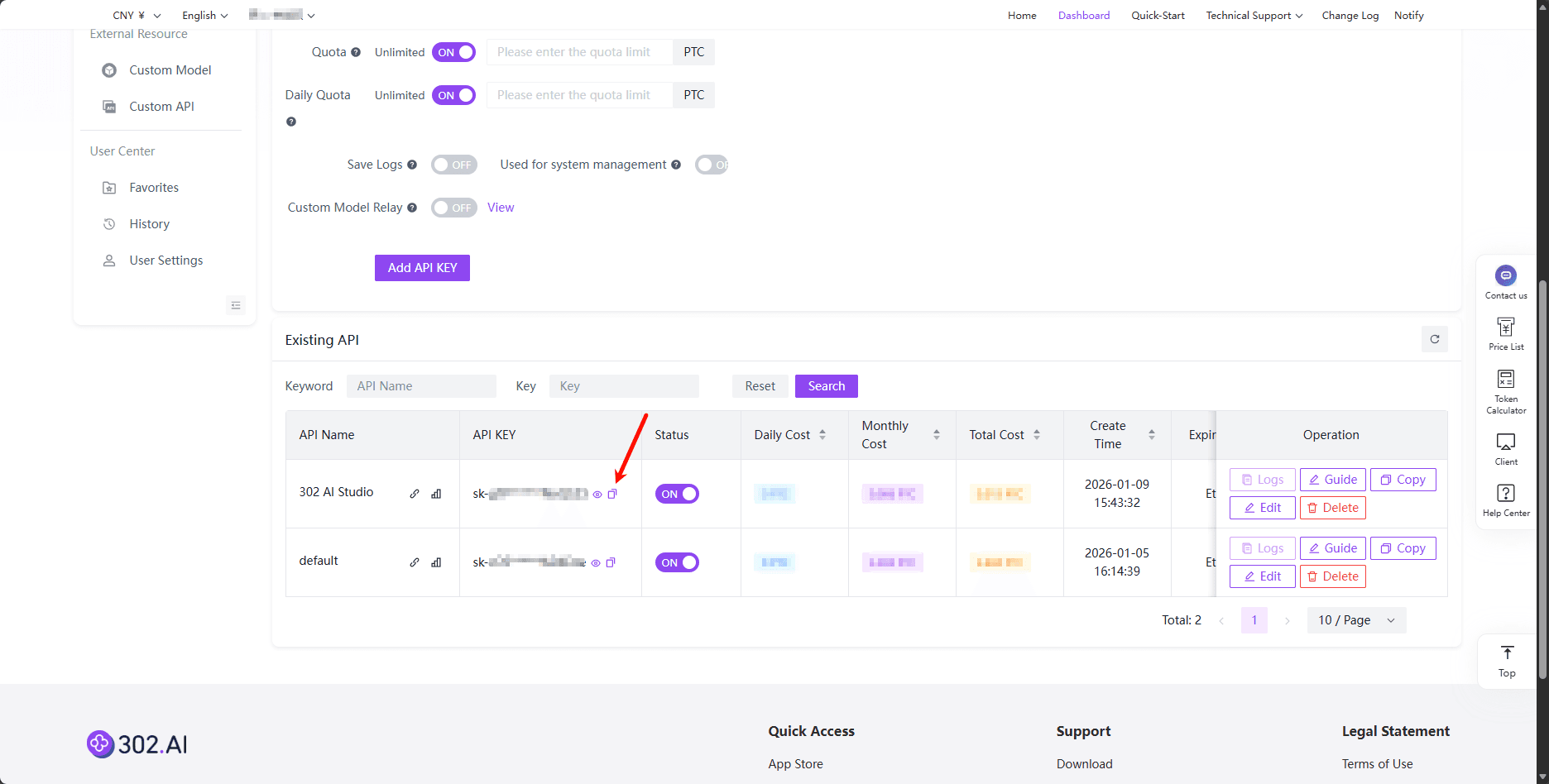
Please keep your API Key safe and don't share it with others. If your API Key is compromised, delete it immediately in the console and create a new one.
Configuration in 302 AI Studio
302 AI Studio provides two configuration methods:
Automatic Configuration (Recommended)
Simply log in with your 302.AI account, and the system will automatically fill in the API Key and fetch the model list
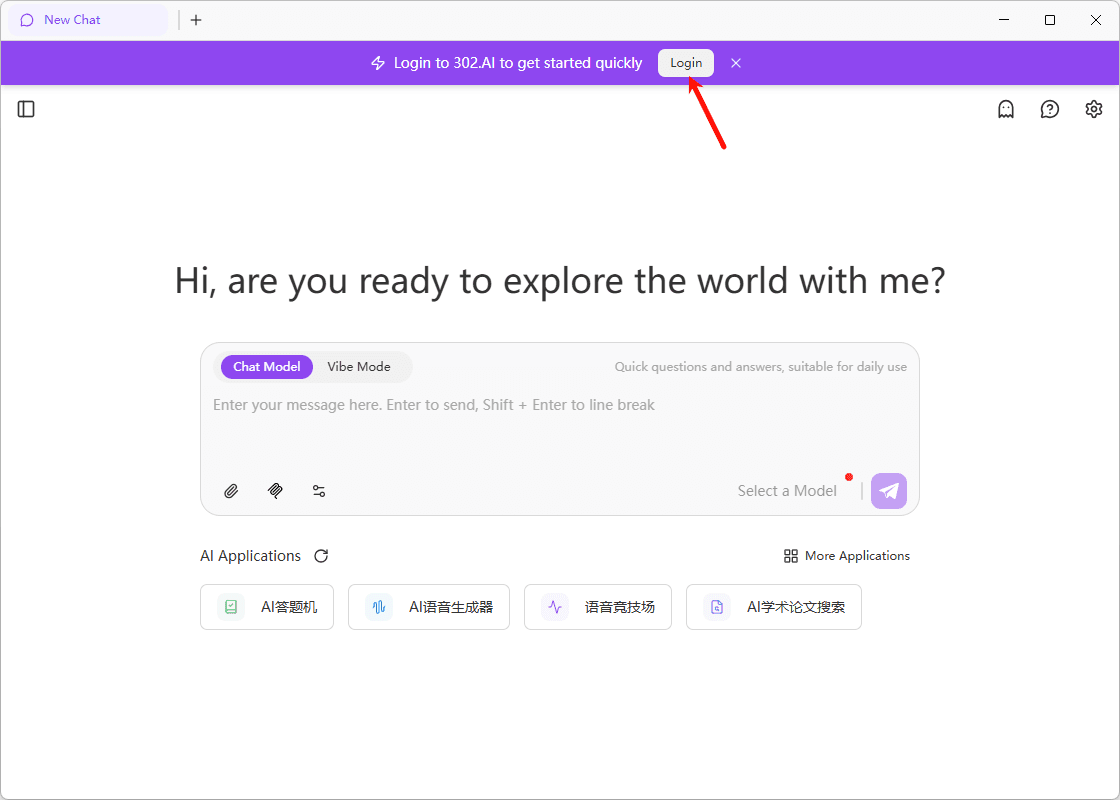
Don't have an account? Sign up for free at 302.ai.
Click the "Log in with 302.AI Account" button on the configuration page, and the configuration will be completed automatically after logging in.
Manual Configuration
If you already have an API Key, you can also choose manual configuration:
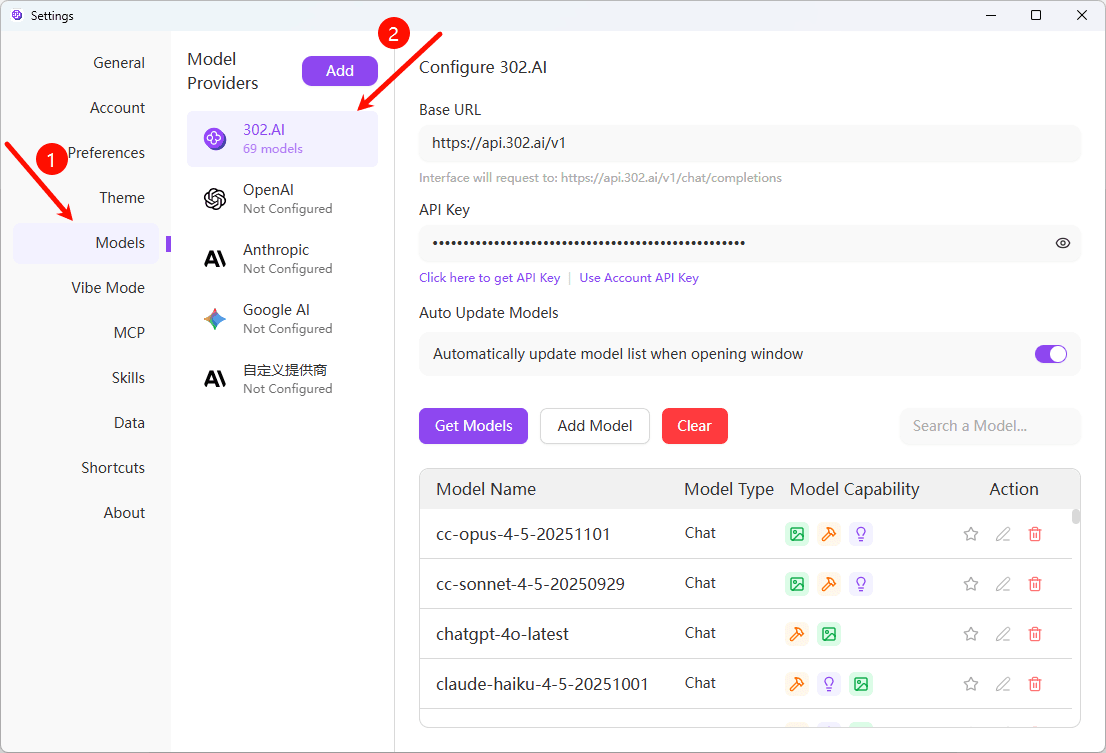
Step 1: Open 302.AI Configuration Page
- Open the 302 AI Studio application
- Click the settings icon in the upper right corner
- Select the "Models" option
- In the model provider list, find "302.AI" and click to enter the configuration page
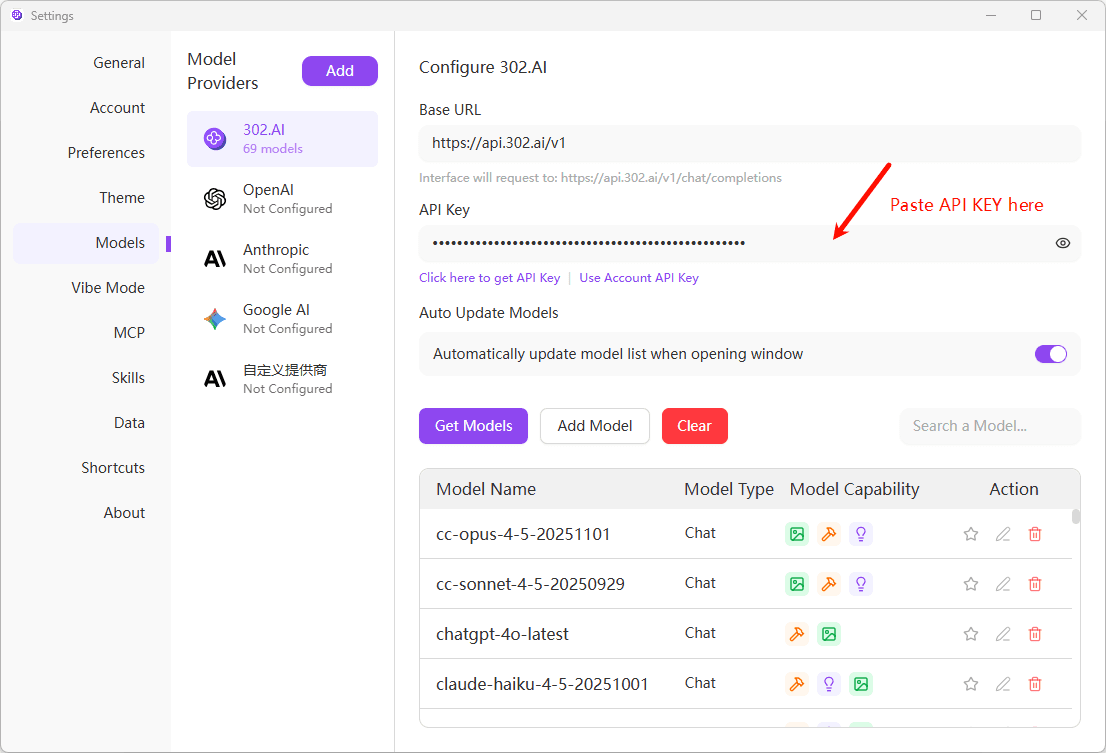
Step 2: Configure API Key
- In the "Base URL" field, enter
https://api.302ai.com/v1 - In the "API Key" field, paste the API Key you obtained from 302.AI
Step 3: Fetch Model List
- Click the "Fetch Models" button
- The system will automatically retrieve the available model list from 302.AI
- Wait for the fetch to complete, and you'll see all available models
Configuration complete! Now you can select and use various models provided by 302.AI in conversations.
Available Models
Through 302.AI, you can use the following types of models:
OpenAI GPT Series
- GPT-5.2
- GPT-5.2-chat-latest
- GPT-5.1
- And more models...
Anthropic Claude Series
- Claude 4.5 Opus
- Claude 4.5 Sonnet
- Claude 4.5 Haiku
- And more models...
Google Gemini Series
- Gemini 3-pro-preview
- Gemini 2.5-pro
- And more models...
Other Models
302.AI also supports other mainstream AI models. For specific available models, please check after fetching the model list. You can also learn about all available models through the following methods:
Visit the 302.AI Model Price List to view all supported models and their pricing information.
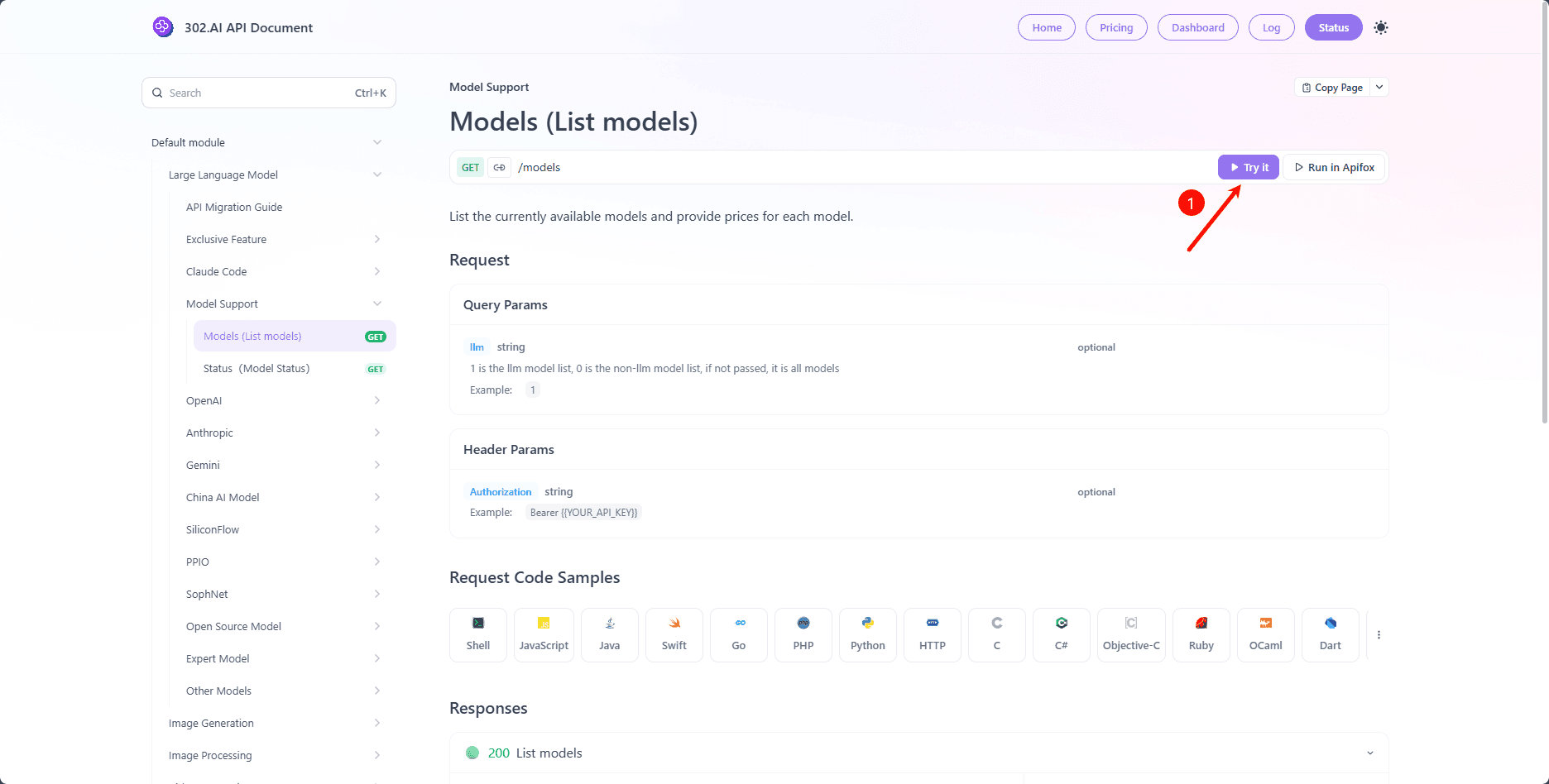
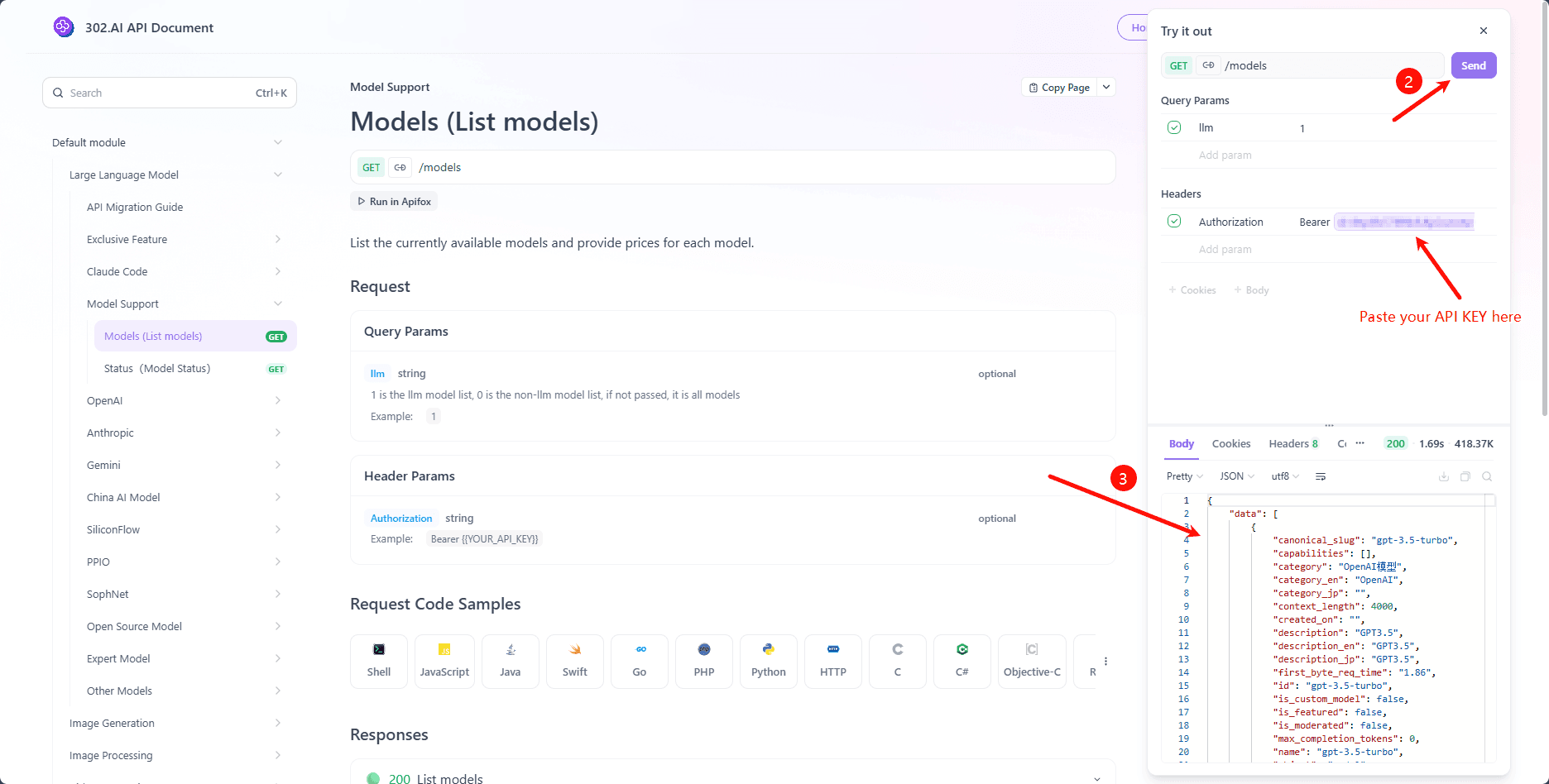
For detailed model configuration, editing, and adding operations, please refer to the Model Configuration Documentation.
FAQ
Please check:
- If the API Key is copied correctly (no extra spaces)
- If the API Key has expired or been deleted
- If the account balance is sufficient
- If the Base URL is correctly set to
https://api.302ai.com/v1
If the problem persists, please contact 302.AI technical support.
Steps to get an API Key:
- Visit the 302.AI Official Website and register an account
- After logging in, go to the "Admin Console"
- Find the "API Keys" option in the left menu
- Click the "Add API KEY" button to create a new API Key
- Copy the generated API Key and keep it safe
Please keep your API Key safe and don't share it with others.
Log in to the 302.AI Admin Console, on the API Keys page you can view:
- Balance information
- Each API Key usage (daily/monthly/total consumption)
- Request logs
- Creation time and expiration time
If the model list is empty, it may be due to the following reasons:
- API Key configuration error or expired: Please check and reconfigure the correct API Key
- Network connection issues: Ensure the network connection is normal and can access 302.AI's API
- Provider API temporarily unavailable: Wait for a while and try again
Please click the "Fetch Models" button to retrieve again, or try manually adding models.
302.AI regularly updates supported models:
- Click the "Fetch Models" button on the configuration page
- The system will automatically fetch the latest model list
- It's recommended to update regularly to use the newest models
You can also enable the "Auto-update model list on window open" option to keep the model list up to date automatically.