Skills Management
302 AI Studio provides an intuitive visual interface for managing your Skills — no command-line required. All management operations can be completed with a few clicks.
Opening the Skills Panel
In the Agent Preview window, click the "Skills" tab at the top to open the Skills management panel.
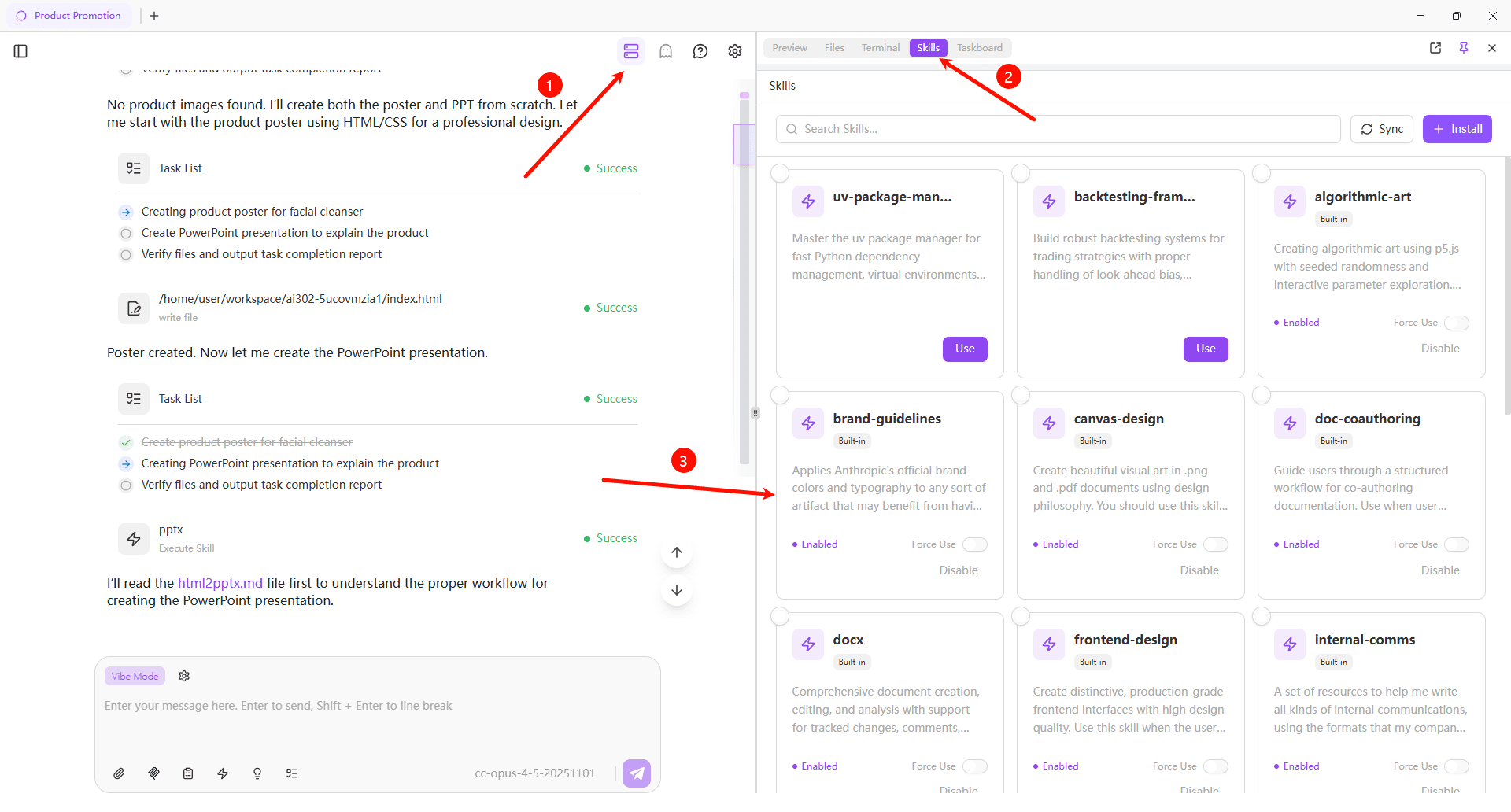
The Skills panel displays all available Skills, each presented as a card showing:
- Skill name and icon
- Brief description
- "Built-in" badge (for officially pre-installed Skills)
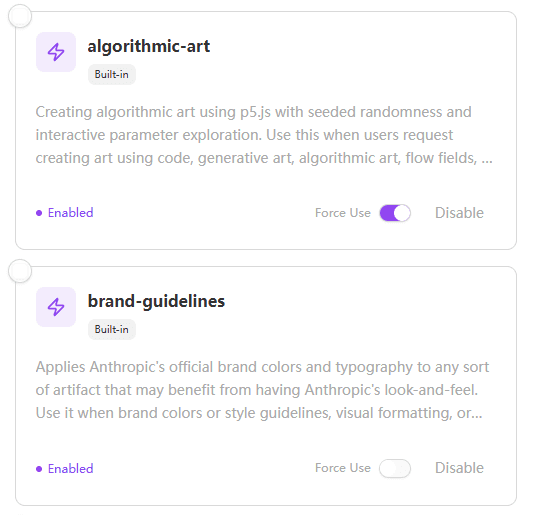
- Enable/disable toggle
- Force use toggle
Skills Store
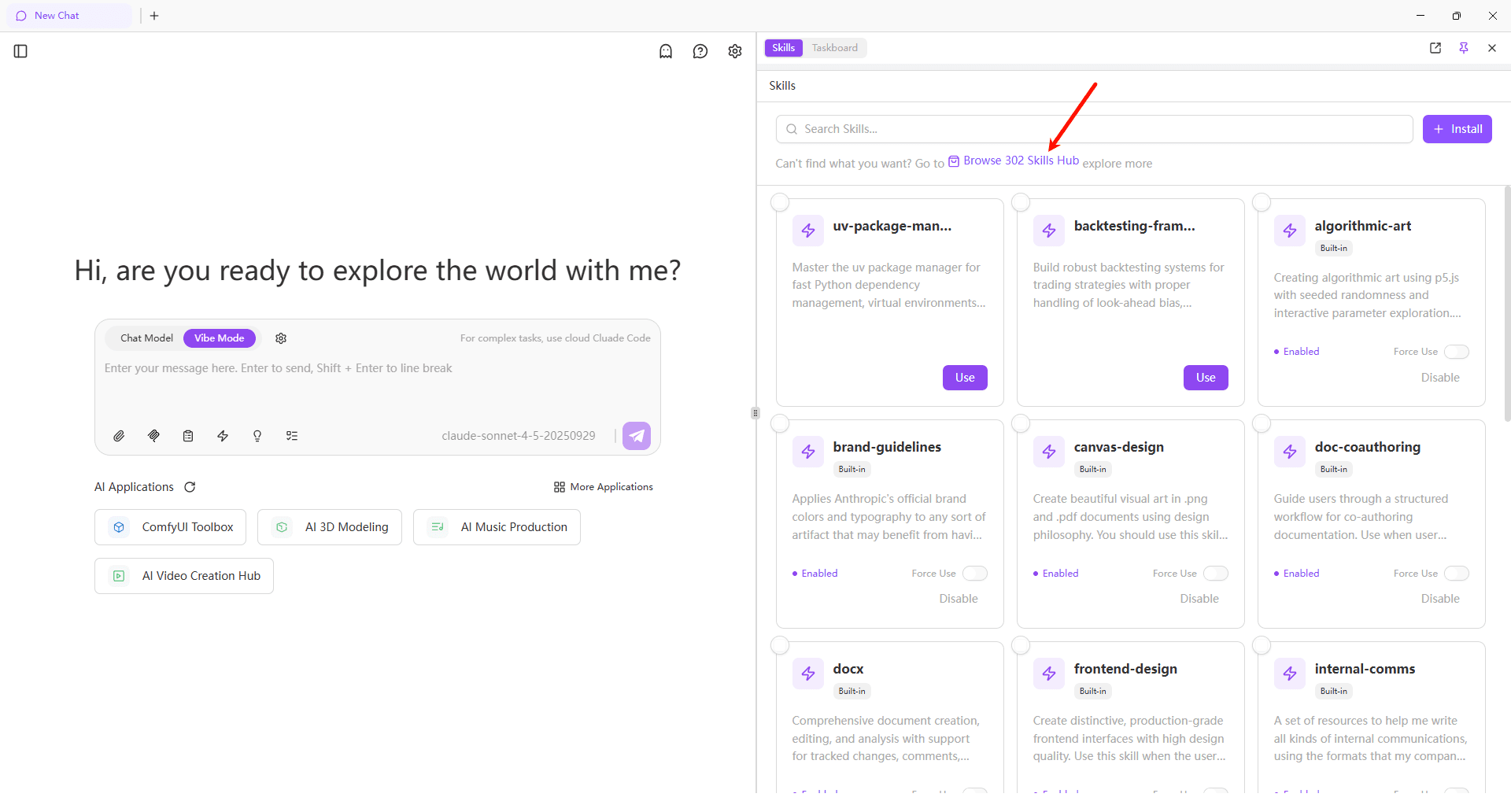
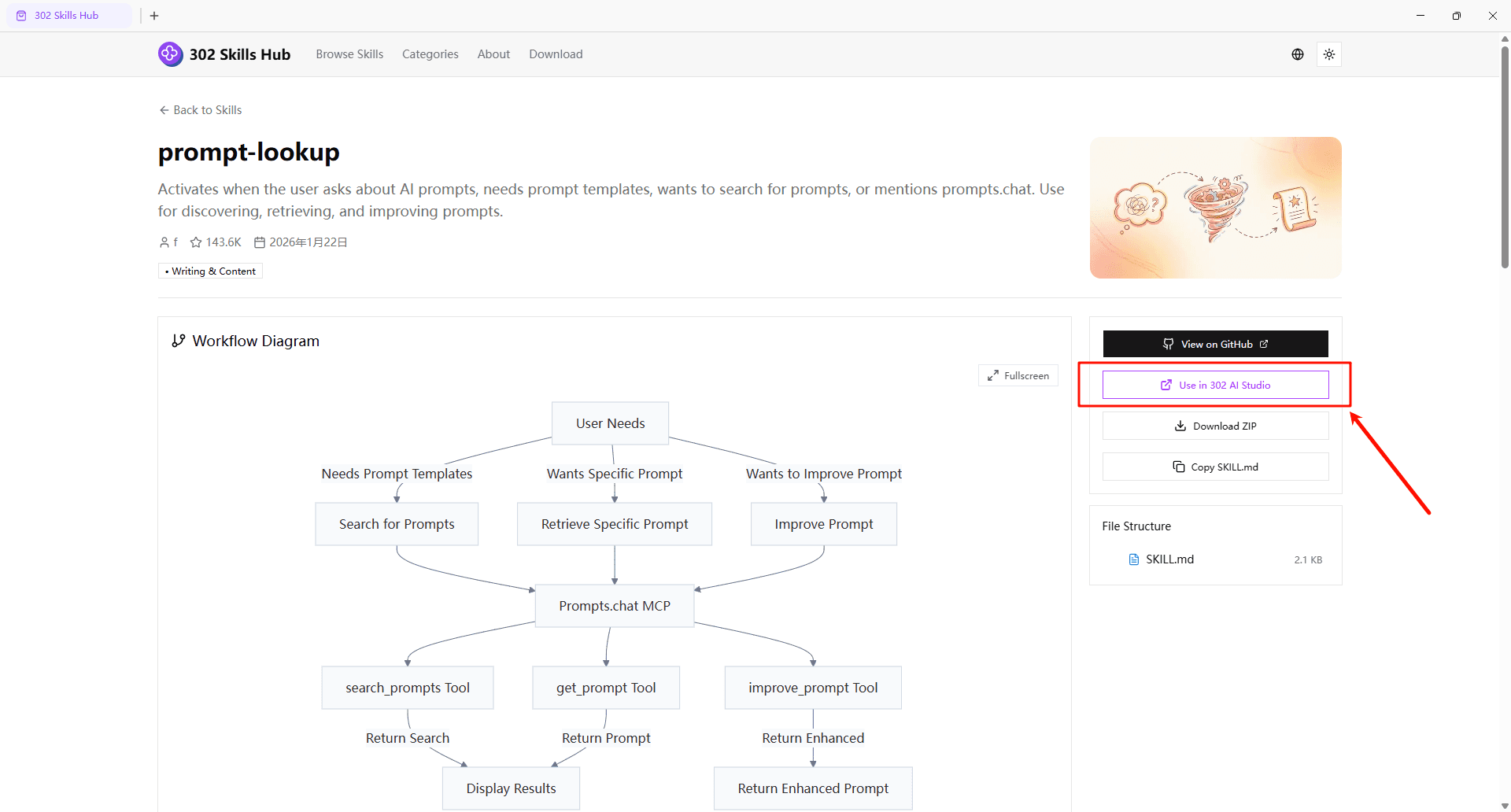
The client has a built-in Skills Store featuring 60,000+ quality Skills. Click the "Browse 302 Skills Hub" link at the top of the Skills panel to access it.
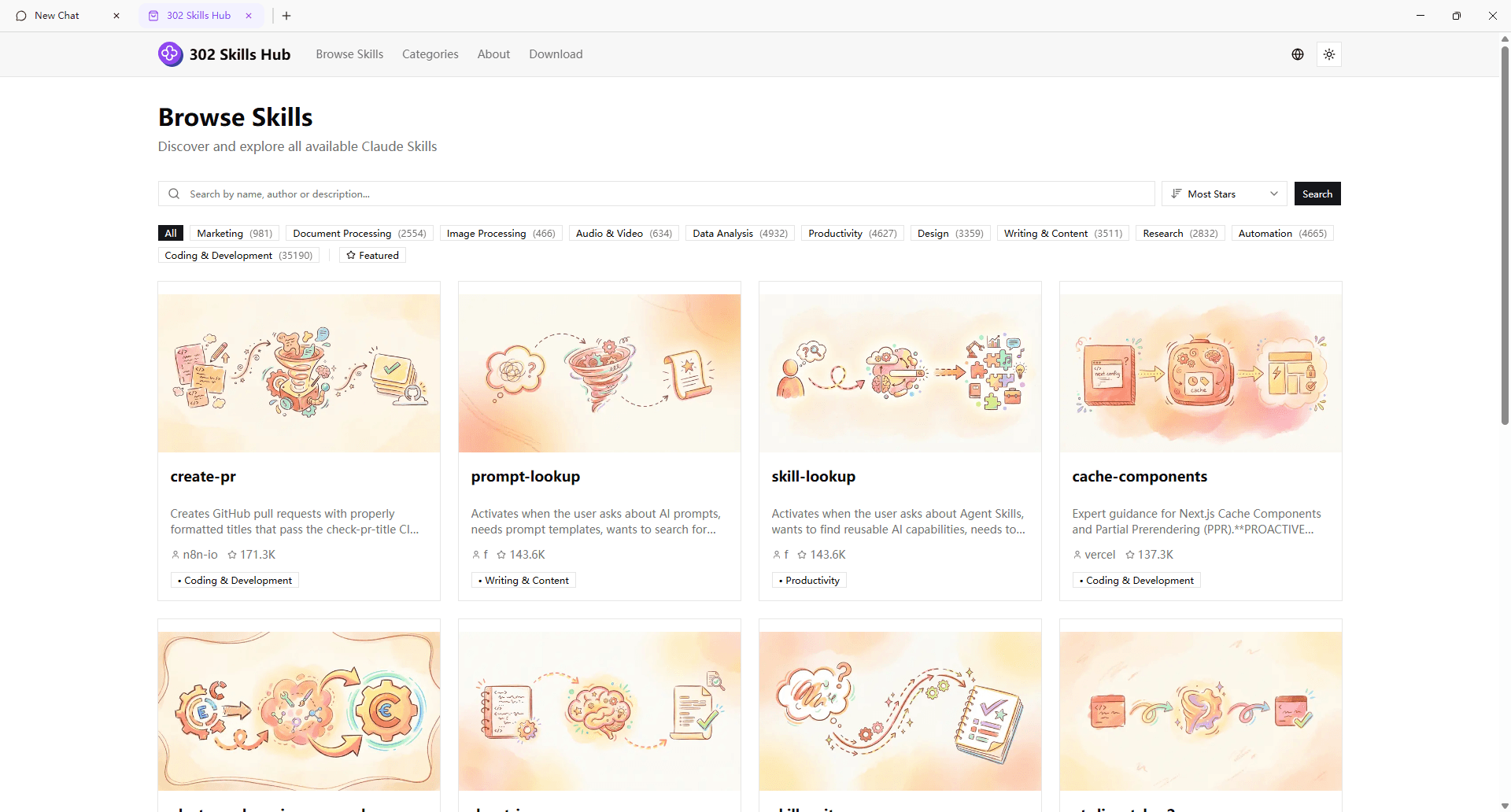
The store provides search, category browsing, and other features to help you quickly find the Skills you need. Click on a Skill card to view detailed descriptions, author information, and usage instructions.
One-Click Installation
After finding the Skill you need, click the "Use in 302 AI Studio" button, enter the GitHub repository address and confirm to automatically install it to the client. Installed Skills will automatically sync to the Skills panel and be immediately available.
Explore More
Visit 302 AI Skills Hub to browse the complete catalog, or explore popular Skills directly in the client store.
Enable and Disable
Each Skill card has an "Enable" toggle that controls whether Claude Code can access the Skill.
| State | Description |
|---|---|
| Enabled | Claude Code can see and invoke the Skill, intelligently deciding when to use it based on conversation context |
| Disabled | Claude Code has no access to the Skill at all |
Default Behavior
All built-in Skills are enabled by default. When enabled, Claude Code can perceive these Skills and automatically invoke them when appropriate, but is not forced to use them.
Smart Triggering Mechanism
Enabled Skills trigger automatically based on the description field in their metadata. When your conversation content matches trigger phrases, Claude automatically loads the relevant Skill and applies its specialized knowledge.
Example:
When you ask Claude to "build a beautiful landing page," the frontend Skill automatically activates, providing guidance on:
- Typography choices that avoid generic fonts
- Bold color palettes with sharp accents
- Sophisticated animations and micro-interactions
- Unique layouts that break from cookie-cutter patterns
Batch Operations
The Skills panel supports batch management of multiple Skills:
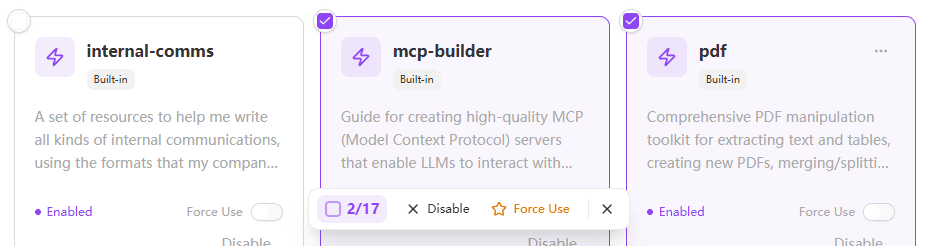
- Select All/Deselect All - Click the checkbox in the top-left corner of cards to quickly select or deselect all Skills
- Batch Disable - After selecting multiple Skills, click the "Batch Disable" button to disable all selected Skills at once
- Batch Force Use - After selecting multiple Skills, click the "Batch Force Use" button to make Claude prioritize these Skills
Tip
Batch operations allow you to quickly manage large numbers of Skills, especially useful when switching between different work scenarios to rapidly adjust Skills configuration.
Force Use
In addition to enable/disable, each Skill has a "Force Use" toggle that lets you explicitly request Claude to prioritize a specific Skill.
| Mode | Description |
|---|---|
| Normal Enable | Claude Code can invoke the Skill, decides based on context |
| Force Use | Claude Code is explicitly instructed to use this Skill whenever possible |
When Force Use is Enabled
When you enable "Force Use" for a Skill:
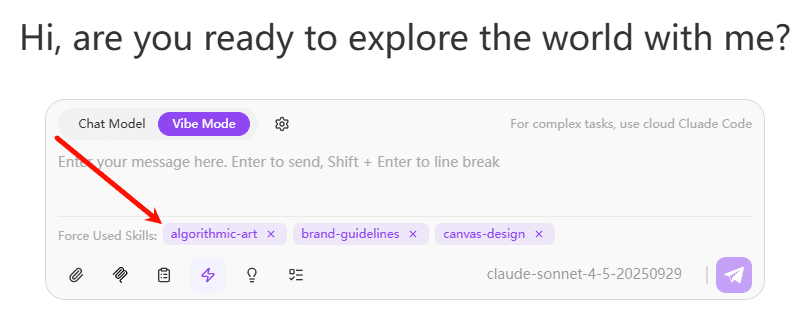
- Chat Display - The Skill appears below the chat input box as a reminder that it's currently being forced
- Priority Application - Claude Code is explicitly instructed to prioritize that Skill's knowledge and workflows
- Session-wide - Remains active throughout the entire conversation session
Use Cases
Force Use is particularly useful in these scenarios:
| Scenario | Recommended Skill to Force |
|---|---|
| Strict brand compliance required | brand-guidelines |
| Generating internal documentation | internal-docs |
| Creating presentations | pptx |
| Processing PDF files | pdf |
| Developing frontend interfaces | frontend |
Note
Force Use affects Claude's decision-making. Only enable it when truly needed. For most scenarios, let Claude decide intelligently.
Viewing Skill Details
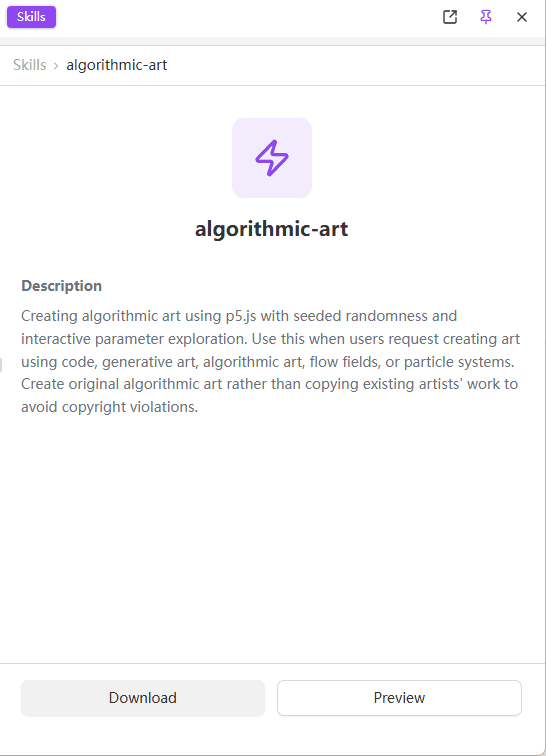
Click any Skill card to enter the Skill details page.
Description
The Skill's functionality and trigger conditions, helping you understand which scenarios it's designed for.
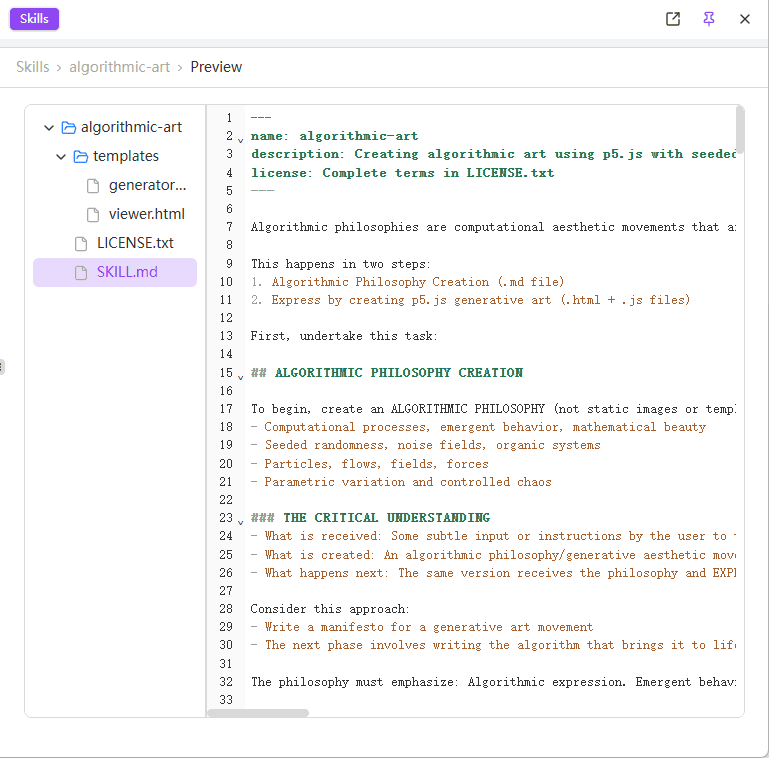
Preview
Click the "Preview" button to view the complete SKILL.md content, understanding the specific instructions and knowledge the Skill provides.
Download
Click the "Download" button to save the Skill locally, useful for:
- Learning how Skills are written
- Modifying existing Skills to create new ones
- Backup or sharing with others
Discover More Skills
Want to explore more quality Skills? Click "Browse 302 Skills Hub" in the Skills panel, or visit 302 AI Skills Marketplace to discover various professional Skills contributed by the community and install them with one click.