Task Panel
302 AI Studio provides a powerful task panel feature that allows you to batch manage and automatically execute multiple AI tasks.
What is Task Panel?
The Task Panel is a task queue management system that allows you to:
- Add multiple AI tasks to a queue
- Automatically execute all tasks in sequence
- View real-time execution status of each task
- Pause or stop task execution at any time
- Flexibly manage task order and content
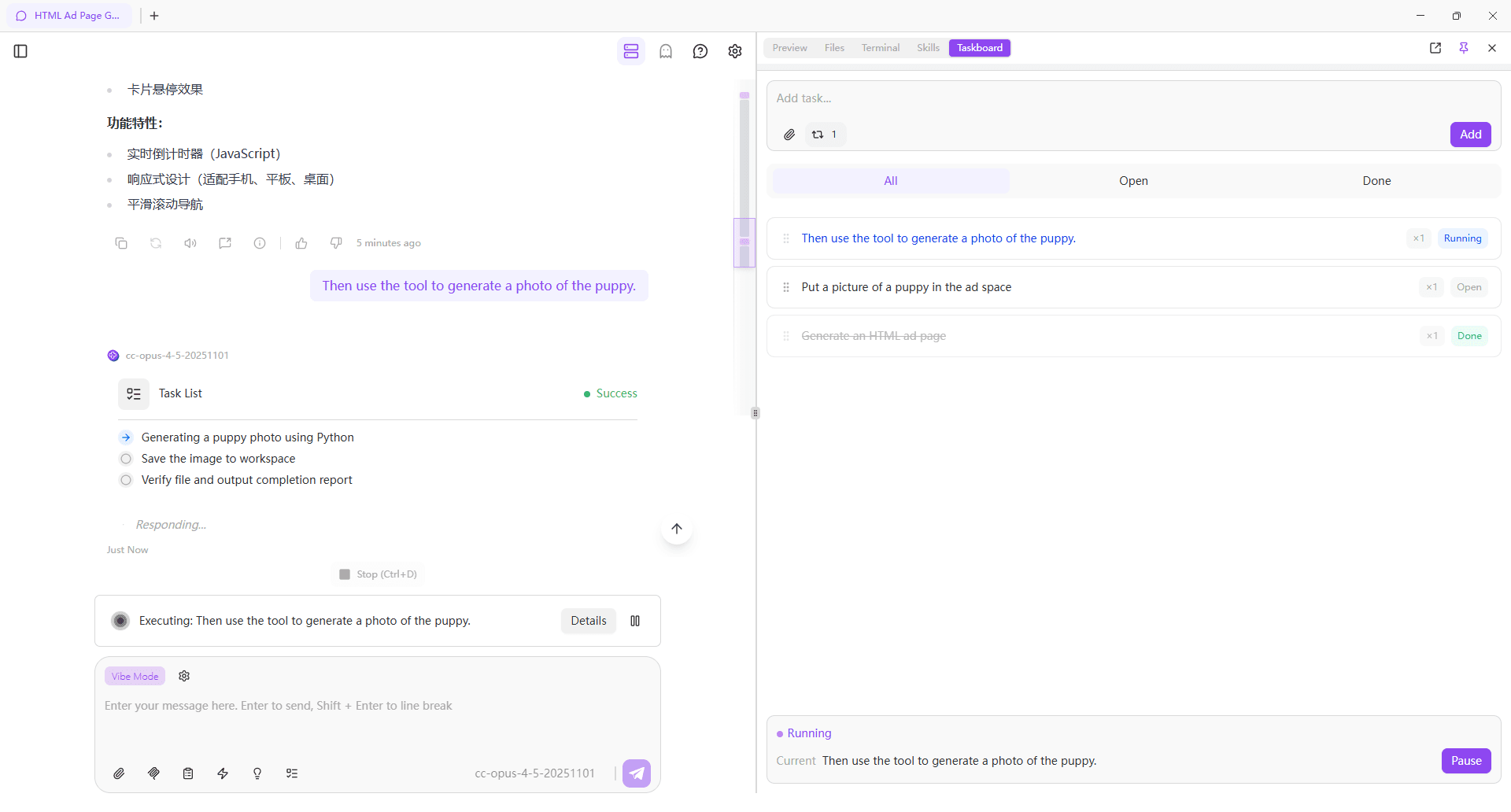
Opening Task Panel
Find the task panel icon in the main interface and click to open the task management interface.
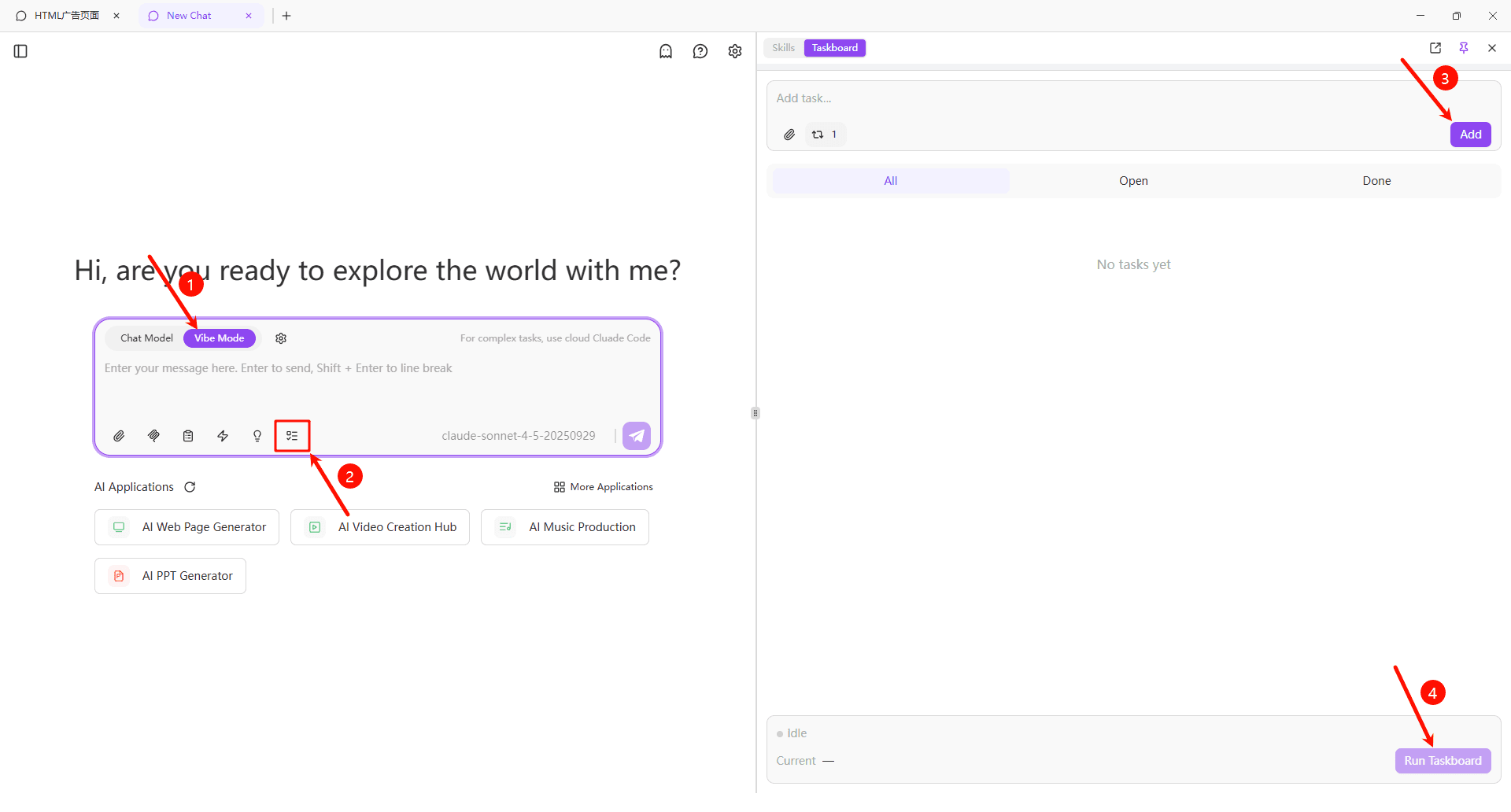
Adding Tasks
Manually Add Tasks
- Fill in task details in the input box at the top of the task panel:
- Task Name: Set a descriptive name for the task
- Task Prompt: Enter the specific instructions to send to AI
- Click the "Add" button to add the task to the list
AI Smart Task Breakdown
In addition to manually adding tasks, you can use the AI smart breakdown feature to quickly decompose complex tasks into multiple subtasks:
- Describe your overall goal or complex task in the task input box
- Click the "Auto Breakdown" button at the bottom right of the input box
- AI will automatically analyze your requirements and break them down into multiple executable subtasks
- Once breakdown is complete, all subtasks will be automatically added to the task list
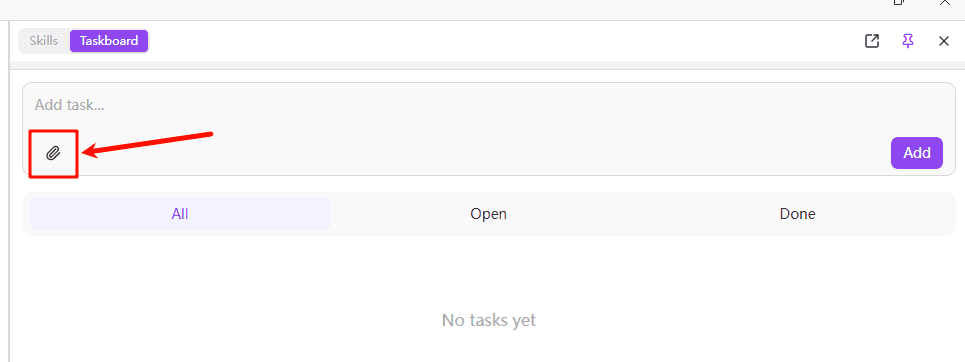
Attachment Upload
When adding or editing tasks, you can attach files:
- Click the "Upload Attachment" button at the bottom left of the input box
- Select files to upload (supports images, documents, etc.)
- AI can access these attachments when executing the task
Managing Tasks
View Task Status
The task list displays the status of each task:
- Incomplete: Task added, waiting for execution
- In Progress: Task is being processed by AI
- Completed: Task successfully completed
Edit Tasks
For tasks that haven't been executed or are completed, you can edit them anytime:
- Find the task you want to edit
- Click the "Edit" icon on the right side of the task
- Modify the task prompt
- Click "Save" to confirm changes
Delete Tasks
If you no longer need a task:
- Find the task you want to delete (tasks currently in progress cannot be deleted)
- Click the "Delete" icon on the right side of the task
By properly arranging task order, you can have subsequent tasks build upon previous task outputs, enabling more complex workflows.
Executing Tasks
Configure Task Loop Count
Before executing tasks, you can configure the loop count for the task queue:
- Find the "Repeat Count" configuration option at the bottom left of the input box
- Set the number of times you want a single task to repeat (default is 1)
- After configuration, click the "Start Execution" button
Start Execution
When you're ready to execute the task queue:
- Confirm all tasks in the list are configured correctly
- Configure loop count as needed (optional)
- Click the "Start Execution" button at the bottom
- The system will automatically execute all pending tasks in sequence
- View execution progress in real-time in the interface
Execution Process
During execution:
- The current executing task will be highlighted
- Task status updates in real-time
Pause and Stop
During task execution, you can control the execution flow at any time:
- Pause Execution: Click "Pause" button, queue pauses after current task completes
- Stop Execution: Click "Stop" button to immediately stop current and subsequent tasks
- Continue Execution: After pausing, click "Continue" button to resume execution
Stopping tasks won't lose completed task results. You can view outputs of executed tasks at any time.