Creating Skills
302 AI Studio provides four ways to create or import Skills, catering to different needs. Click the "+ Install" button in the top-right corner of the Skills panel to get started.
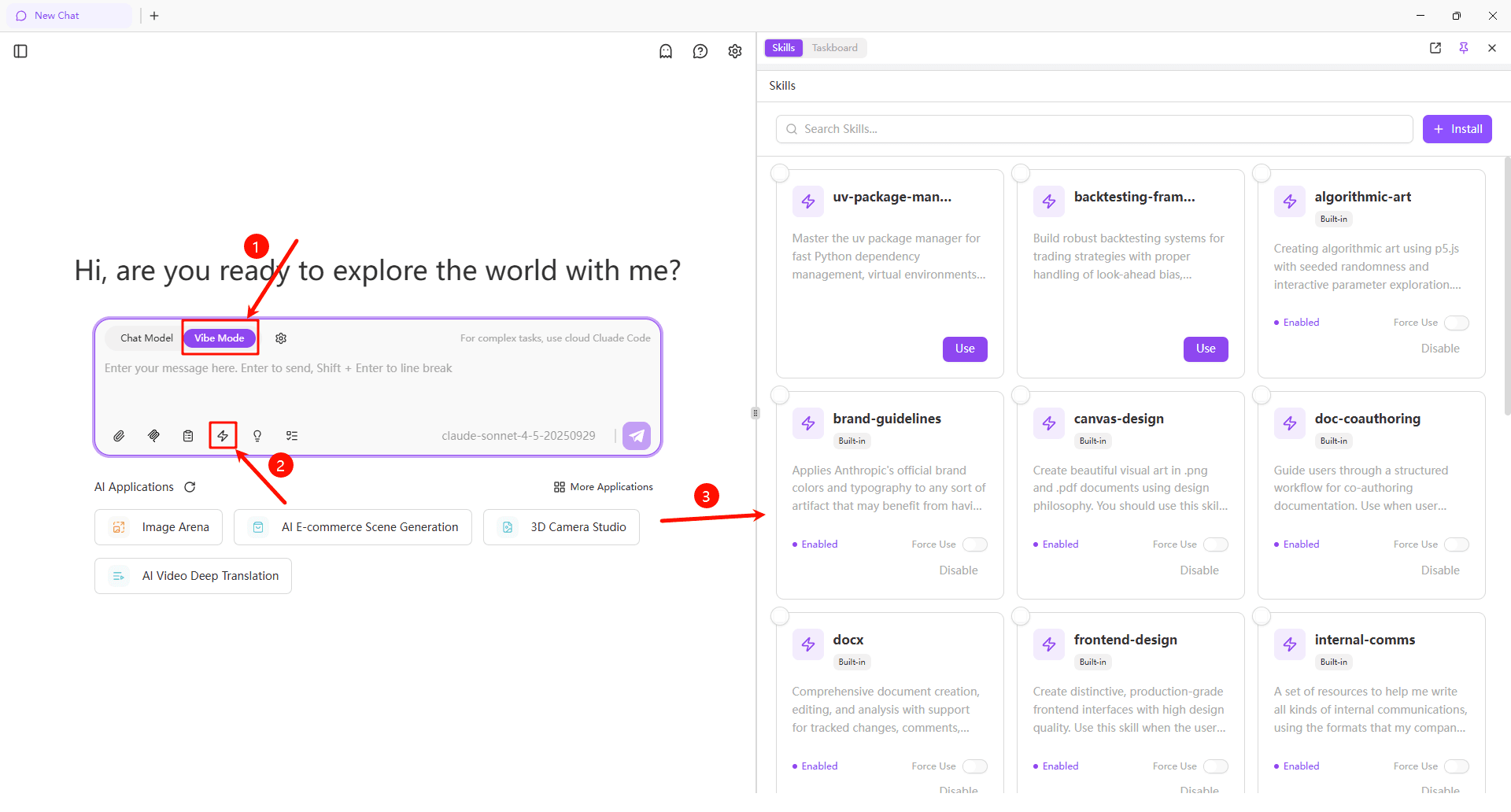
Choose a Creation Method
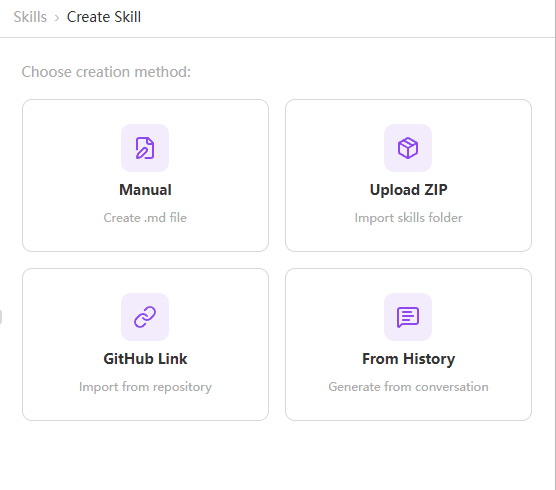
| Method | Best For | Difficulty |
|---|---|---|
| Manual Create | Quick simple Skills, or complex Skills needing fine control | ⭐ ~ ⭐⭐⭐ |
| Upload ZIP | Importing local Skills or batch importing multiple Skills | ⭐ |
| GitHub Link | Importing from community or team repositories | ⭐ |
| From History | Let Claude auto-generate Skills from conversation history | ⭐ |
Manual Create
Perfect for quickly creating simple Skills, or when you need complete control over the Skill structure.
Default Mode
The simplest creation method — directly edit SKILL.md content in the interface.
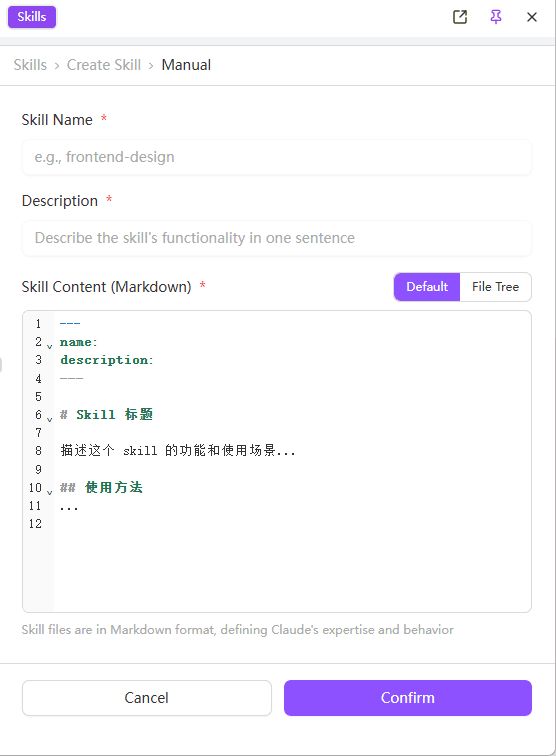
Fill in Basic Information
- Skill Name - Give your Skill a concise identifier (e.g.,
my-coding-style) - Description - One sentence describing the Skill's functionality
Write Skill Content
Write the Skill's specific instructions and knowledge in the Markdown editor.
The editor provides a basic template:
---
name:
description:
---

# Skill Title

Describe what this Skill does and when to use it...

## Usage

...
Confirm Creation
Click "Confirm" to complete the creation.
Use Cases
Default mode is ideal for simple Skills that only need core instructions, like coding standards or writing style guides.
File Tree Mode
For complex Skills requiring multiple files, switch to File Tree mode.
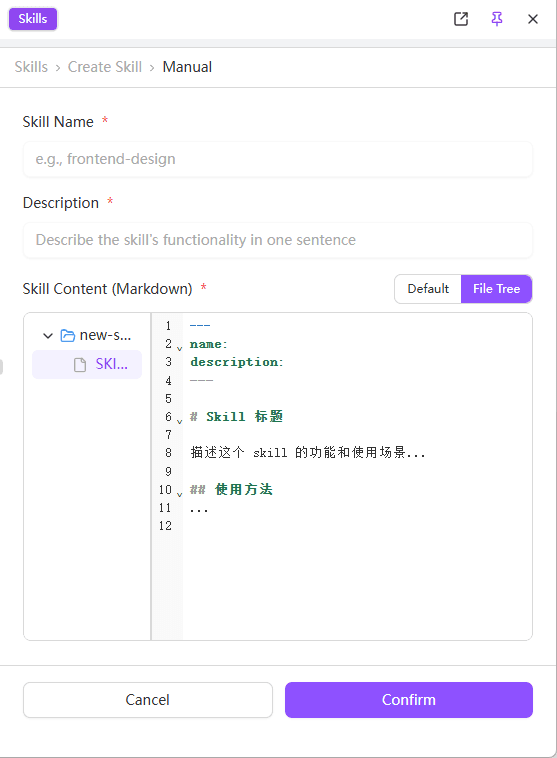
Click the "File Tree" button to switch views, where you can:
| Action | Description |
|---|---|
| Create File | Add resource files like references/, scripts/, assets/ |
| Create Folder | Build a complete directory structure |
| Edit File | Click a filename to edit |
Complete Skill Structure Example:
my-skill/
├── SKILL.md              # Core instruction file
├── references/           # Reference documentation
│   └── api-docs.md
├── scripts/              # Executable scripts
│   └── validate.py
└── assets/               # Asset files
    └── template.html
Upload ZIP
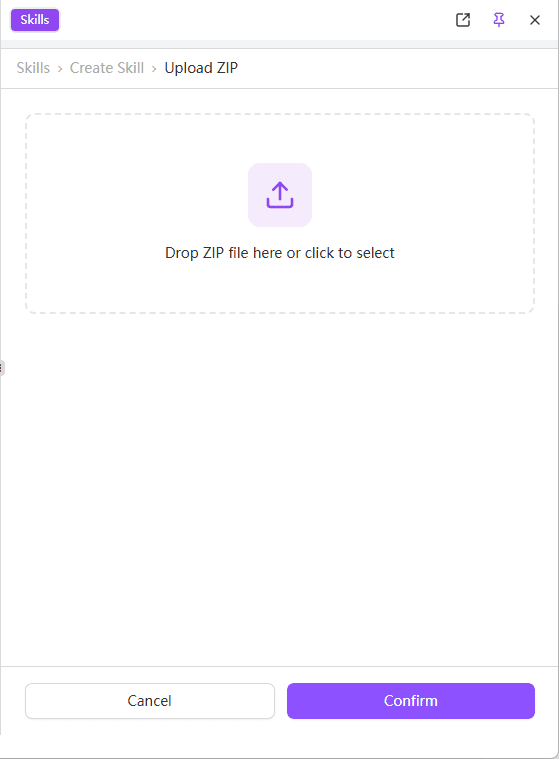
If you already have Skill files prepared locally, you can package and upload them directly.
Steps
Prepare the Archive
Package your Skill directory as a ZIP file. The structure should be:
my-skill.zip
└── my-skill/
    ├── SKILL.md
    └── (other files...)
Upload the File
Drag and drop the ZIP file to the upload area, or click to select.
Confirm Import
The system will automatically parse the archive contents. Confirm to complete the import.
Supported Formats
- Single Skill - Archive containing one Skill directory
- Batch Import - Archive containing multiple Skill directories, import all at once
Tip
When batch importing, each Skill directory must contain a valid SKILL.md file.
GitHub Link
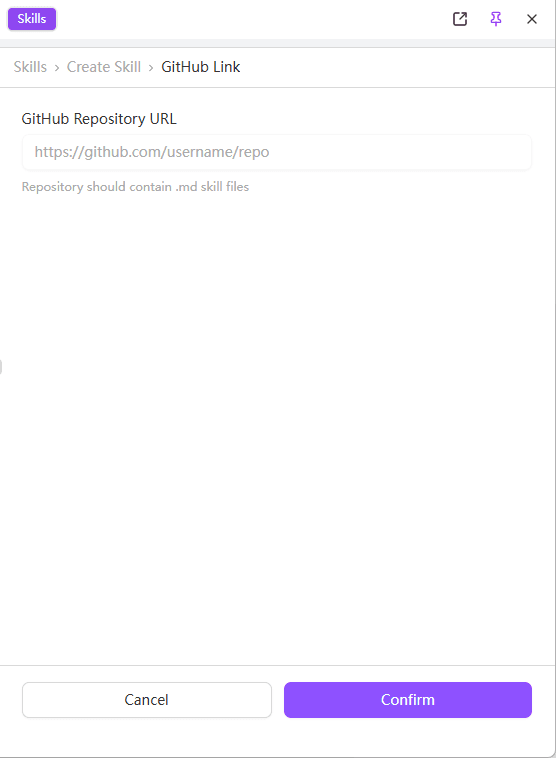
Import Skills from GitHub repositories — great for using community or team-shared Skills.
Steps
Enter Repository URL
Enter the GitHub repository URL in this format:
https://github.com/username/repoThe repository should contain .md format Skill files.
Select Skills
The system will automatically scan for Skill files in the repository. Select the content to import.
Confirm Import
Click "Confirm" to complete the import.
Use Cases
- Import official Skills from the OpenAI Skills repository
- Sync from internal team Skills repositories
- Import community-shared Skills
Explore More Skills
Visit the 302 AI Skills Marketplace to discover more high-quality community-shared Skills covering programming, writing, design, and many other domains.
From History
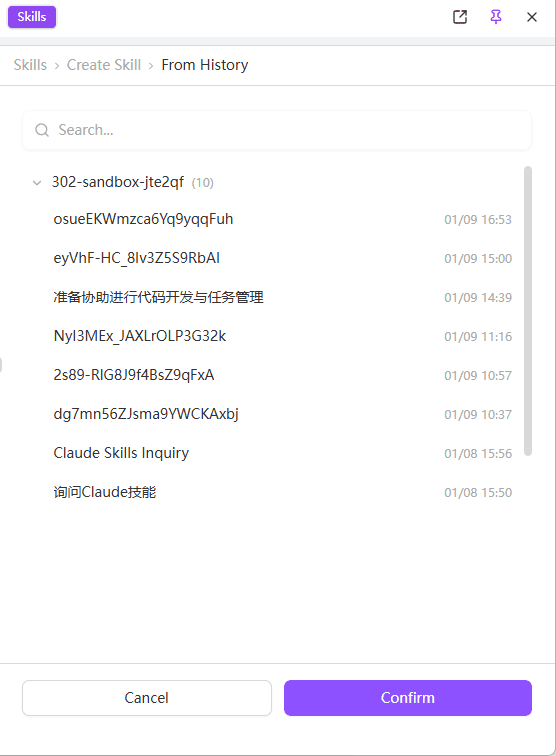
This is a unique 302 AI Studio feature! Let Claude Code automatically extract knowledge from your conversation history and generate reusable Skills.
Steps
Browse Conversation History
Browse your conversation sessions in the history list. The list shows:
- Session name
- Creation time
- Conversation summary
Select Conversations
Click to select one or more conversations you believe contain valuable knowledge.
Selection Tips:
- Claude performed exceptionally well in the conversation
- The conversation involves domain-specific expertise
- A reusable workflow was established in the conversation
Auto-Generate
Claude Code will analyze the conversation content and automatically:
- Extract core knowledge and workflows
- Generate the SKILL.md file
- Fill in appropriate trigger descriptions
Preview and Adjust
Preview the generated Skill content, make adjustments as needed, then confirm creation.
Use Cases
| Scenario | Description |
|---|---|
| Capture Best Practices | Crystallize successful conversation experiences into reusable Skills |
| Domain Knowledge Extraction | Extract expertise from domain-specific conversations |
| Workflow Reuse | Convert validated workflows into standard Skills |
| Quick Prototyping | Rapidly create Skill prototypes, refine later |
Pro Tip
Regularly review your conversation history, identify conversations where Claude excelled, and convert them into Skills to continuously enhance Claude's capabilities.
After Creation
Once a Skill is created, it's automatically added to your Skills list and enabled by default.
You can:
- Use Immediately - Test the Skill's effectiveness in a new conversation
- Force Use - Enable the Force Use toggle to ensure Claude applies the Skill
- Continue Optimizing - Download, modify, and re-upload based on usage feedback