MCP
302 AI Studio deeply integrates the MCP (Model Context Protocol), enabling AI to connect with external tools and data sources.
What is MCP?
MCP (Model Context Protocol) is an open protocol standard introduced by Anthropic to standardize how AI applications connect with external data sources and tools.
Configure MCP Services
Access MCP Configuration Page
Navigate to Settings and find the MCP option to access the MCP server management page.
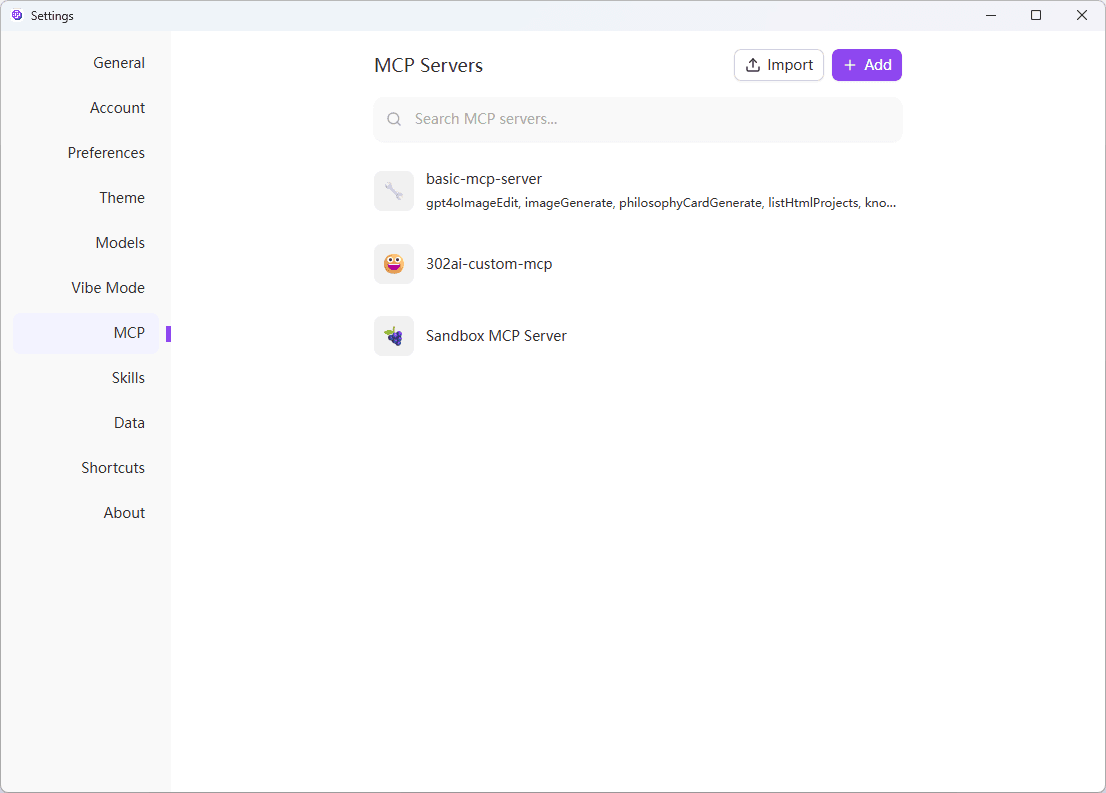
Here you can:
- View added MCP services
- Search available MCP services
- Import or add new MCP services
Add MCP Services
Method 1: Import via JSON
Click the Import button in the top right corner and enter your JSON configuration in the dialog.
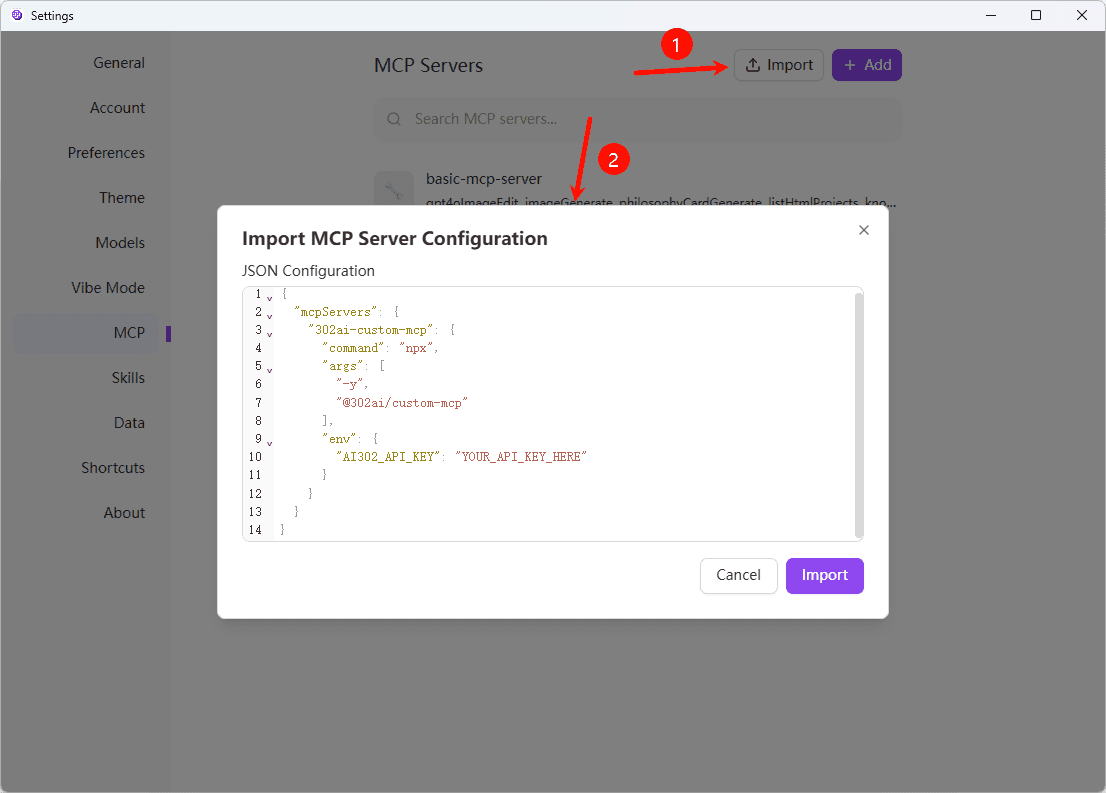
JSON configuration format:
{
  "mcpServers": {
    "service_name": {
      "command": "command",
      "args": ["argument_list"],
      "env": {
        "ENV_VARIABLE": "value"
      }
    }
  }
}
Method 2: Manual Add
Click the Add button in the top right corner to access the service configuration page.
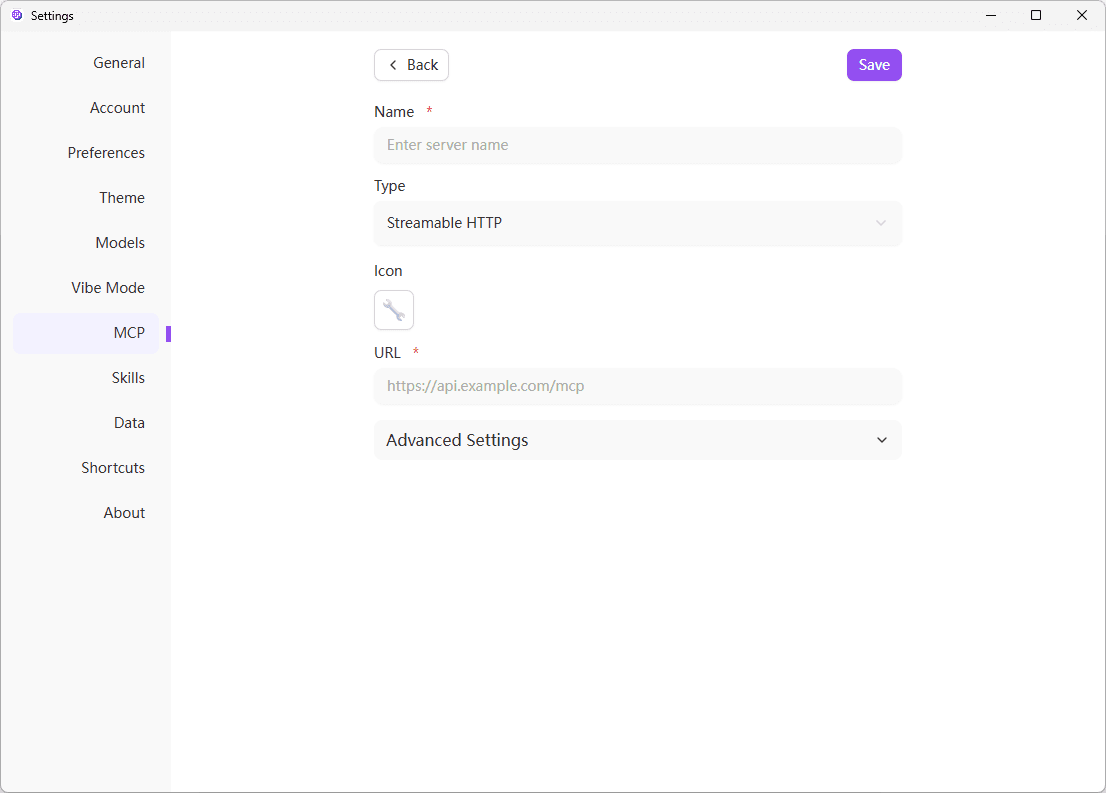
Fill in the configuration:
- Name: Service name (required)
- Type: Select Streamable HTTP or other types
- Icon: Optional icon selection
- URL: Service URL (required)
- Advanced Settings: Additional configuration options
Usage Guide
Open MCP Server in Login Settings
Navigate to Settings and find the MCP Management option.
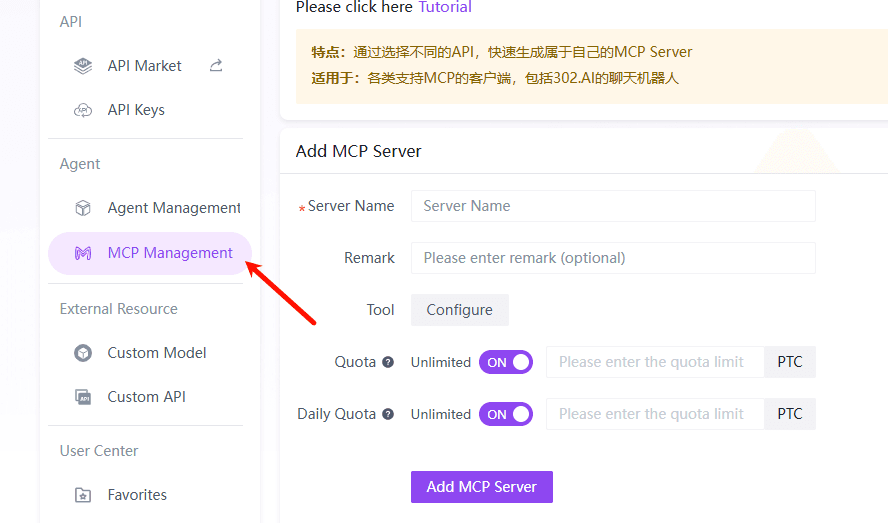
Enter Name and Select Tools to Configure
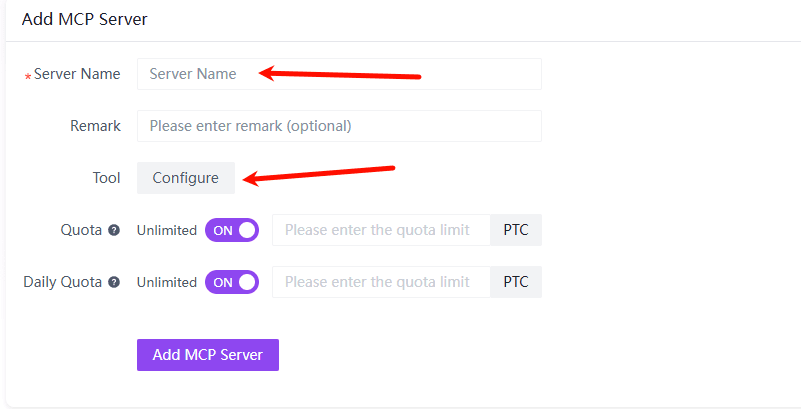
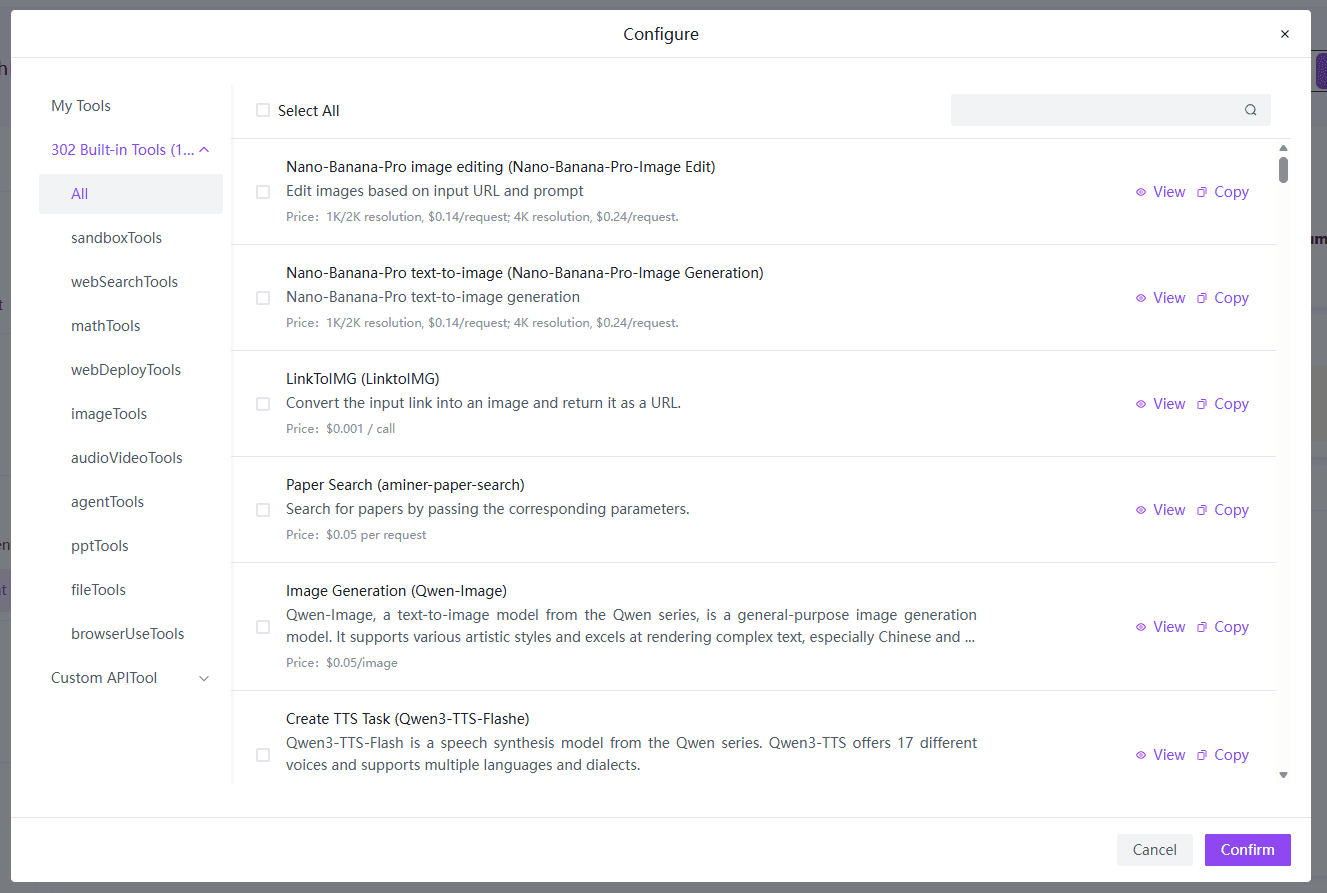
This is the Current Available Tools List, Tools are Continuously Updated
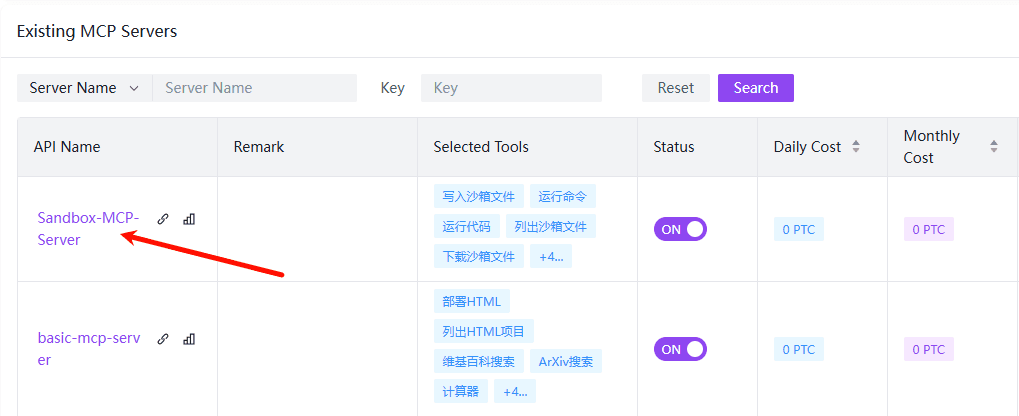
View Server Configuration After Creation
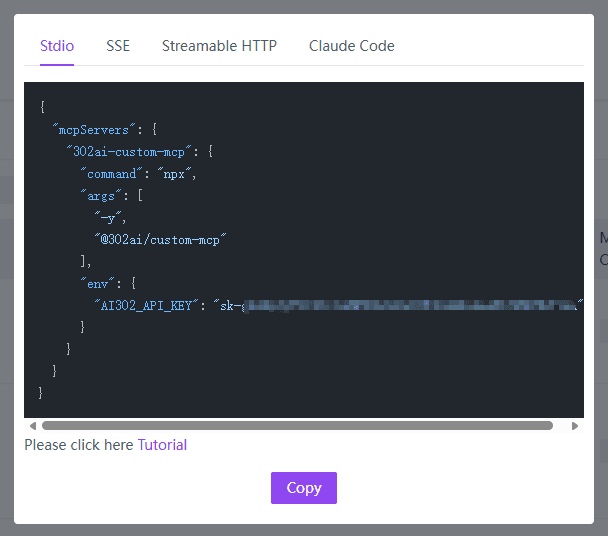
Different Servers use different Keys to retrieve tool configurations. The client only needs to be installed once, no need for repeated installations. Switching between different Servers only requires changing the API KEY.
Use MCP in Conversations
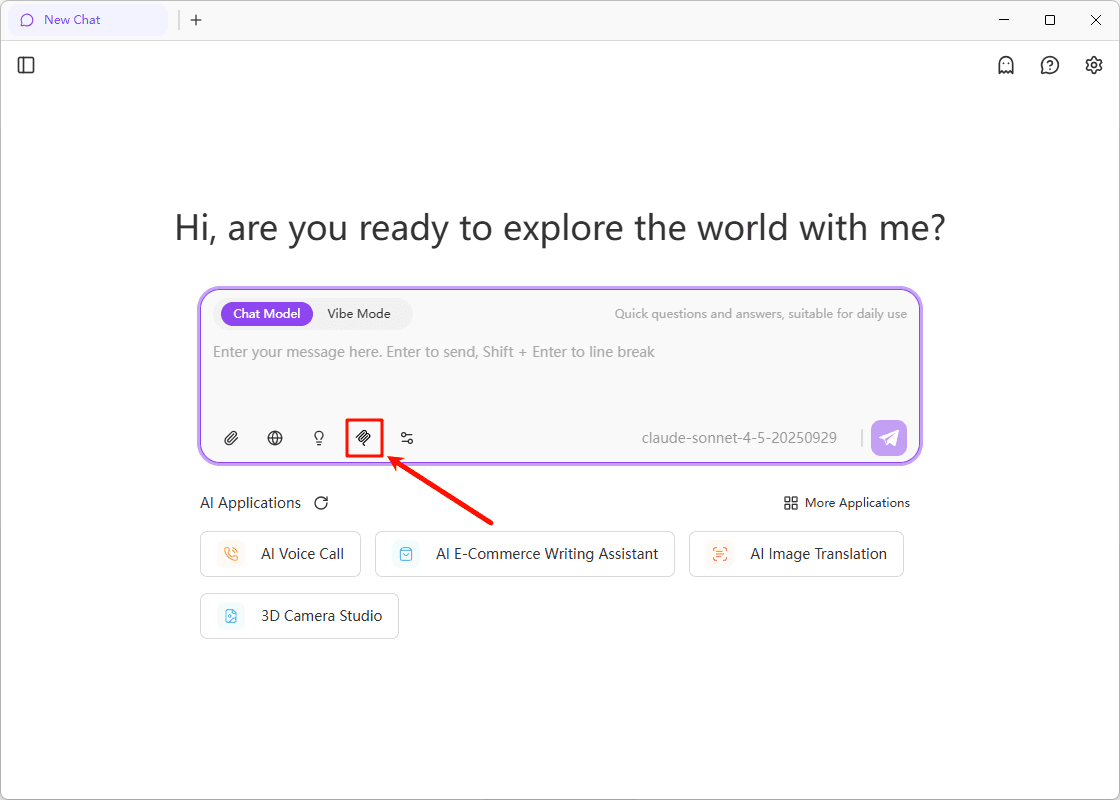
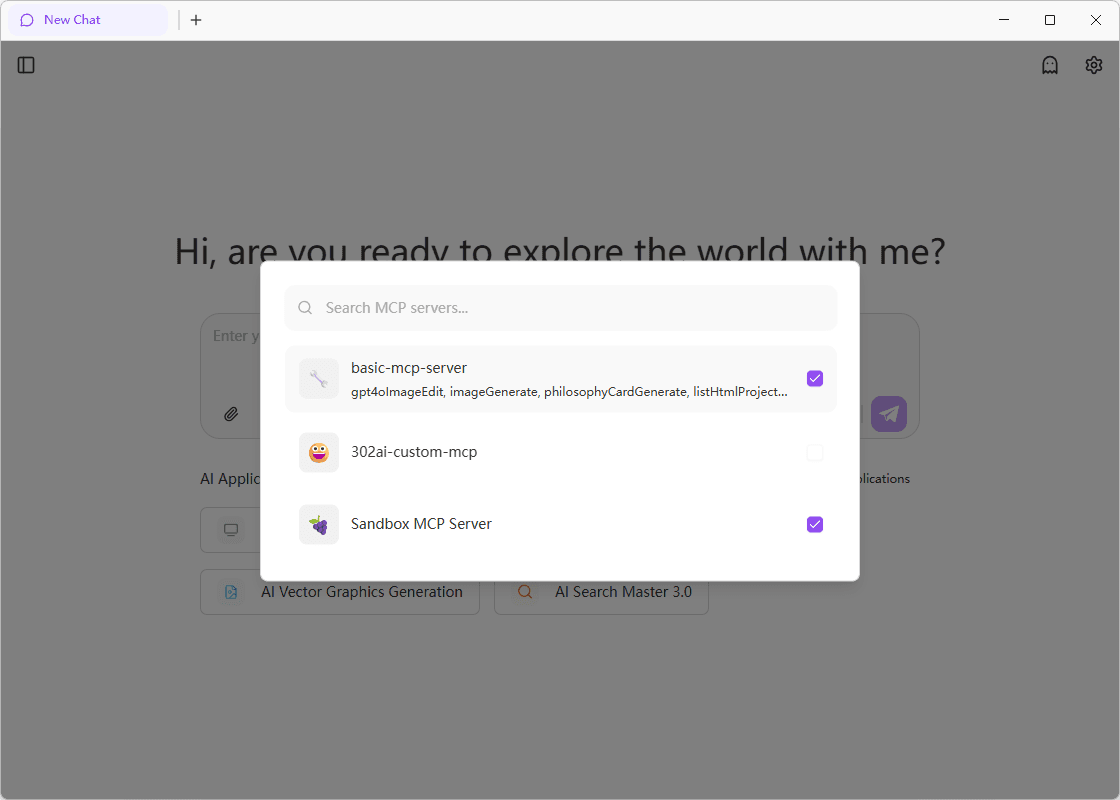
After configuration, you can directly invoke MCP services in the chat interface. Click the MCP icon in the input box to search and select the service you need.
Security Tips
- Do not hardcode keys and passwords in configuration
- Use environment variables or secret management services
- Rotate access tokens regularly
- Limit MCP service access scope
Troubleshooting
Solutions:
- Check if service configuration format is correct
- Verify API keys and environment variables
- Confirm NPM package name is correct
- Review console error logs
Solutions:
- Confirm environment variable format is correct
- Restart MCP service
- Check if variable names match
Solutions:
- Check network connection
- Verify third-party API accessibility
- Increase timeout configuration if needed