Windows
One-Click Installation
In the 302 AI Studio client, go to Vibe mode settings, select "Local" platform, and click the "One-Click Install" button to automatically complete the local environment installation.
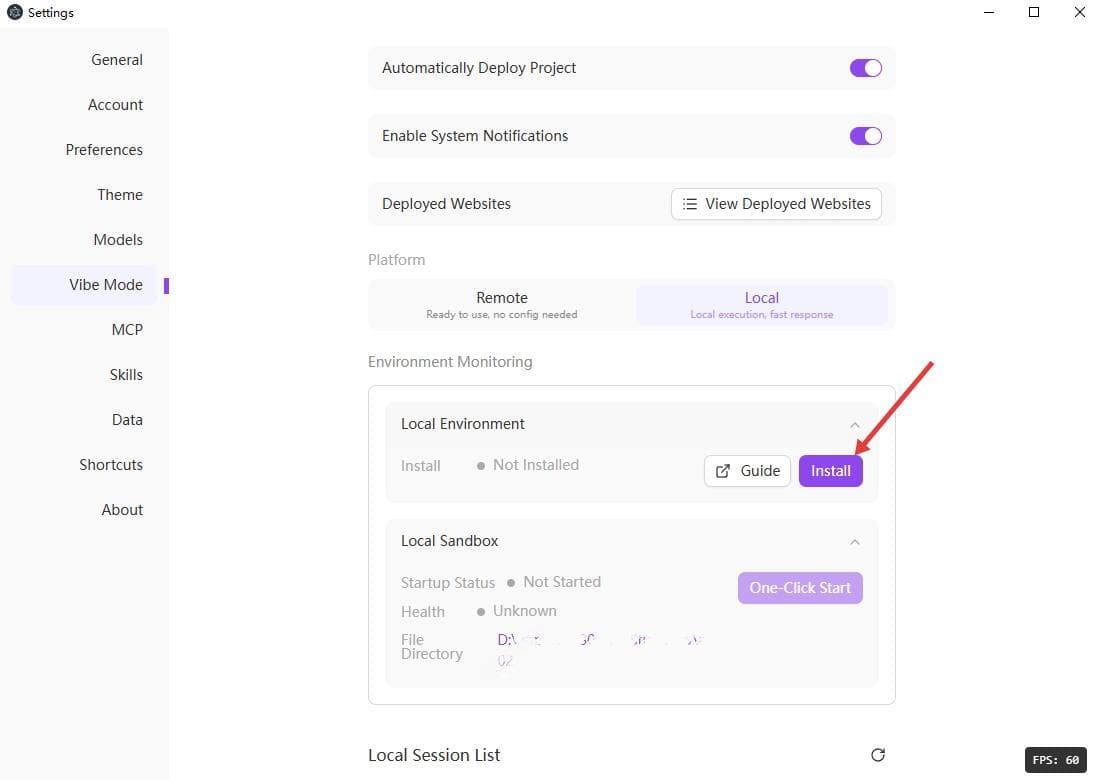
Some Windows computers require virtualization to be enabled in BIOS for proper operation. If installation or startup fails, please check if the virtualization option in BIOS settings (usually named Intel VT-x, AMD-V, or SVM Mode) is enabled.
Manual Configuration Steps
If one-click installation fails, you can follow these steps to configure manually.
1. Check / Install WSL
1.1 Check WSL Status
Open a terminal (PowerShell or Windows Terminal) and run:
wsl --status1.2 Enable WSL
If WSL is not enabled, run the following command with administrator privileges:
wsl --install --no-distributionOr use the DISM command (also requires administrator privileges):
dism /online /enable-feature /featurename:Microsoft-Windows-Subsystem-Linux /all /norestartAfter executing the above commands, you may need to restart your computer for the changes to take effect.
After restarting, if running the wsl --status command shows the following prompt:
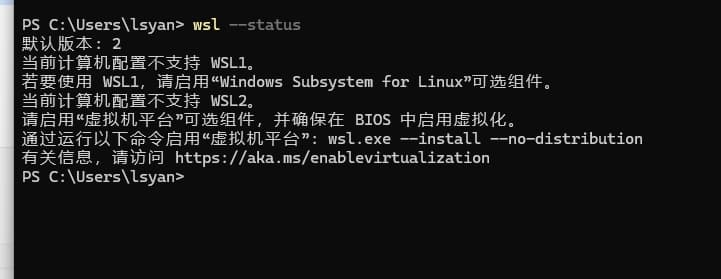
Please open Settings > System > Optional Features > More Windows Features in sequence,
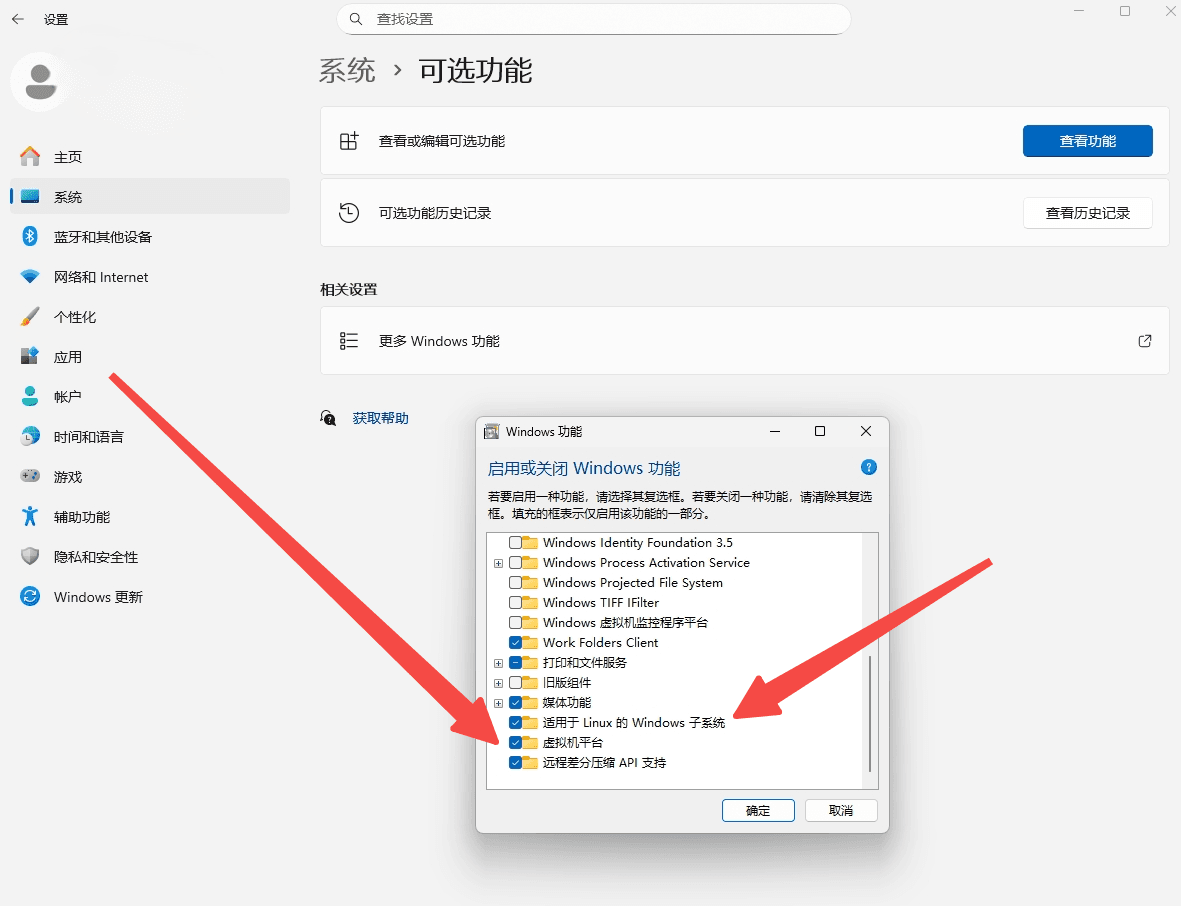
Check and enable the following two items:
- Virtual Machine Platform
- Windows Subsystem for Linux
2. Install Scoop
Scoop is a command-line package manager for Windows, which will be used to install Podman.
2.1 Set Execution Policy
Open PowerShell and run:
Set-ExecutionPolicy -ExecutionPolicy RemoteSigned -Scope CurrentUser2.2 Install Scoop
Invoke-RestMethod -Uri https://get.scoop.sh | Invoke-ExpressionAfter installation, you can verify by running scoop --version.
3. Install Podman
3.1 Install via Scoop
scoop install podman3.2 Verify Installation
podman --version4. Install podman-compose
4.1 Install
pip install podman-composeIf running pip returns an error (command not found), it means Python/pip is not installed on your system. Please run scoop install python first, then run pip install podman-compose.
4.2 Verify Installation
podman-compose --version5. Initialize Podman Machine
Create a Podman virtual machine named ai302-machine:
podman machine init --rootful ai302-machine6. Install Local Environment
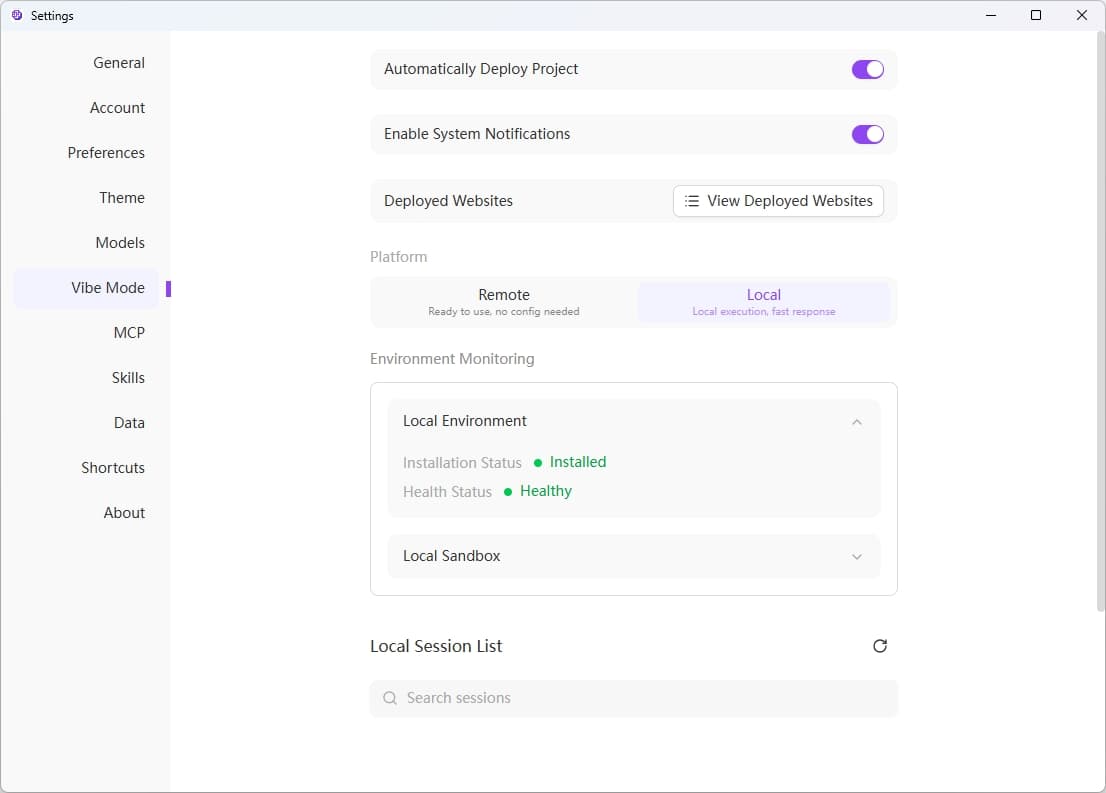
After completing all the above steps, return to the 302 AI Studio client. Once installation is complete, the installation status will show "Installed" and the health status will show "Healthy".
7. Start Local Sandbox
Click the "One-Click Start" button to start the local sandbox.
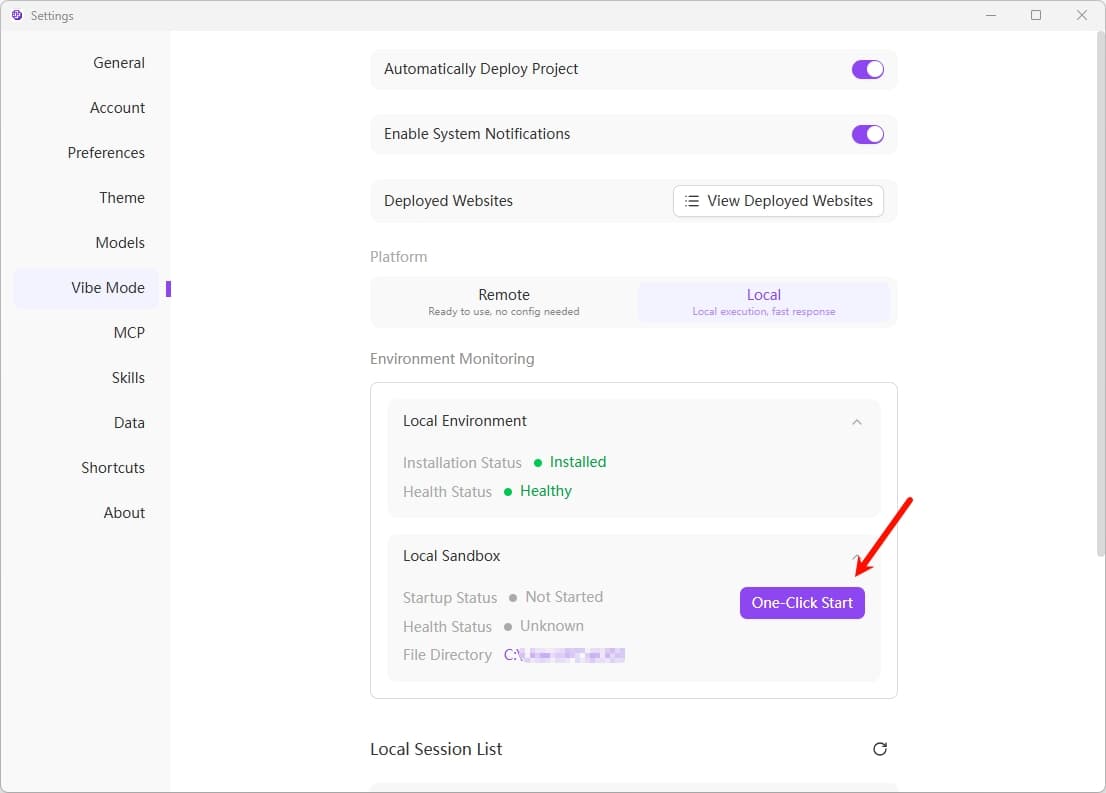
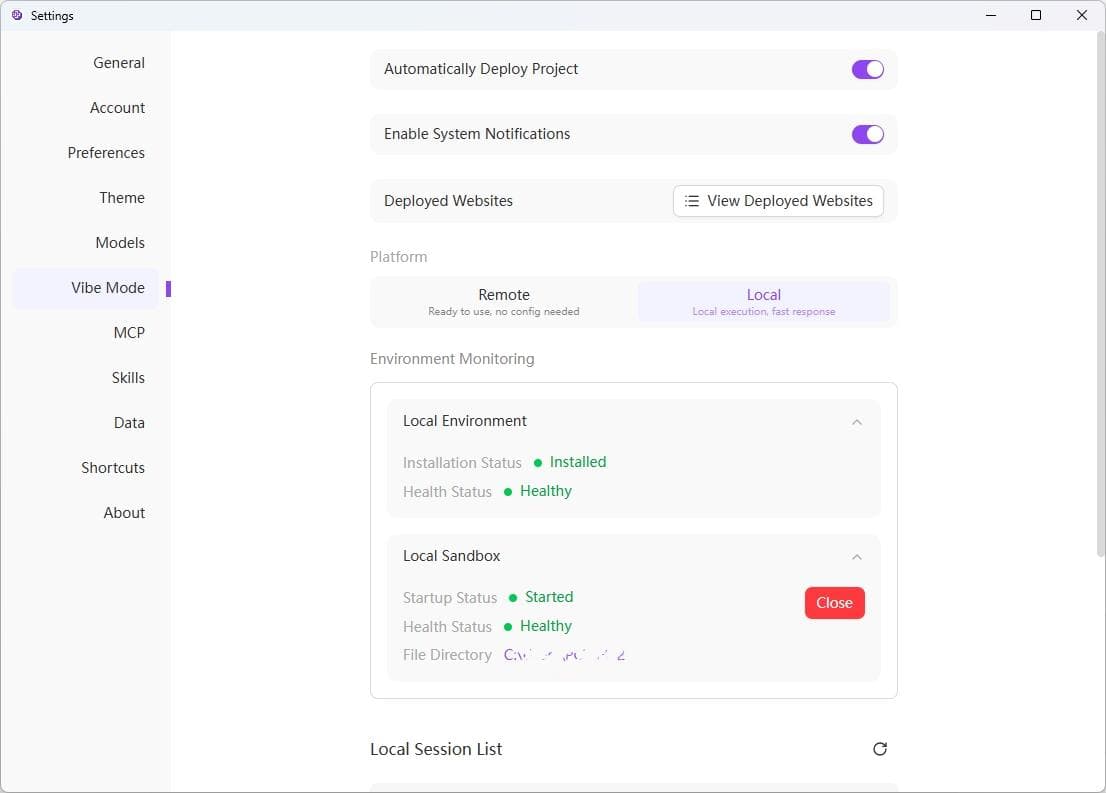
After successful startup, the startup status will show "Started" and the health status will show "Healthy". You can click the "Stop" button at any time to stop the sandbox.
Important Notes
File Directory Management
- Modifying the mounted file directory is not currently allowed
- Clicking on the file directory will automatically open the folder
Auto Initialization
When using local conversations in Vibe mode, the local sandbox environment will be automatically initialized without manual activation.
Log Viewing
The logs in Podman are installation logs only, used for viewing information during the installation process.
Closing Local Sandbox
When the client is closed, the system will automatically shut down Podman.
Notes
- First startup may take longer to download images and initialize WSL2
- Ensure your system has sufficient disk space (at least 10GB recommended)
- It is recommended to regularly update Podman and container images for the latest features
- Resources are automatically cleaned up when the client is closed
- WSL2 will consume some system resources; at least 8GB of RAM is recommended