Feishu
Deployment Steps
1. Log in to the Feishu Open Platform
Log in with your Feishu account. For Lark (international version), use https://open.larksuite.com/app and set domain: "lark" in your configuration.
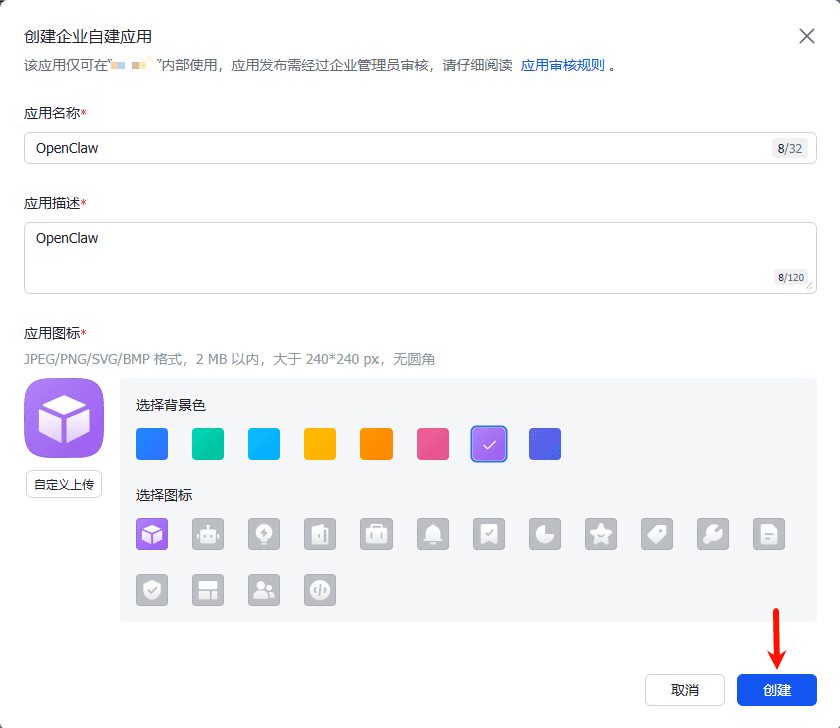
2. After logging in, click Create enterprise self-built app
Fill in the basic information as prompted (name, description, etc.), click Create, and open the app details page.
3. Enable bot capability
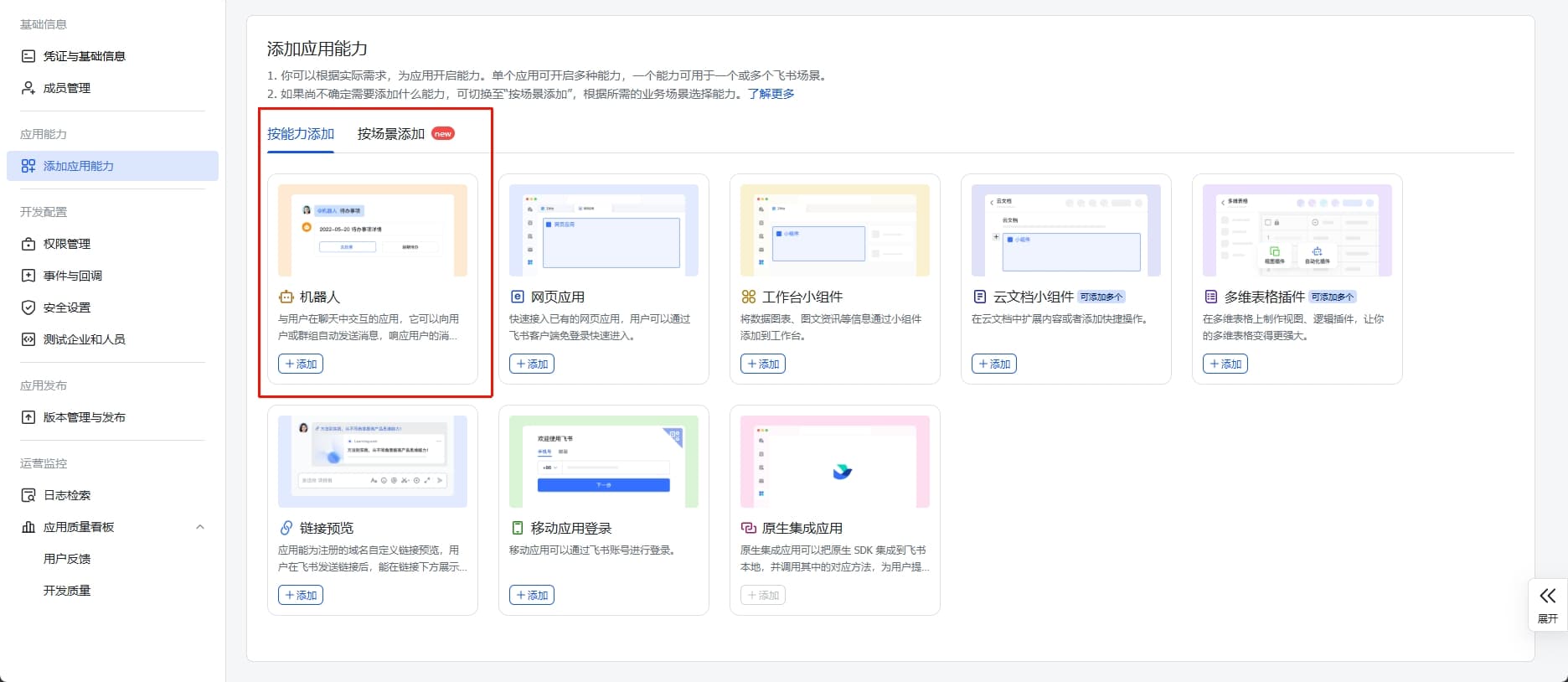
On Add app capabilities > Bot:
- Turn on bot capability
- Configure bot-related settings
4. Configure app permissions
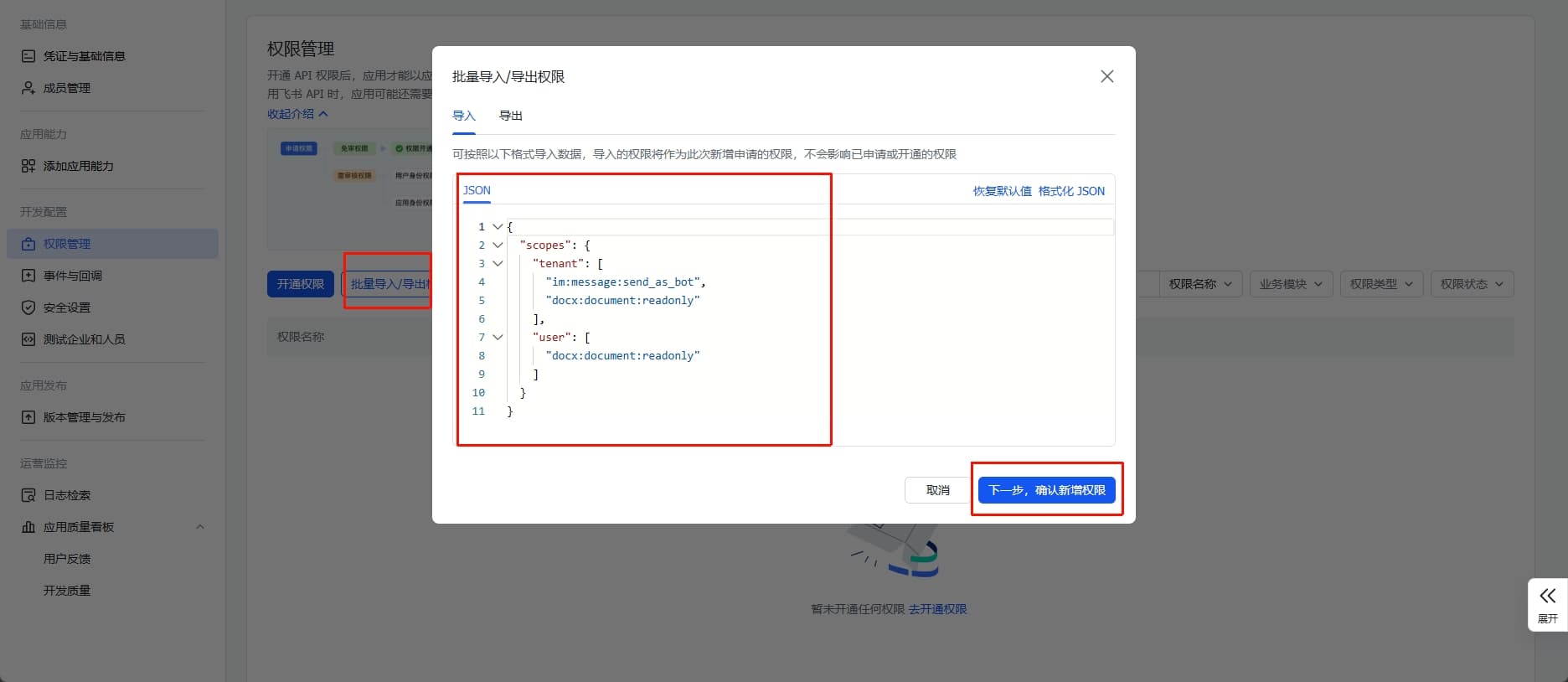
On Permission management > Batch import, paste the JSON below to import the required scopes in one step.
{
  "scopes": {
    "tenant": [
      "aily:file:read",
      "aily:file:write",
      "application:application.app_message_stats.overview:readonly",
      "application:application:self_manage",
      "application:bot.menu:write",
      "cardkit:card:write",
      "contact:user.employee_id:readonly",
      "corehr:file:download",
      "docs:document.content:read",
      "event:ip_list",
      "im:chat",
      "im:chat.access_event.bot_p2p_chat:read",
      "im:chat.members:bot_access",
      "im:message",
      "im:message.group_at_msg:readonly",
      "im:message.group_msg",
      "im:message.p2p_msg:readonly",
      "im:message:readonly",
      "im:message:send_as_bot",
      "im:resource",
      "sheets:spreadsheet",
      "wiki:wiki:readonly"
    ],
    "user": ["aily:file:read", "aily:file:write", "im:chat.access_event.bot_p2p_chat:read"]
  }
}
Basic permissions
| Permission scope | Permission type | Description |
|---|---|---|
contact:user.base:readonly | User info | Get basic user information |
im:message | Messaging | Send and receive messages |
im:message.p2p_msg:readonly | DM | Read the bot’s direct messages |
im:message.group_at_msg:readonly | Group | Receive @bot messages in groups |
im:message:send_as_bot | Send | Send messages as the bot |
im:resource | Media | Upload/download images and files |
Optional full-feature permissions
| Permission scope | Permission type | Description |
|---|---|---|
im:message.group_msg | Group | Read all messages in groups (sensitive) |
im:message:readonly | Read | Read message history |
im:message:update | Edit | Edit or update sent messages |
im:message:recall | Recall | Recall sent messages |
im:message.reactions:read | Reactions | View reactions on messages |
Make sure messaging, bot, event subscription, and related permissions are enabled.
5. Enter App ID and App Secret and apply configuration
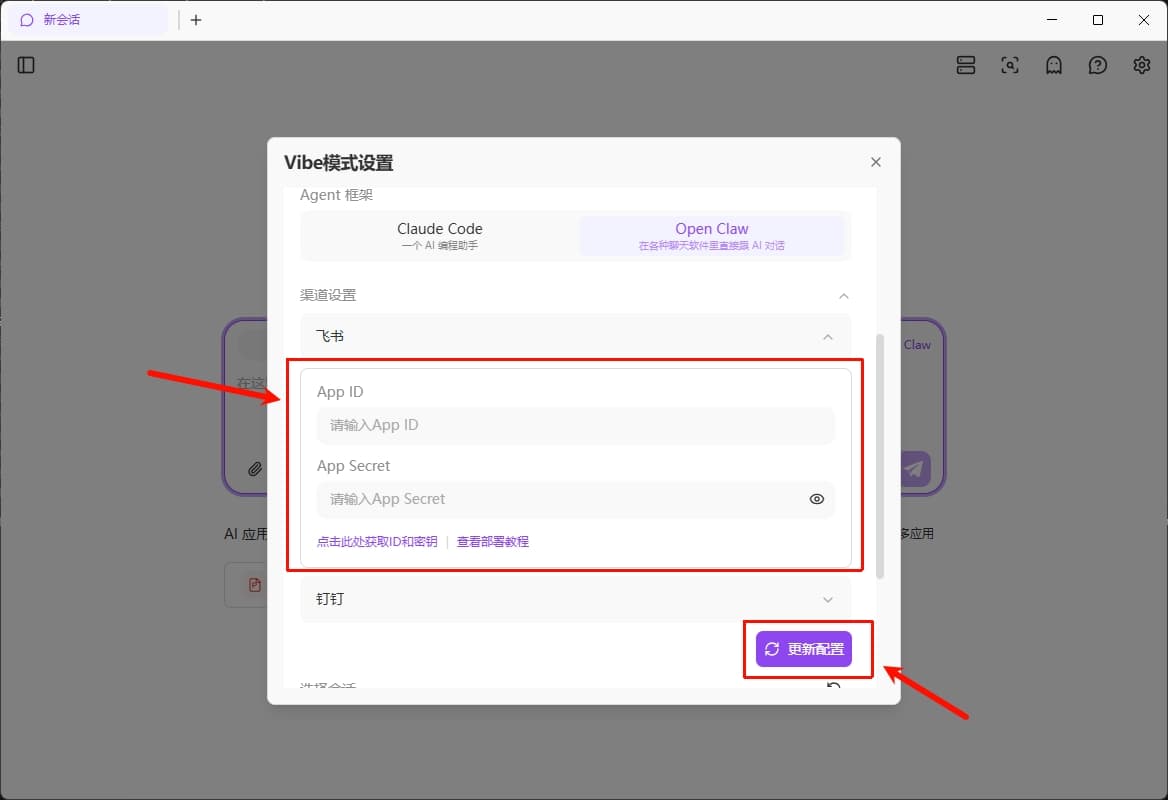
On the Feishu Open Platform Credentials & basic info page, copy App ID and App Secret, paste them into the matching fields in the 302 AI Studio client Settings page, then click Update configuration to apply.

6. Set up event callback
Before configuring event subscription, make sure you have:
- Opened the 302 AI Studio client
- Enabled Open Claw in the client
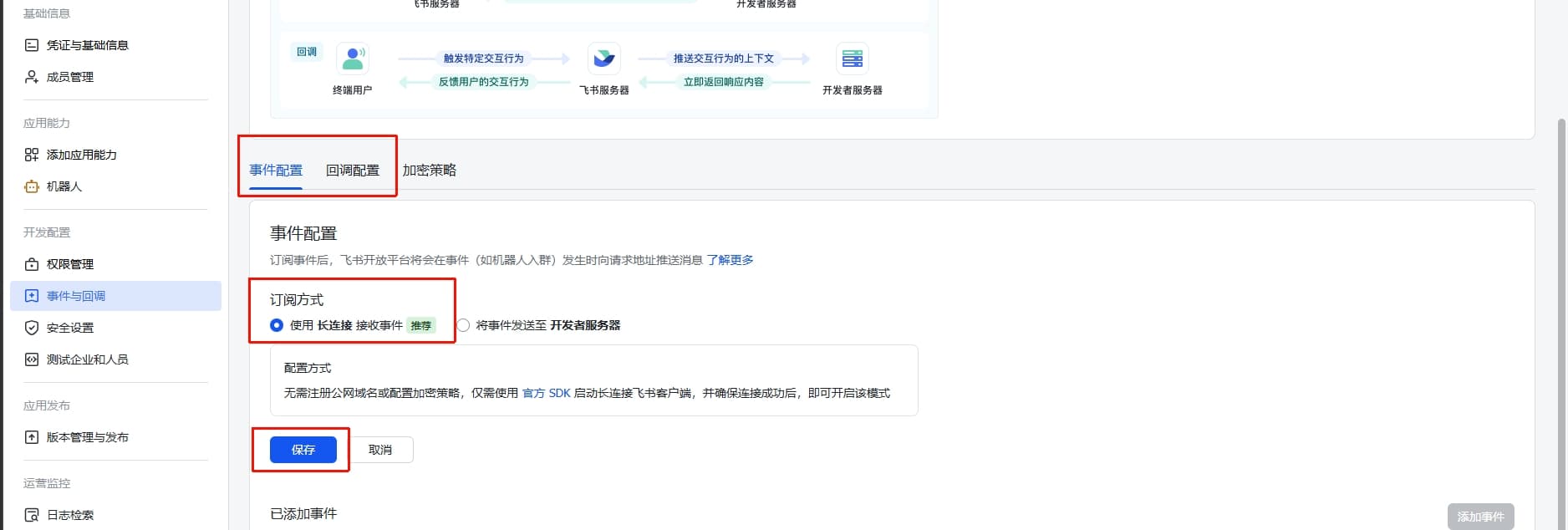
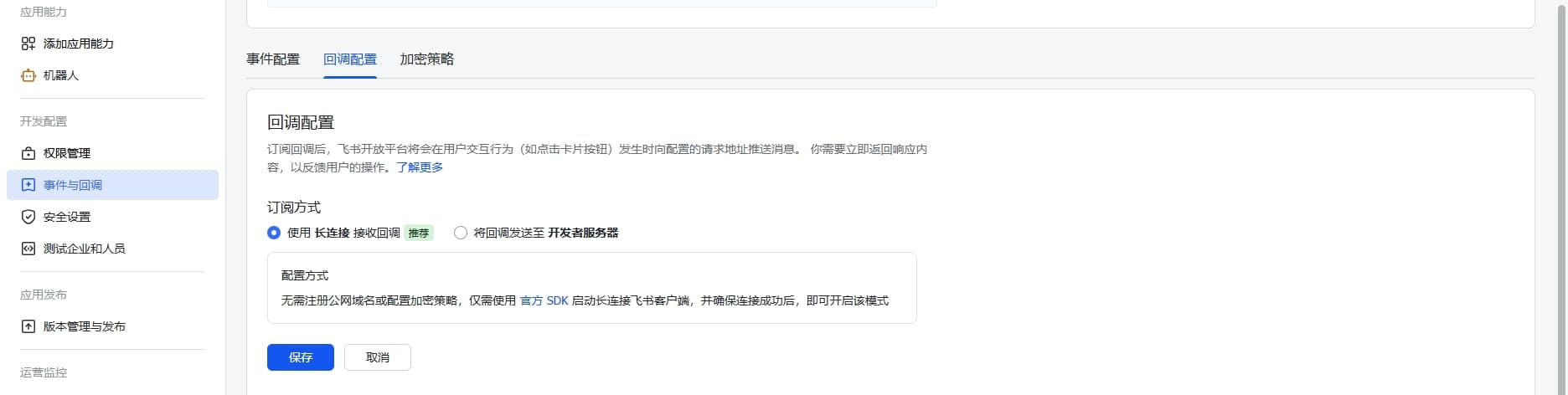
On Events & callbacks:
- Choose Receive events via persistent connection (WebSocket mode)
- Add event:
im.message.receive_v1(receive messages)
If the client is not running or Open Claw is disabled, saving the persistent connection settings will fail.
7. Publish the app
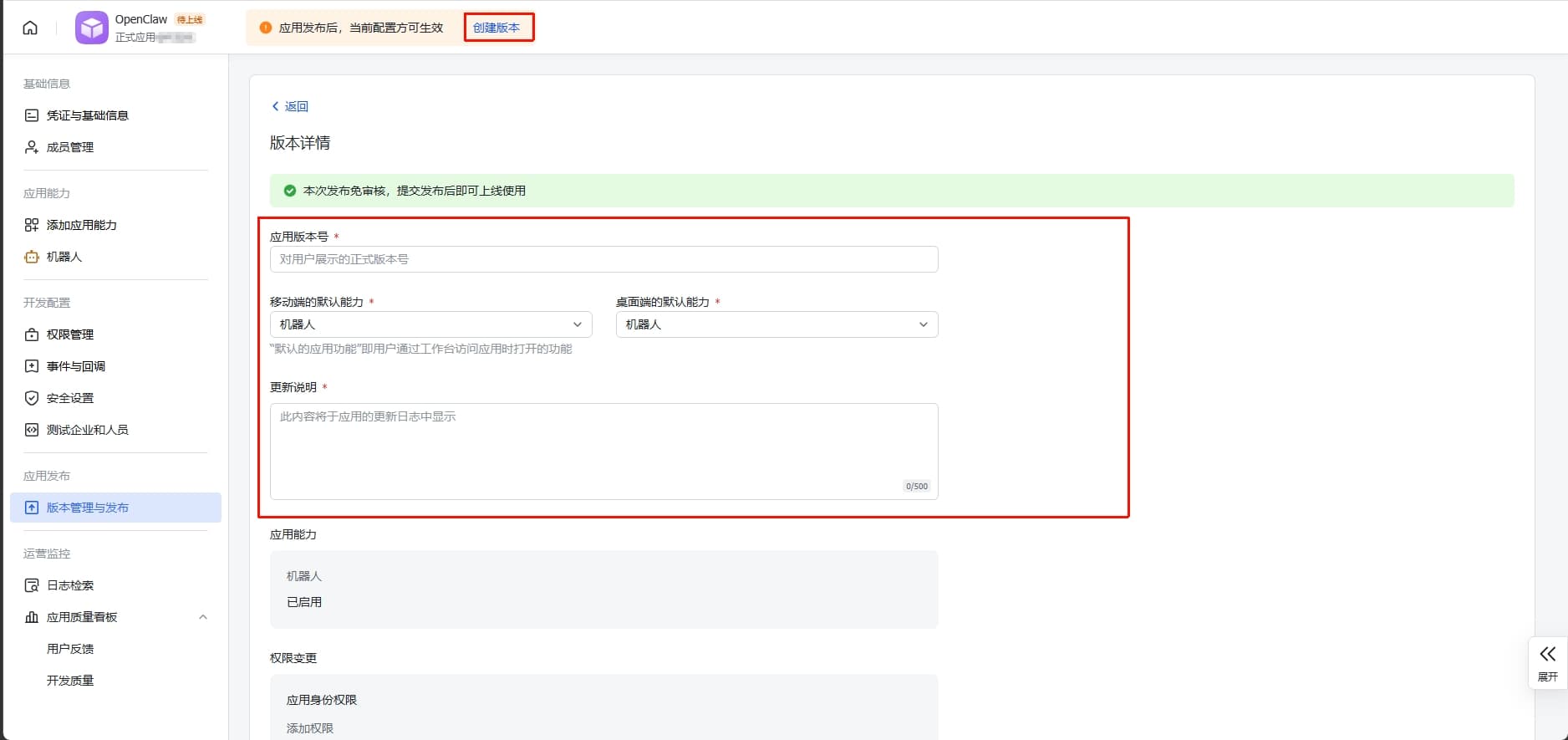
- Create a version on Version management & release
- Submit for review and publish
- Wait for admin approval (enterprise self-built apps are usually approved automatically)
8. Send a test message
In Feishu, open the bot you created and send a message to verify it works.
9. Pairing authorization
By default, the bot replies with a pairing code and a pairing command.
If the bot asks you to run a pairing command (for example openclaw pairing approve feishu <pairing_code>), copy it, return to the 302 AI Studio client, send the command to Open Claw, and let it complete pairing.
After pairing succeeds, you can chat as usual.
Optional: Bind a Feishu chat to a workspace
This section is not required to connect Feishu. If you do not enter a Feishu chat ID or bind a workspace, you can still use the Feishu bot normally after finishing the app setup, credentials, event callback, publish, and pairing steps above.
Binding a chat ID lets you work in a workspace in the client at your desk, then continue in the same workspace via Feishu when you step away—this is for personal continuity across contexts, not for “everyone sharing one bot” or competing for a single entry point.
With vs without binding
| Not binding chat ID | Binding chat ID (workspace) | |
|---|---|---|
| Feishu bot usable | Yes | Yes |
| Relationship to workspace | Feishu conversations follow Open Claw defaults and are not pinned to the workspace you selected in the client; desktop and Feishu contexts stay separate | Binds a specific Feishu chat to a workspace in the client. Messages in Feishu land in that workspace and stay aligned with that workspace’s state, tasks, and files—one continuous thread across scenarios |
| Typical use | Use Feishu mainly as a standalone entry to the bot; you do not need it synced with the client workspace | Deep work in a workspace from the client at your computer; when away from the desk (travel, meetings, mobile, etc.), keep going in the same workspace in Feishu so context does not split |
How to bind (optional)
Feishu group chat features (for example talking to the bot in a group or binding a group chat to a workspace) require the 302 AI Studio client to be updated to the latest version; otherwise they may not work or the UI entry may be missing.
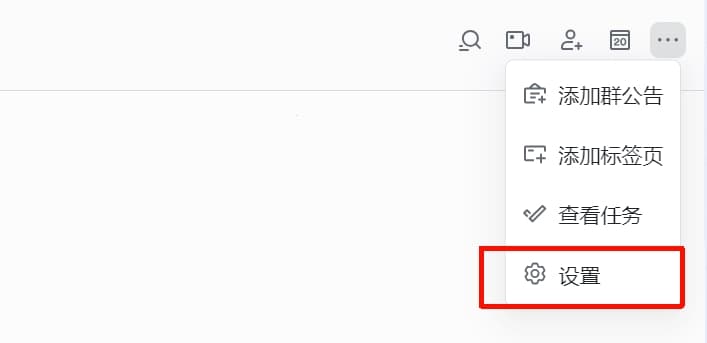
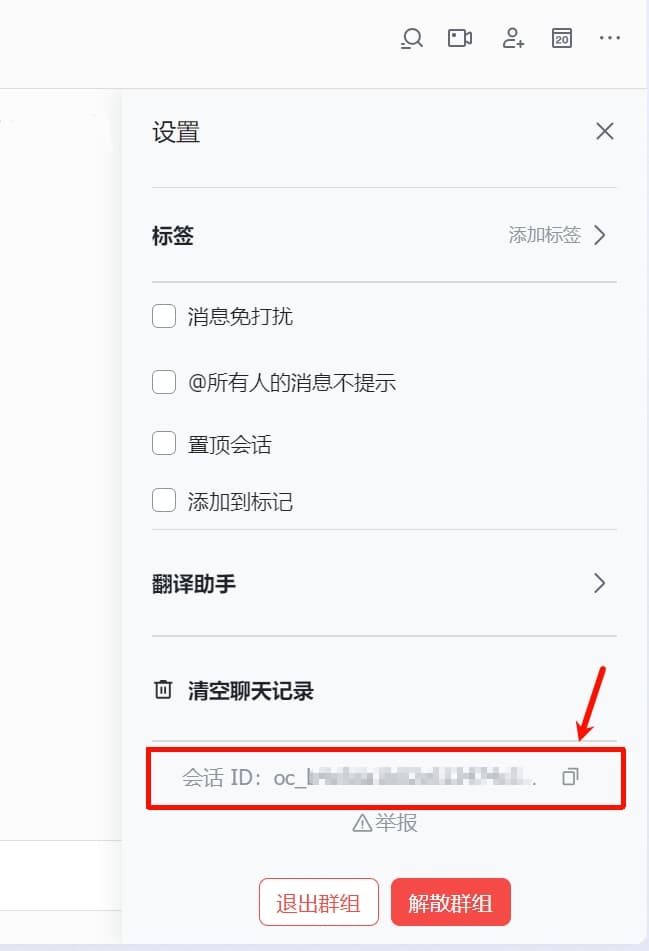
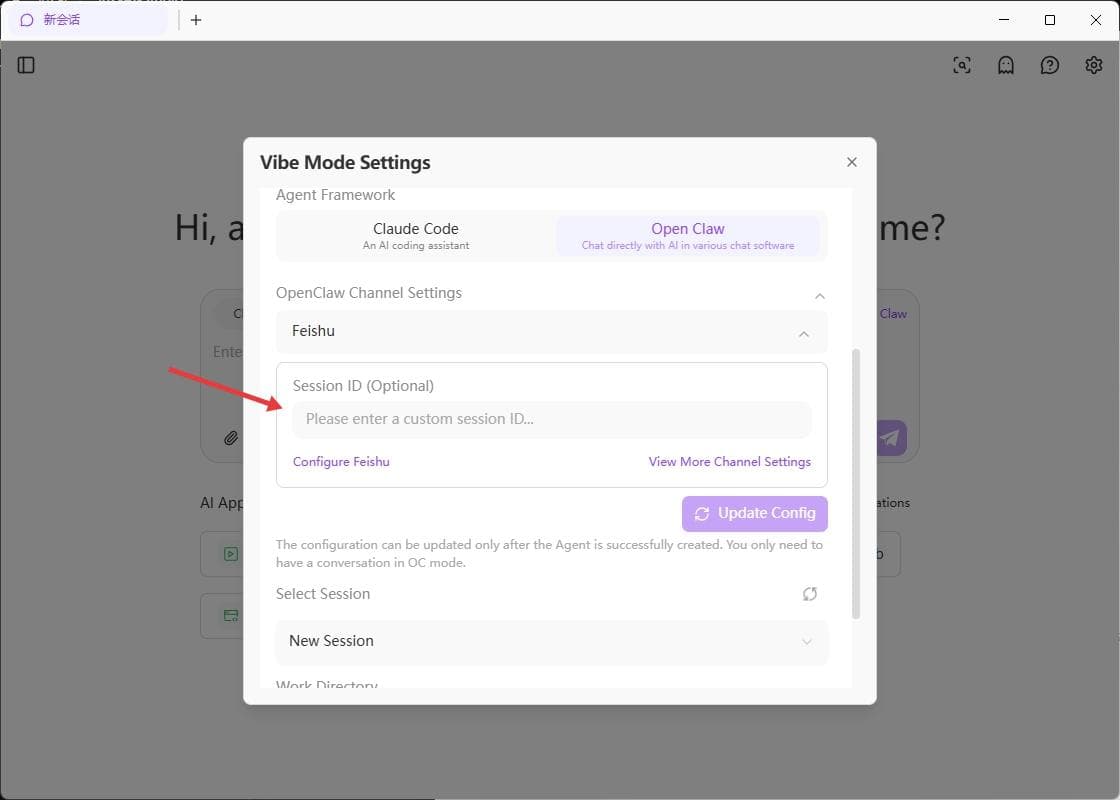
In Feishu, create a group chat (or use an existing one), open that group’s group settings, and copy the chat ID. In the client, open the chat view, open the Vibe settings dialog, paste the chat ID into the Feishu field, and save to finish binding the Feishu channel to the workspace.
The Save button for Feishu chat ID in the dialog stays disabled until you have had at least one conversation with Open Claw. Saving restarts the gateway and interrupts in-flight tasks—finish the chat or submit work before saving.
More information
For detailed configuration options, advanced behavior, and the full reference, see the OpenClaw documentation for Feishu.