DingTalk
1. Obtain DingTalk Credentials
1. Create an Organization
No materials required, similar operation on mobile and desktop:
- Click "Create Team" in the top right corner of DingTalk
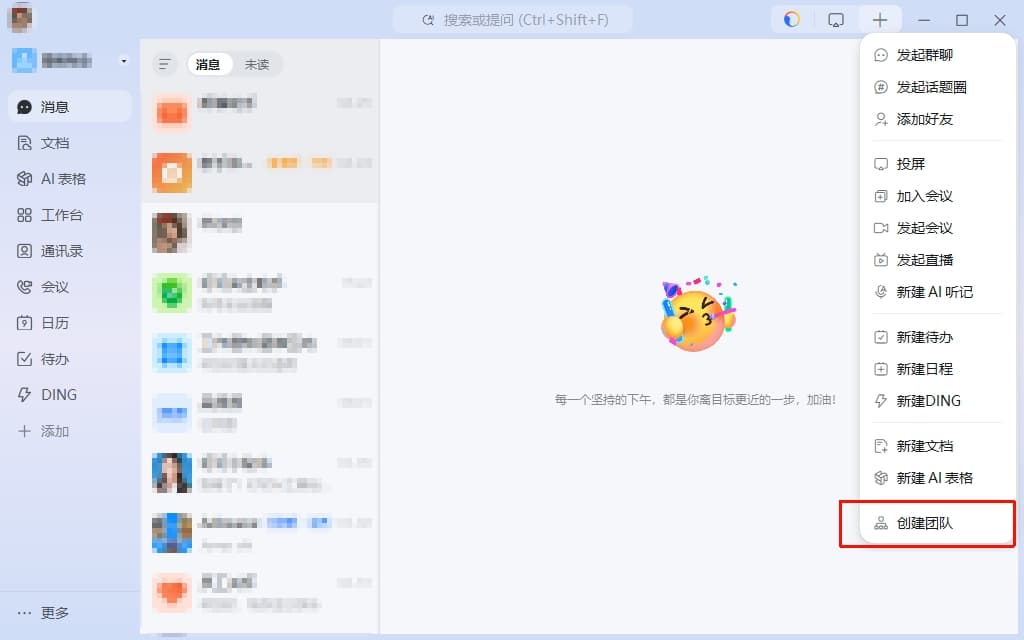
- Select "Enterprise"
- Select "Create Enterprise/Team"
- Fill in the organization information
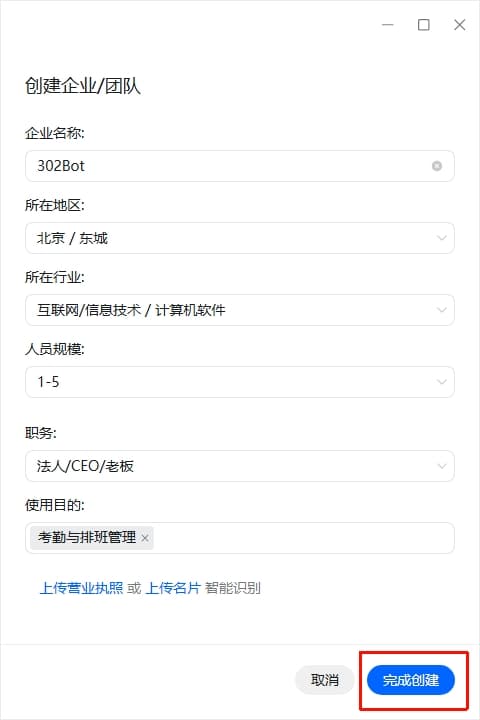
2. Log in to Developer Platform
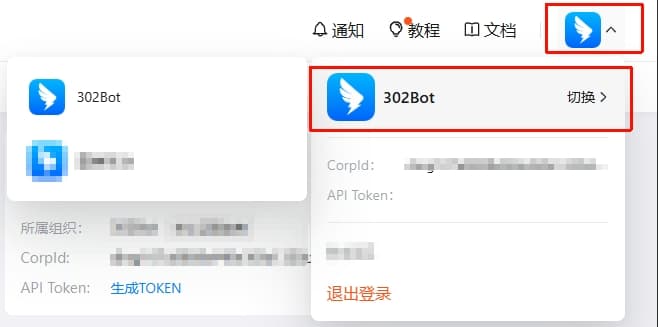
Visit DingTalk Open Platform, click on the avatar in the top right corner to switch to the organization you just created.
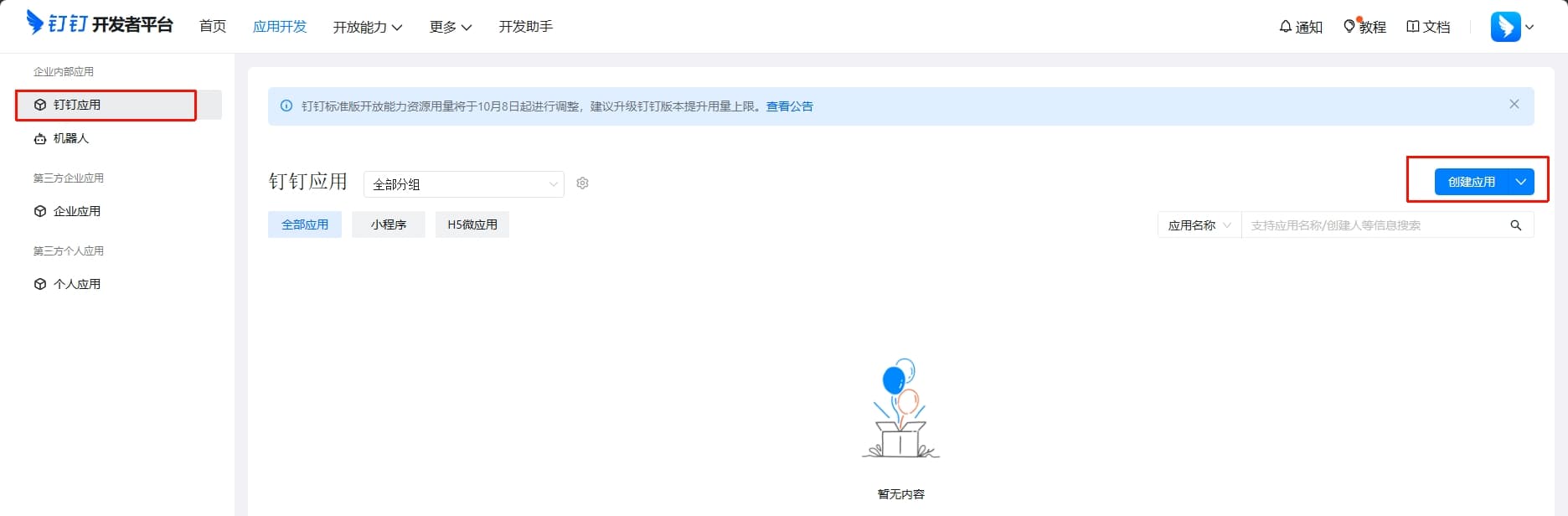
3. Create an Application
Click "Create Application" on the homepage:
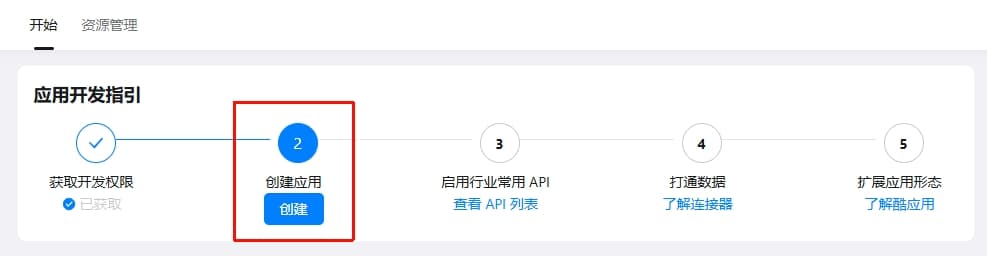
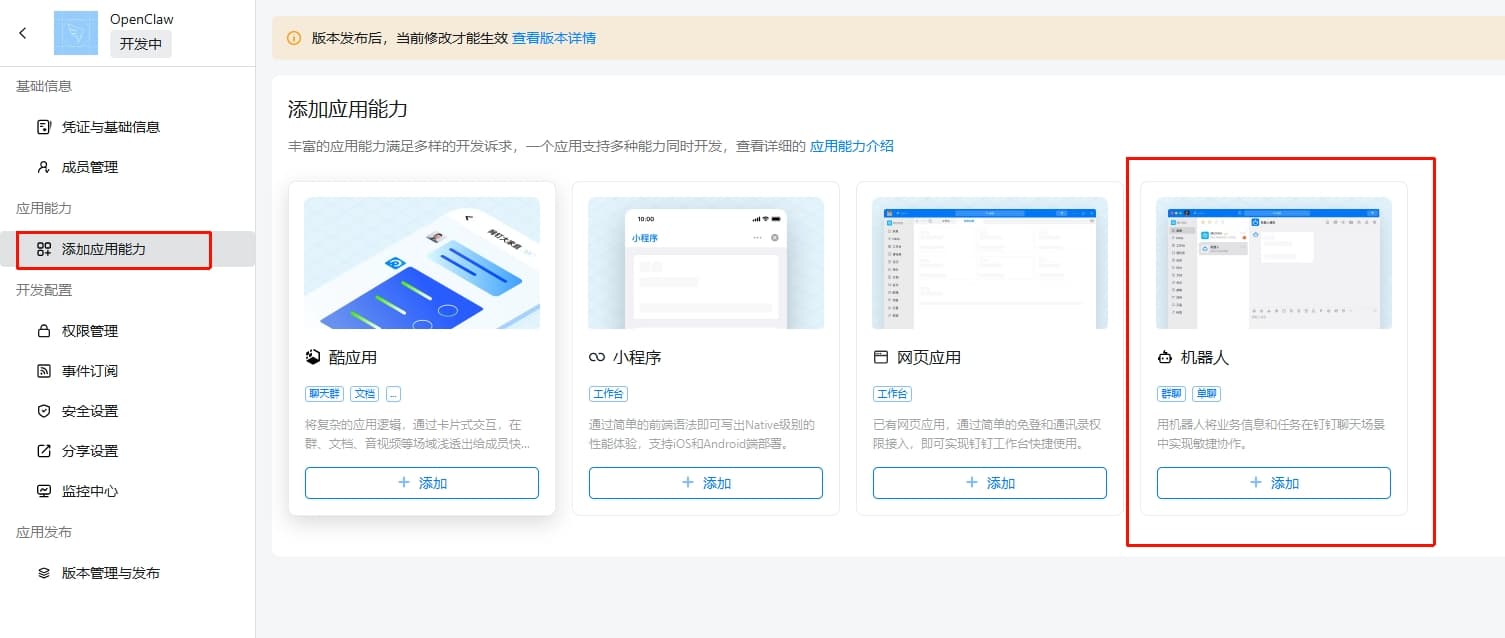
Fill in the application information and click "Publish":
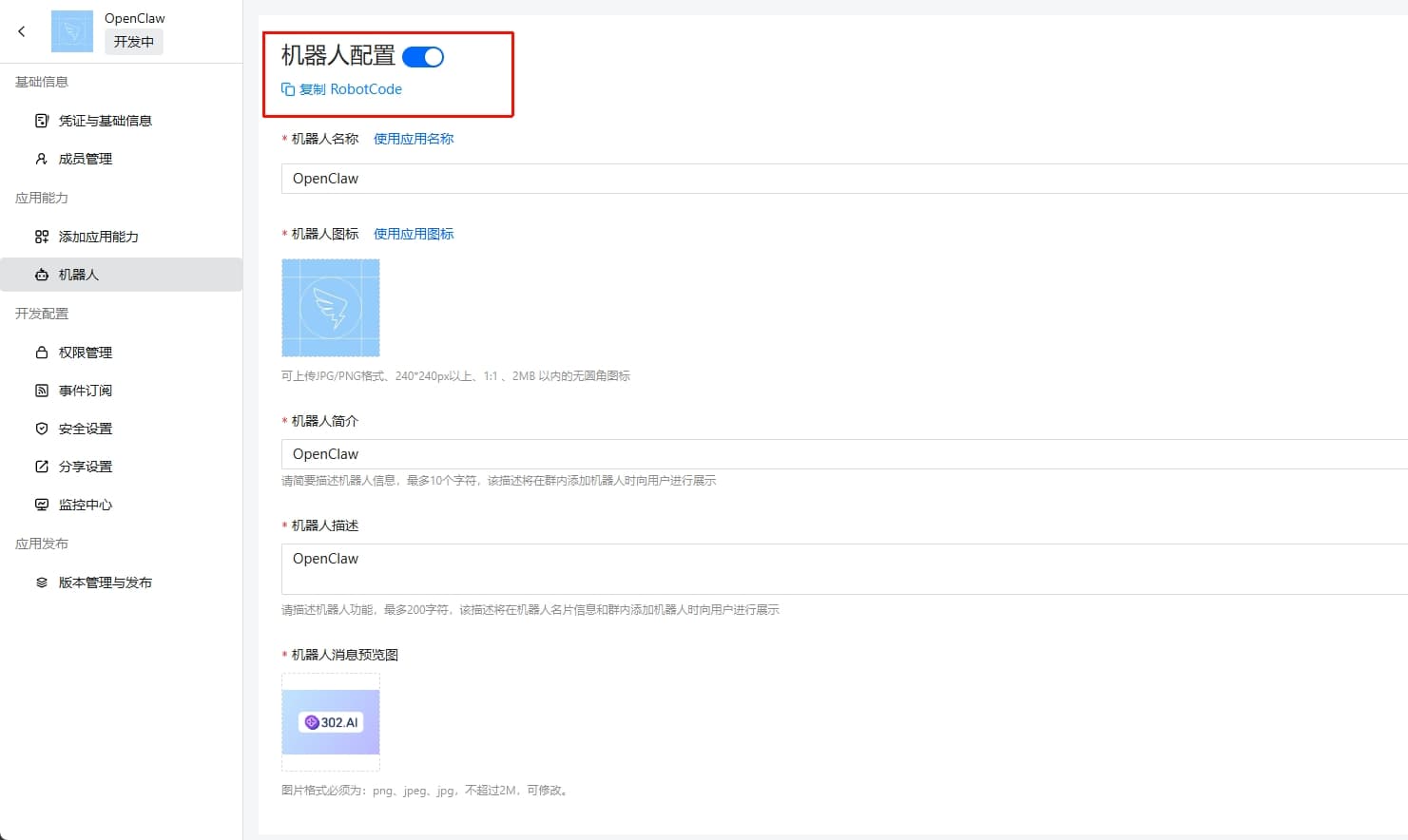
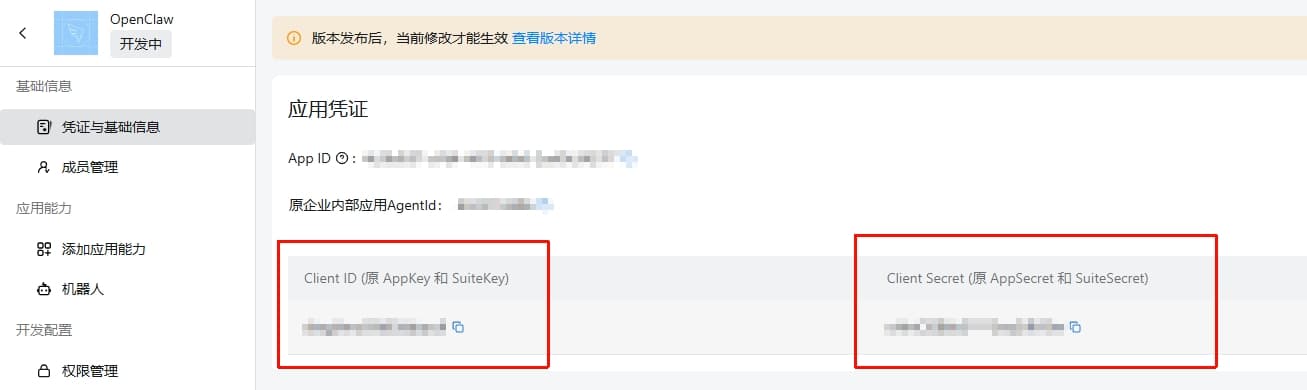
4. Obtain Client ID and Client Secret
Get the credentials on the application details page, then sync the Client ID and Client Secret into your 302 AI Studio configuration.
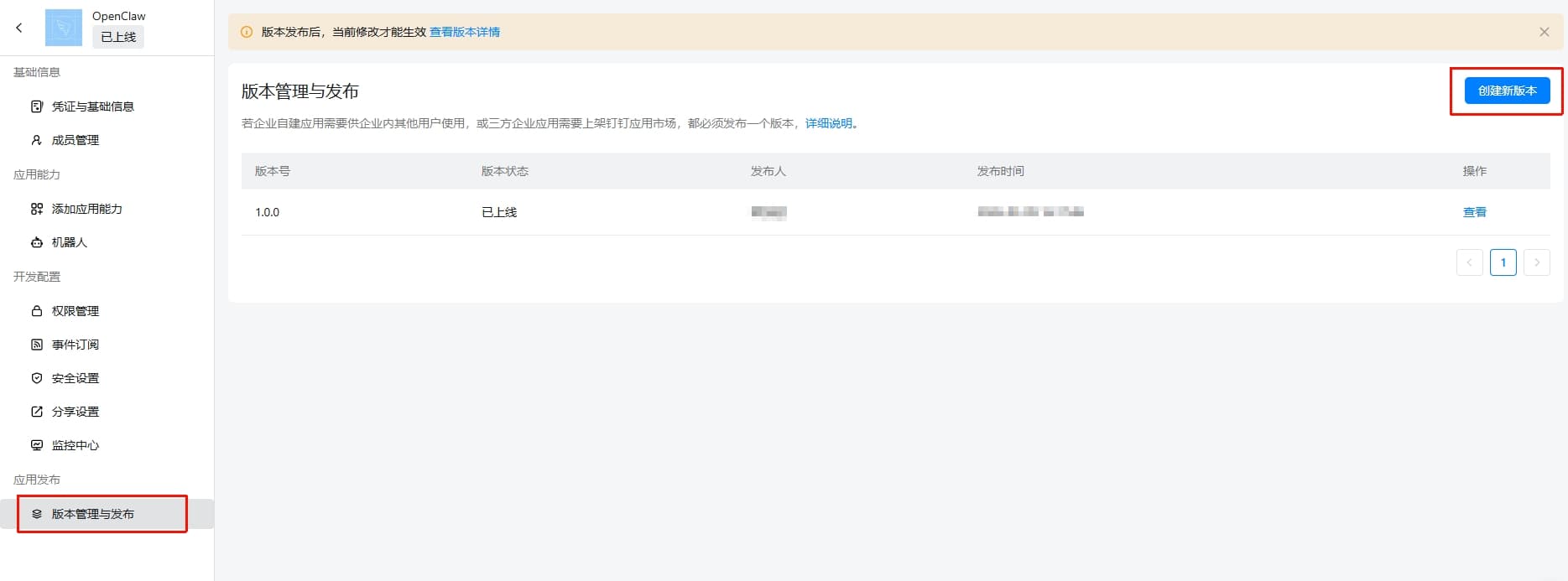
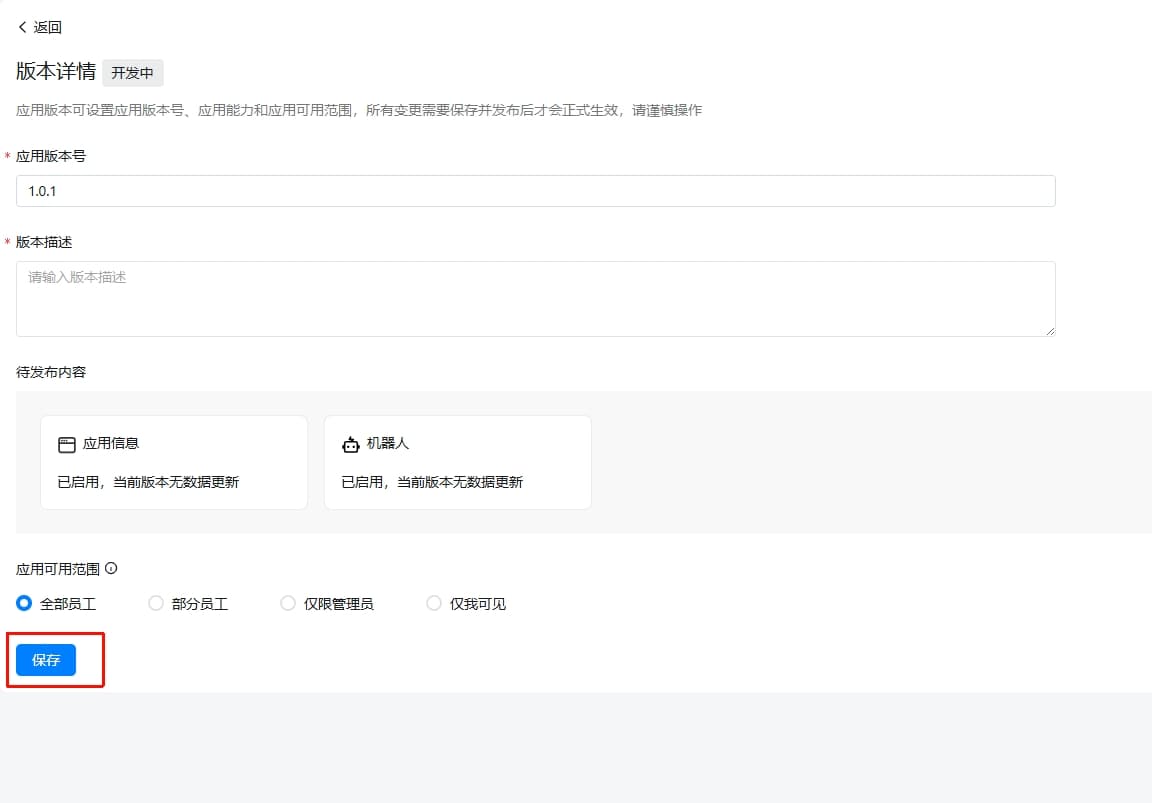
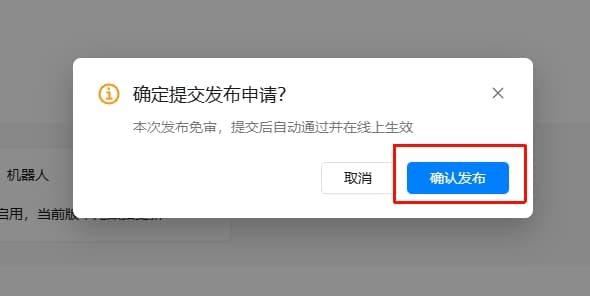
5. Publish Version
Only after publishing a version can the bot be found in DingTalk search.
6. Enable AI Card Streaming Output (Optional)
To use AI Card streaming output, you need to enable the following permissions in the DingTalk application:
Card.Instance.WriteCard.Streaming.Write
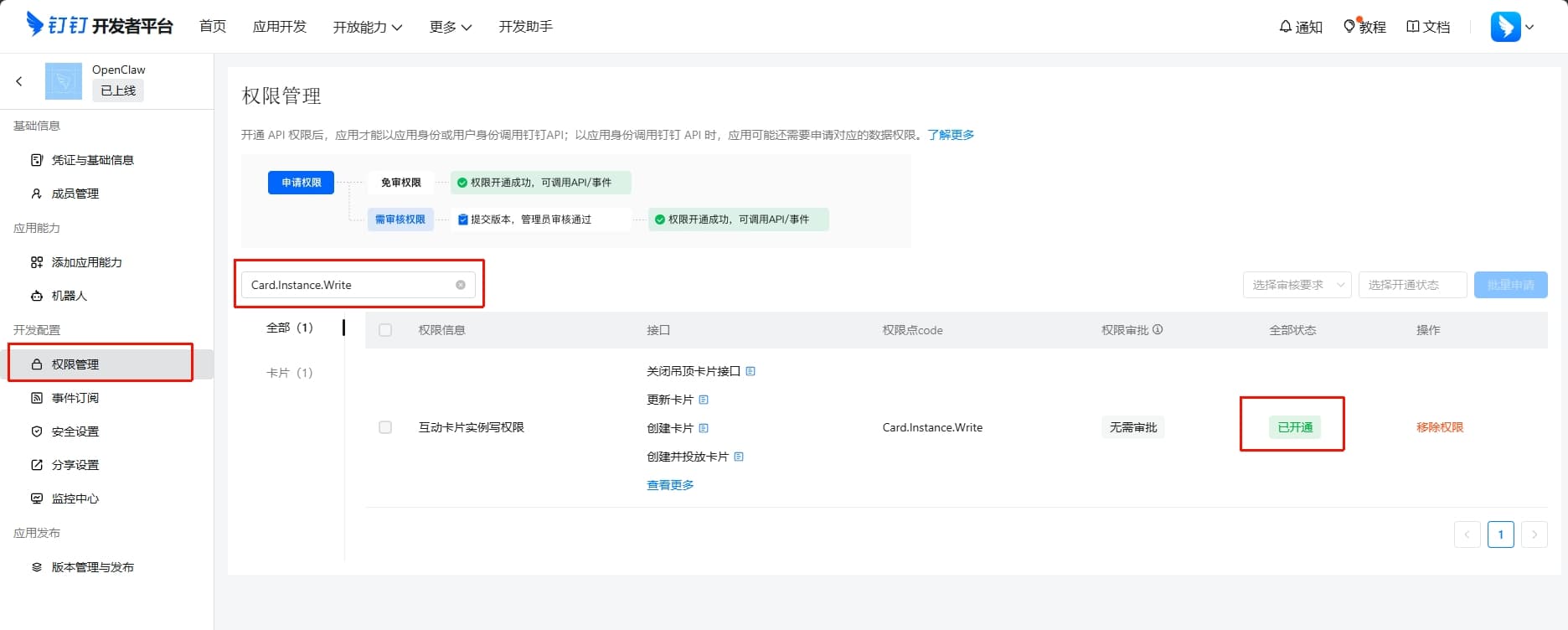
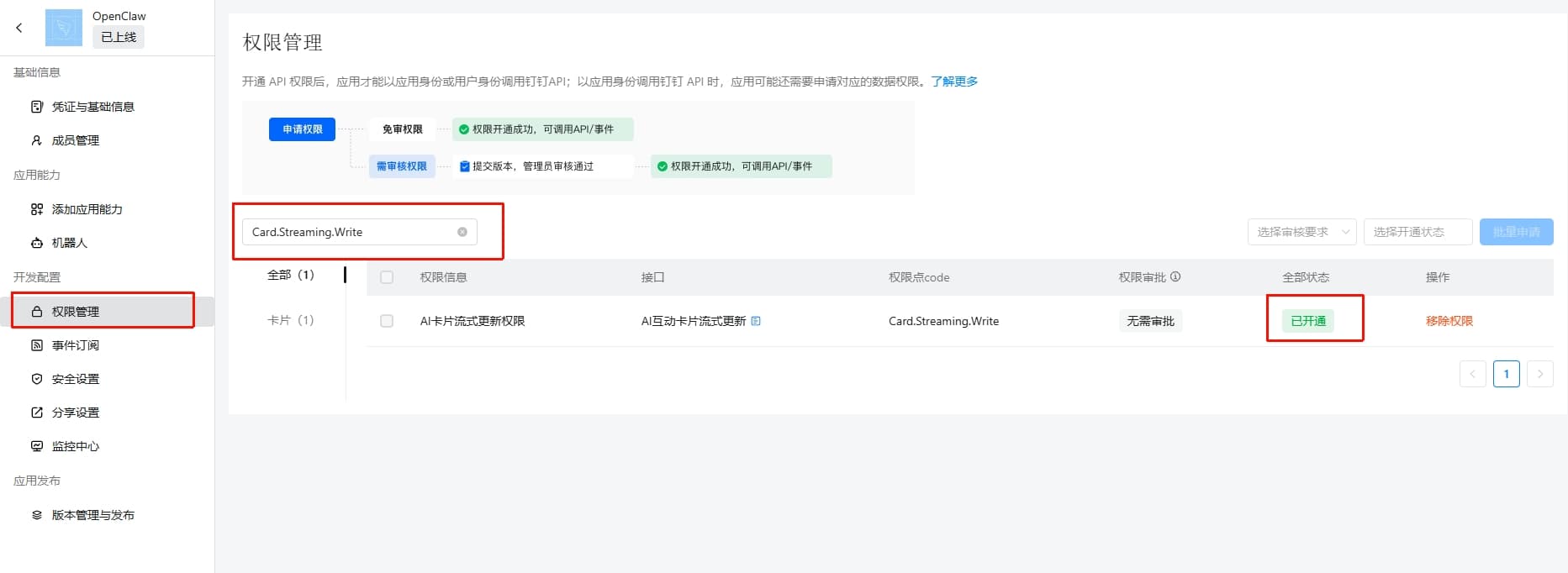
If permissions are not enabled or AI Card is not activated, normal conversations will still work; the system will fall back to regular messages and provide a permission application guide link in the logs.
2. Configuration and Startup
1. Configure DingTalk Channel
Recommended to use the "Configuration Wizard": openclaw china setup
openclaw config set channels.dingtalk '{
  "enabled": true,
  "clientId": "dingxxxxxx",
  "clientSecret": "your-app-secret",
  "longTaskNoticeDelayMs": 30000,
  "enableAICard": true,
  "maxFileSizeMB": 100,
  "inboundMedia": {
    "dir": "~/.openclaw/media/dingtalk/inbound",
    "keepDays": 7
  }
}' --json
Configuration Options:
| Option | Type | Default | Description |
|---|---|---|---|
| enabled | boolean | true | Whether to enable DingTalk channel |
| defaultAccount | string | "default" / first account | Default account ID |
| clientId | string | - | DingTalk application AppKey |
| clientSecret | string | - | DingTalk application AppSecret |
| dmPolicy | string | "open" | Direct message policy: open/pairing/allowlist |
| groupPolicy | string | "open" | Group chat policy: open/allowlist/disabled |
| longTaskNoticeDelayMs | number | 30000 | In non-streaming regular message mode, automatically sends a notice if the first formal reply exceeds this duration; set to 0 to disable |
| enableAICard | boolean | true | Whether to enable AI Card streaming response |
| maxFileSizeMB | number | 100 | Media file size limit (MB) |
| inboundMedia.dir | string | ~/.openclaw/media/dingtalk/inbound | Inbound media archive root directory |
| inboundMedia.keepDays | number | 7 | Inbound media retention days (cleaned up by expiration) |
Inbound Media Retention Policy:
- First downloaded to a temporary directory, then archived to
inboundMedia.dir/YYYY-MM-DD/ - After each message processing, expired files are cleaned up according to
keepDays
2. Multi-Account Configuration
To configure multiple DingTalk bots, use the accounts object (key is account ID):
{
  "channels": {
    "dingtalk": {
      "enabled": true,
      "defaultAccount": "bot1",
      "groupPolicy": "open",
      "accounts": {
        "bot1": {
          "name": "Main Bot",
          "clientId": "ding-main-app-key",
          "clientSecret": "ding-main-app-secret",
          "enableAICard": true
        },
        "bot2": {
          "name": "Backup Bot",
          "clientId": "ding-backup-app-key",
          "clientSecret": "ding-backup-app-secret",
          "enableAICard": false
        }
      }
    }
  }
}- Top-level configuration serves as defaults; fields with the same name within an account will override top-level configuration
- If
defaultAccountis not set,defaultis used first, otherwise the first account after sorting is used - For multi-agent routing, you can write
bindingsbased onchannel = "dingtalk"+accountId
3. OpenClaw Initialization
openclaw onboard --install-daemonIf you have already run the configuration wizard, you can skip the channel selection.
4. Start the Service
In the 302 AI Studio client, open Settings → Vibe Mode and click Update Configuration. The gateway will restart automatically, after which you can chat normally in DingTalk.